
Released 4/15/26
Each user can choose to receive real‑time notifications when payers respond to eligibility requests. This can reduce uncertainty, prevent repeated clicks, and improve workflow clarity.
To subscribe to eligibility notifications
1. On the User menu, select Notifications.
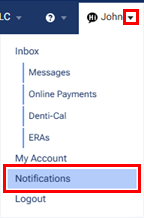
The Notifications page appears.
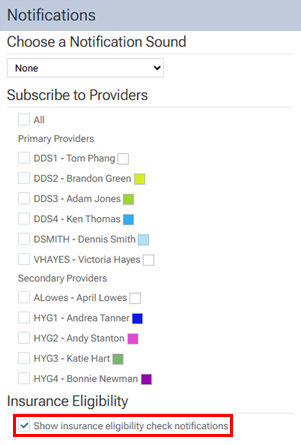
2. Select the Show insurance eligibility check notifications checkbox.
To request an Essentials eligibility verification
1. On the Schedule menu, select Insurance Eligibility.
The Insurance Eligibility page opens.
2. Click an Essentials link.
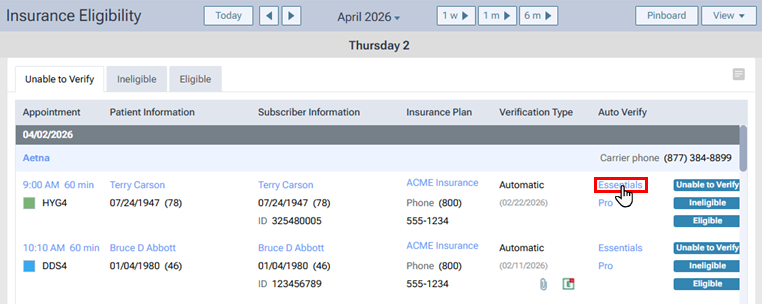
A progress indicator (spinner) appears.

When the request is sent, a blue message appears at the bottom of the page.

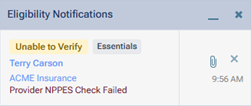
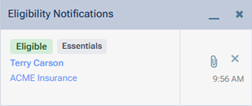
When the response is received, an Eligibility Notifications pop-up appears.
To request a Pro eligibility verification
1. On the Schedule menu, select Insurance Eligibility.
The Insurance Eligibility page opens.
2. Click a Pro link.
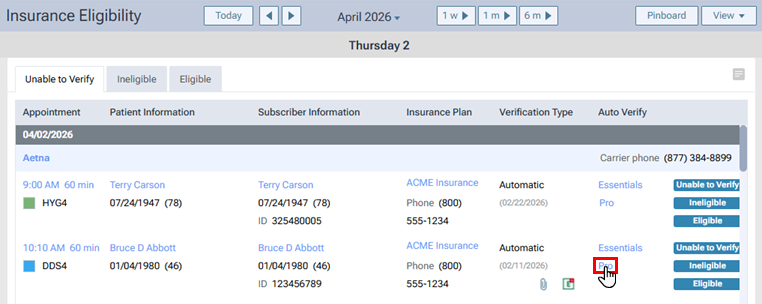
A progress indicator (spinner) appears.

Note: A request can take up to 15 minutes to be processed.
When the response is received, an Eligibility Notifications pop-up appears.
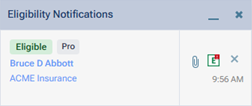
A notification provides the following options:
- You can click the patient’s name, which is a link, to open the patient’s Overview page.
- You can click the insurance plan’s name, which is a link, to access the plan options on patient’s Insurance Information page.
- You can click the paperclip icon to open the patient’s eligibility document on a new browser tab.
- If data are available for importing, you can click the “E” icon (green E with red dot on a white background) to view the Import Insurance Benefit Details page so you can import insurance information (deductible and benefit details, coverage exception details, certain plan settings and/or the coverage table for the patient’s insurance plan).