
Released 7/22/26
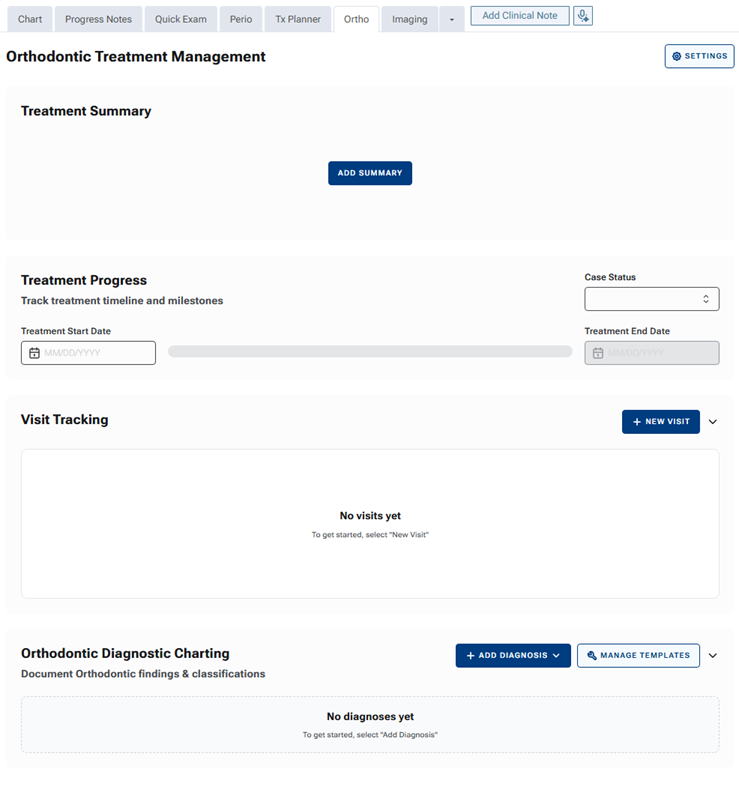
The Orthodontics package is an add-on feature that you can purchase separately from your Dentrix Ascend subscription. With the Orthodontics package, an Ortho tab is available. The Ortho tab is a dedicated clinical workspace inside Dentrix Ascend that gives orthodontic teams everything they need to manage a patient’s treatment in one place—without having to dig through general clinical notes. The Ortho tab includes the following:
- A treatment summary for quick, at-a-glance context.
- A visual progress bar that automatically tracks where a patient is in his or her treatment timeline based on start and end dates.
- An initial diagnosis section powered by fully customizable dynamic templates that you can build once and reuse for every patient.
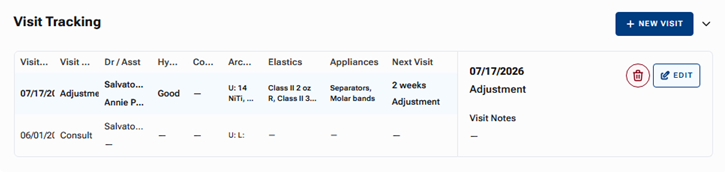
- A visit tracking section that lets providers log arch wires, elastics, appliances, hygiene, and adjustment notes for each appointment—creating a clean, ortho-specific record that grows with the patient over time.
Everything is permission-controlled, designed for multi-provider practices, and built to replace the workarounds you are currently doing inside general clinical notes for documenting ortho treatments.
Accessing the Ortho Tab
If you have purchased the Orthodontics package and it has been enabled for your organization, you can access the Ortho tab.
Note: If you do not see the Ortho tab, contact your Henry Schein One account representative.
To access the Ortho tab
With a patient selected, expand the Patient menu, and then select Orthodontics.
The patient’s clinical record opens with the Ortho tab selected (the tab is in between the Tx Planner and Imaging tabs).
Treatment Summary
In the Treatment Summary section, you enter the most important information regarding the patient’s ortho treatment.
To add a summary
1. Click ADD SUMMARY.

2. Enter the relevant text, and then click SAVE.

The summary appears.

Notes:
- To edit the summary, click EDIT, change the text as needed, and then click SAVE.
- There is a timestamp to show when the last update took place and who made the update.
Treatment Progress
In the Treatment Progress section, specify the Treatment Start Date and Treatment End Date. The visual progress bar gives patients and clinicians an intuitive, date-driven view of how far along a patient is in his or her orthodontic treatment. The visual progress bar will move forward monthly based on the start and end date entered. Also, select a Case Status.

Note: The case statuses are customizable.
Visit Tracking
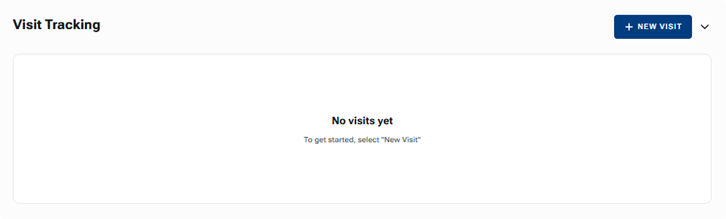
In the Visit Tracking section, you can document what happens at each visit instead of using clinical notes and then having to search through those clinical notes for the pertinent information.
To create a visit
1. Click + NEW VISIT.

A New visit panel opens on the right.
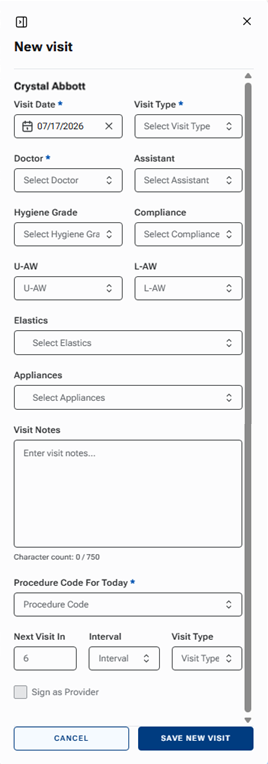
2. Complete the form as applicable.
Note: Many of the lists on the form are customizable.
3. Click SAVE NEW VISIT.
Visits are listed in reverse chronological order.
Orthodontic Diagnosis Charting
In the Orthodontic Diagnosis Charting section, you can document findings and classifications through the use of dynamic templates.

To create a new template
1. Click MANAGE TEMPLATES.
The Dynamic Templates Management page appears.
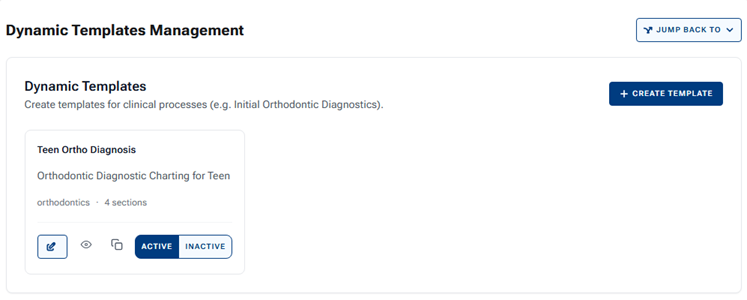
2. Click + CREATE TEMPLATE.
A dialog box with the options for building your own fully customizable questionnaire appears.
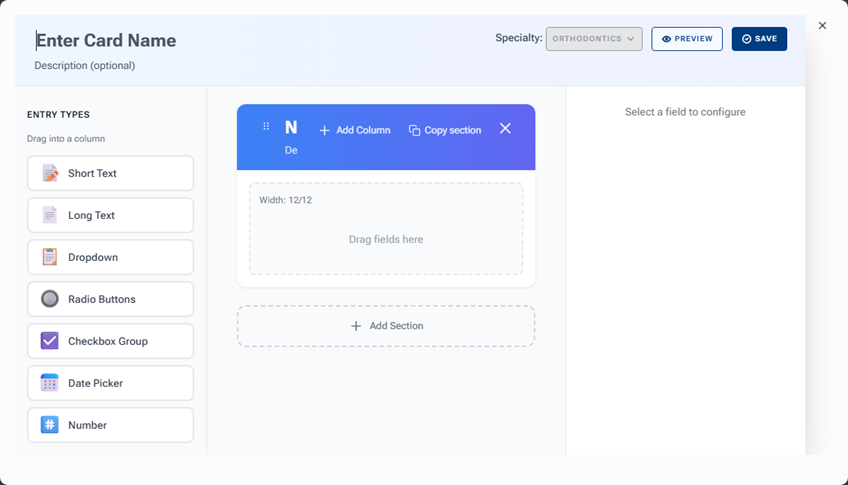
3. At the top, replace “Enter Card Name” with clear, descriptive template name. This name is what your clinical team will select when adding a diagnosis at the patient level. Make it specific (such as, “Adult Ortho Initial Exam” or “Peds Ortho Consult”).
4. To add questions and fields to your template, drag fields from the ENTRY TYPES panel (on the left) to the preview area (in the middle). Arrange fields in the order that matches your clinical workflow. Also, make sure that the template includes fields for all the findings that your clinicians need to document during an initial consultation.
The following fields are available:
- Short Text – To enter brief text (such as tooth notation or brief notes).
- Long Text – To enter notes (such as clinical observations).
- Dropdown – To select an option from a pre-defined list of options (such as Skeletal Class I, II, or III).
- Radio Buttons – To select one option among multiple options (such as Yes versus No questions).
- Checkbox Group – To select one or more options among multiple options (such as for clinical findings: crowding, spacing, crossbite, and so forth).
- Date Picker – To select a date.
- Number – To enter a number (such as for measurements: overjet, overbite, arch width, or so forth).
Note: To preview how the template will look, click PREVIEW.
5. Click SAVE. Then, close the dialog box.
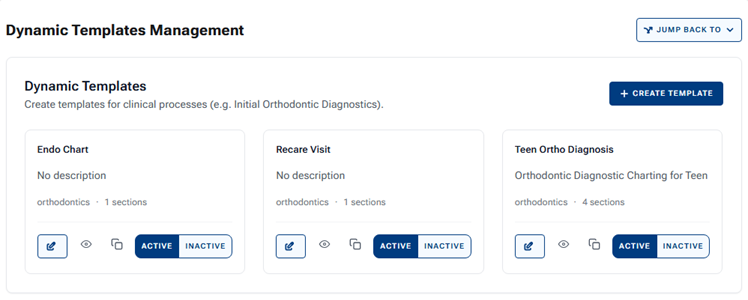
The template is published and becomes available for clinical staff to use for any patient.
6. To return to the Ortho tab, click JUMP BACK TO, and then select ORTHODONTICS.
To use a template to add a diagnosis
1. On the ADD DIAGNOSIS menu, select a template.

The template appears for your patient and clinician to complete.
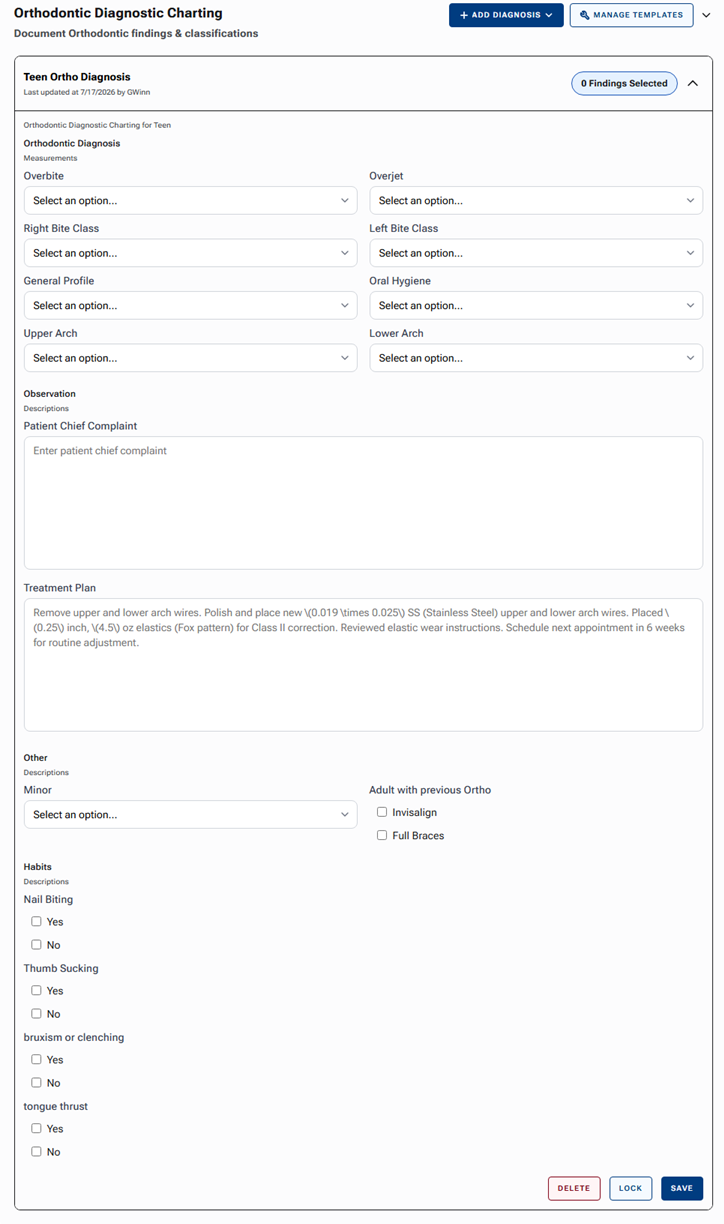
2. Complete the diagnosis form.
3. Click SAVE.
Notes:
- Users with certain security rights can lock and delete an initial diagnosis.
- You can add multiple diagnoses per patient. You can add more than one “Initial Diagnosis” record to a patient’s chart (for example, an initial consult record and a re-evaluation record after a break in treatment). Each diagnosis is stored as a separate, independent record.
- Records are never overwritten. Adding a new diagnosis does not replace or alter previous diagnoses. All records are preserved in the patient’s history.
Configuring Ortho Settings
You can customize status and visit options.
1. Click SETTINGS.

The Ortho Settings page opens.
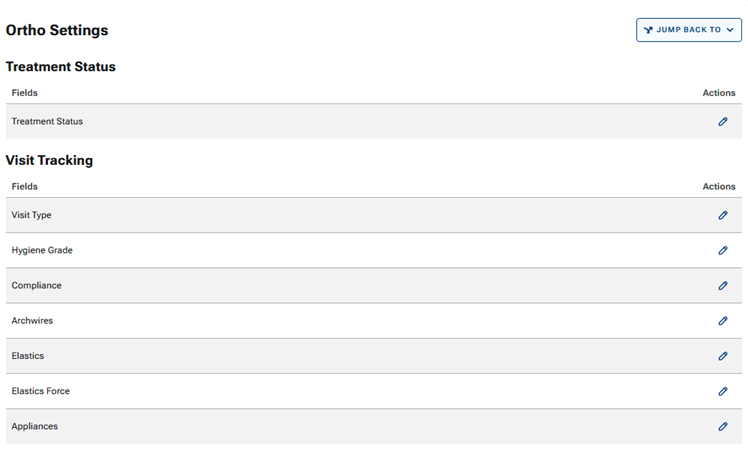
2. For each option that you want to edit (such as Treatment Status), click the pencil icon in the Action column.
A dialog box appears.
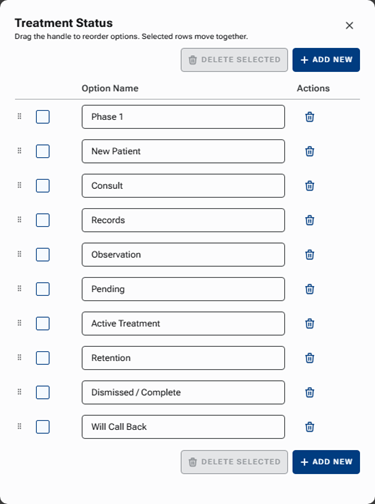
3. Add, edit, reorder, or delete items for the list.
4. Close the dialog box.
5. Click JUMP BACK TO, and then select ORTHODONTICS.
Security Rights
For user roles, there is a new security category called “Orthodontics.” The rights apply to using the orthodontic features in patients’ clinical records.
Right | Administrator | Billing Coordinator | Provider | Receptionist | Description |
|---|---|---|---|---|---|
View Orthodontics |
|
|
|
| Allows the user to view the contents of the Ortho tab in a patient’s clinical record. |
Create ortho treatment summary |
|
|
|
| On the Ortho tab, allows the user to create a new orthodontic treatment summary (case). |
Edit ortho treatment summary |
|
|
|
| On the Ortho tab, allows the user to edit an existing treatment summary’s details. Edits are tracked in an audit trail (no delete option exists by design). |
Change case status | X |
| X |
| On the Ortho tab, allows the user to change the status of an orthodontic treatment case. |
Edit treatment start/end date | X |
| X |
| On the Ortho tab, allows the user to change the start and/or end date of a treatment case. These dates drive the auto-calculated treatment progress bar. |
Create ortho diagnosis | X |
| X |
| On the Ortho tab, allows the user to chart a new orthodontic diagnosis. |
Lock/unlock ortho diagnosis | X |
| X |
| On the Ortho tab, allows the user to lock (finalize) or unlock a charted ortho diagnosis. |
Delete ortho diagnosis | X |
| X |
| On the Ortho tab, allows the user to delete a charted ortho diagnosis (if not locked). |
Create template | X |
| X |
| On the Ortho tab, allows the user to create a new orthodontic treatment template. |
Edit template | X |
| X |
| On the Ortho tab, allows the user to edit an existing orthodontic treatment template. |
Activate/Deactivate template | X |
| X |
| On the Ortho tab, allows the user to activate or deactivate an orthodontic treatment template. There is no delete option for templates by design; activate/deactivate is the full lifecycle control. |
Create ortho visit | X |
| X |
| On the Ortho tab, allows the user to create a new ortho visit entry (chairside documentation). |
Edit ortho visit | X |
| X |
| On the Ortho tab, allows the user to edit an existing ortho visit entry. |
Delete ortho visit | X |
| X |
| On the Ortho tab, allows the user to delete an existing ortho visit entry (if not locked). |
Sign ortho visit | X | X | On the Ortho tab, allows the user to sign an existing ortho visit entry (if not locked). | ||
Manage ortho setttings | X | X | On the Ortho tab, allows the user to configure the orthodontic treatment settings. |