
EARLY ACCESS ONLY
Ortho payments often come in stages, not all at once. The ortho payout schedule tells you when to expect each insurance payment and how much it will be. You can set a schedule on the insurance plan, on an individual patient, or both. A patient schedule overrides the plan schedule for that patient only.
Note: Ortho payout schedules are included in the Orthodontics package (an add-on feature that you can purchase separately from your Dentrix Ascend subscription).
How plan and patient schedules work together
- Inherited From Plan – A patient without his/her own schedule inherits the plan schedule.
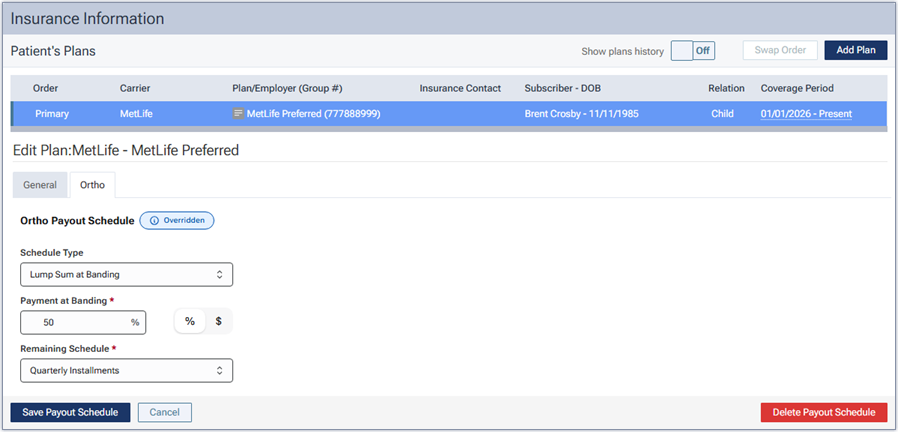
- Overridden – A patient with his/her own schedule can have an override. The patient no longer inherits the plan’s schedule, the plan’s schedule is not affected, and other patients on the plan are not affected. Additionally, if someone edits the plan schedule later, the patient’s override remains in effect.
Schedule types
An ortho payout schedule can be one of the following types:
- Lump Sum at Banding
- Equal Installments
- Split Banding/Debanding
Adding an Ortho Payout Schedule (Plan)
You can add an ortho payout schedule at the plan level. If you do so, every patient covered by that plan inherits that schedule (except for patients with an override).
Note: Adding an ortho payout schedule at the plan level requires the “Edit Ortho Payout Schedule – Plan” security right (in the “Insurance” category).
To add an ortho payout schedule at the plan level
1. On the Insurance Carriers page (go to Home > Carriers), click a carrier to view the associated plans, and then click a plan to open it.
2. Select the Ortho tab.
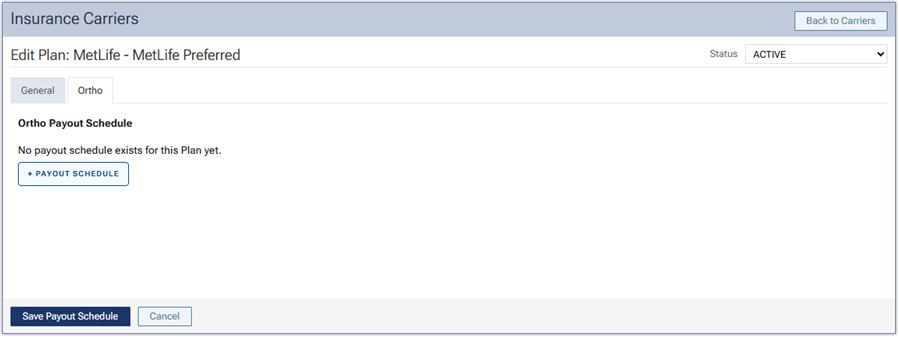
3. Click + PAYOUT SCHEDULE.
4. Select a Schedule Type. The applicable remaining options become available.
5. Set up the following options:
- For Lump Sum at Banding:
- Payment at Banding – Select % or $, and then enter a percentage or an amount.
- Remaining Schedule – Select an interval: Monthly Installments, Quarterly Installments, Semi-Annual Installments, or Annual Installments.
- Payment at Banding – Select % or $, and then enter a percentage or an amount.
- For Equal Installments:
- Cadence – Select an interval: Monthly, Quarterly, Semi-Annual, or Annual.
- Expected Amount/Percent – Select % or $, and then enter a percentage or an amount.
- Cadence – Select an interval: Monthly, Quarterly, Semi-Annual, or Annual.
- For Split Banding/Debanding:
- % / $ – Select % or $. This applies to both the banding and debanding payment.
- Banding Payment – Enter a percentage or an amount.
- Debanding Payment – Enter a percentage or an amount.
- % / $ – Select % or $. This applies to both the banding and debanding payment.
6. Click Save Payout Schedule.
Adding an Ortho Payout Schedule (Patient)
If an ortho payout schedule has not been added at the plan level, you can add an ortho payout schedule at the patient level. If you do so, the schedule applies only to that patient (even if a schedule is added at the plan level later). You would do this if insurance pays for ortho for a given patient on a plan differently from others on the same plan.
Note: Adding an ortho payout schedule at the patient level requires the “Edit Ortho Payout Schedule – Patient” security right (in the “Insurance” category).
To add an ortho payout schedule at the patient level
1. With a patient selected, either click the Insurance Plan Information (shield) icon on the patient ribbon, or click the Insurance box on the patient’s Overview page.
2. Select a plan under Patient’s Plans.
3. Select the Ortho tab.
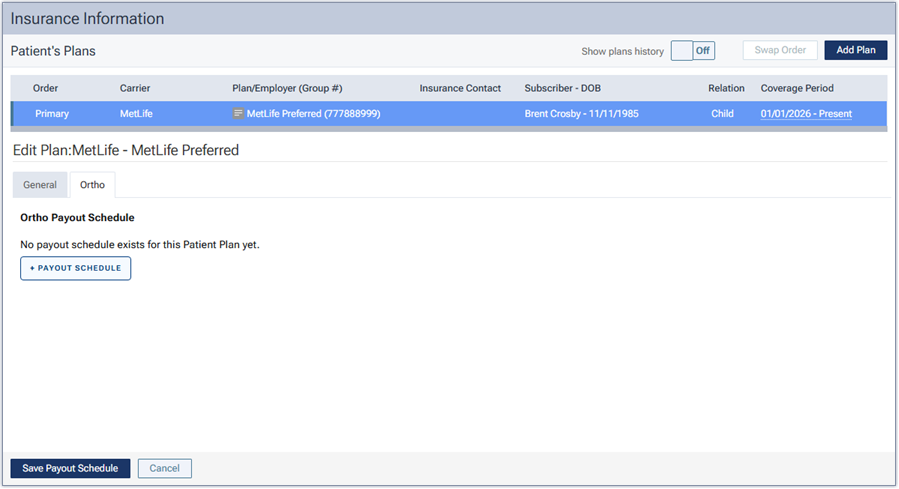
4. Click + PAYOUT SCHEDULE.
5. Select a Schedule Type. The applicable remaining options become available.
6. Set up the following options:
- For Lump Sum at Banding:
- Payment at Banding – Select % or $, and then enter a percentage or an amount.
- Remaining Schedule – Select an interval: Monthly Installments, Quarterly Installments, Semi-Annual Installments, or Annual Installments.
- Payment at Banding – Select % or $, and then enter a percentage or an amount.
- For Equal Installments:
- Cadence – Select an interval: Monthly, Quarterly, Semi-Annual, or Annual.
- Expected Amount/Percent – Select % or $, and then enter a percentage or an amount.
- Cadence – Select an interval: Monthly, Quarterly, Semi-Annual, or Annual.
- For Split Banding/Debanding:
- % / $ – Select % or $. This applies to both the banding and debanding payment.
- Banding Payment – Enter a percentage or an amount.
- Debanding Payment – Enter a percentage or an amount.
- % / $ – Select % or $. This applies to both the banding and debanding payment.
7. Click Save Payout Schedule.
Reviewing an Ortho Payout Schedule (Plan Level)
You can review an ortho payout schedule at the plan level.
Note: Reviewing an ortho payout schedule at the plan level requires the “Review Ortho Payout Schedule” security right (in the “Insurance” category).
To review an ortho payout schedule at the plan level
1. On the Insurance Carriers page (go to Home > Carriers), click a carrier to view the associated plans, and then click a plan to open it.
2. Select the Ortho tab.
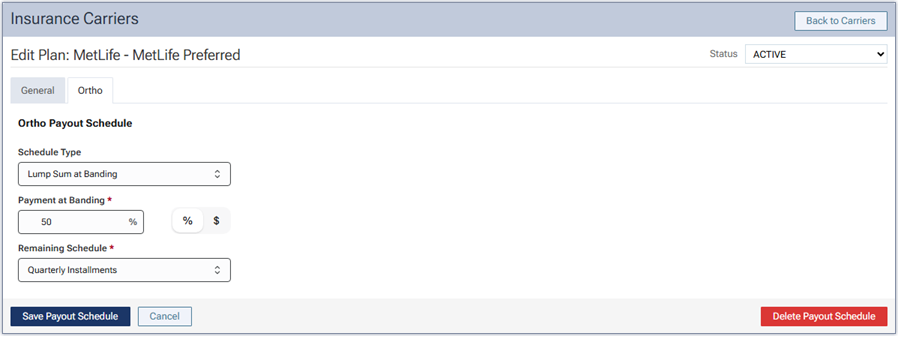
3. Review the schedule type and other options.
Reviewing an Ortho Payout Schedule (Patient Level)
You can review an ortho payout schedule at the patient level.
Note: Reviewing an ortho payout schedule at the patient level requires the “Review Ortho Payout Schedule” security right (in the “Insurance” category).
To review an ortho payout schedule at the patient level
1. With a patient selected, do one of the following:
- Click the Ortho Payout Schedule icon on the patient ribbon to go directly to the Ortho tab of the patient’s primary insurance plan.
- Click the Insurance box on the patient’s Overview page. Select a plan under Patient’s Plans. Select the Ortho tab.
- Click the Insurance Plan Information (shield) icon on the patient ribbon. Select a plan under Patient’s Plans. Select the Ortho tab.
- Position your pointer over the Ortho Payout Schedule icon on the patient ribbon to quickly preview the ortho payout schedule for the patient’s primary insurance plan (ignore the remaining steps).
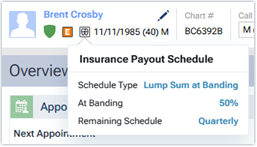
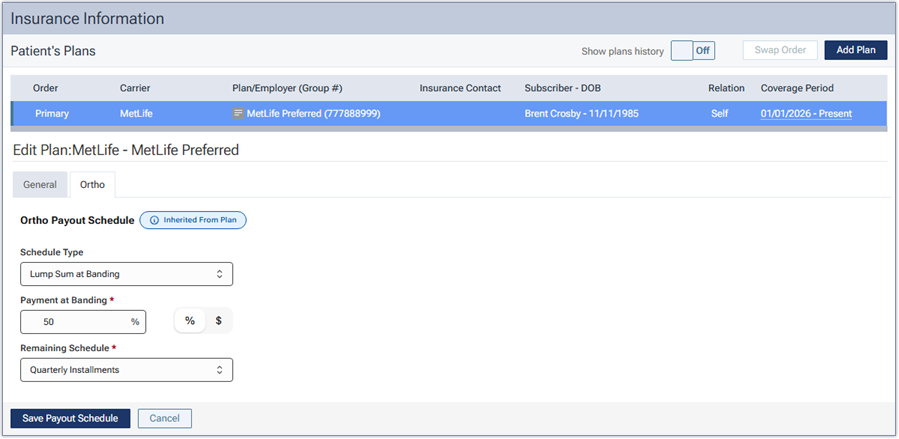
2. Review the schedule type and other options.
Important:
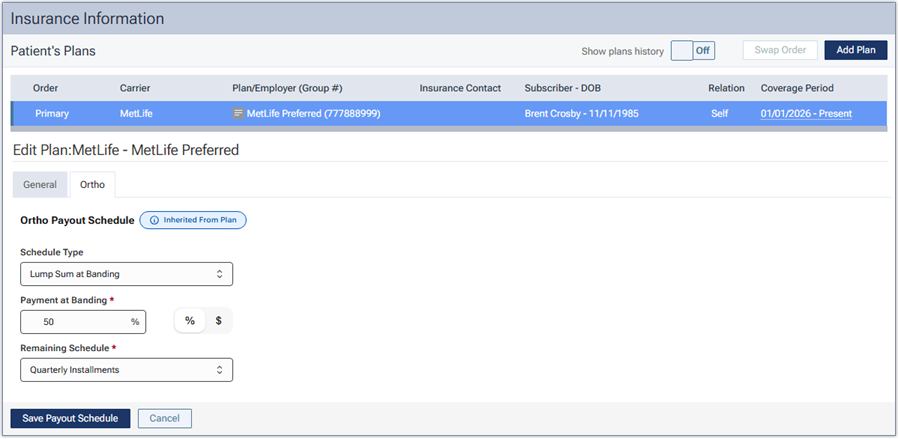
- The indicator next to “Ortho Payout Schedule” tells you where the schedule comes from: Inherited From Plan or Overridden.
- Check the indicator before you edit the schedule. If it displays Inherited From Plan, any change that you save creates an override for this patient only.
Editing an Ortho Payout Schedule (Plan)
You can change an ortho payout schedule at the plan level. If you do so, every patient covered by that plan inherits the updated schedule (except for patients with an override).
Note: Editing an ortho payout schedule at the plan level requires the “Edit Ortho Payout Schedule – Plan” security right (in the “Insurance” category).
To edit an ortho payout schedule at the plan level
1. On the Insurance Carriers page (go to Home > Carriers), click a carrier to view the associated plans, and then click a plan to open it.
2. Select the Ortho tab.
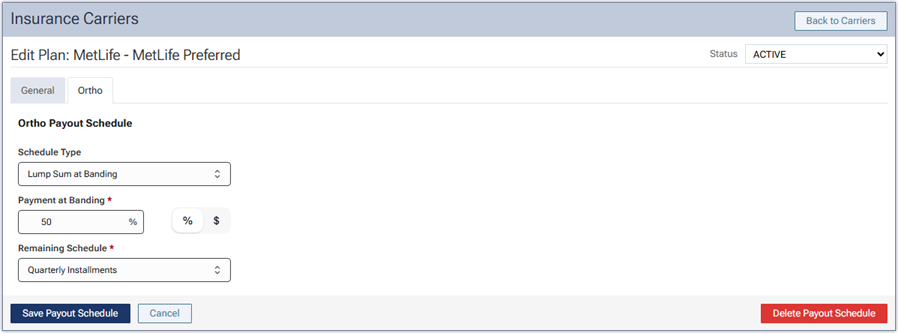
3. If needed, change the Schedule Type. The applicable remaining options become available.
4. Set up the other options as needed.
5. Click Save Payout Schedule.
Editing an Ortho Payout Schedule (Patient)
You can change an ortho payout schedule at the patient level. If you do so, one of the following occurs:
- If the schedule was previously inherited from the plan, the overridden schedule applies only to this patient.
- If the schedule was previously overridden for the patient, the updated schedule still applies only to this patient.
You would do this if insurance pays for ortho for a given patient on a plan differently from others on the same plan.
Note: Editing an ortho payout schedule at the patient level requires the “Edit Ortho Payout Schedule – Patient” security right (in the “Insurance” category).
To edit an ortho payout schedule at the patient level
1. With a patient selected, do one of the following:
- Click the Insurance box on the patient’s Overview page. Select a plan under Patient’s Plans. Select the Ortho tab.
- Click the Insurance Plan Information (shield) icon on the patient ribbon. Select a plan under Patient’s Plans. Select the Ortho tab.
- Click the Ortho Payout Schedule icon on the patient ribbon to go directly to the Ortho tab of the patient’s primary insurance plan.
– OR –
2. Do one of the following:
- Change the Schedule Type, and then set up the other options.
- Leave the current Schedule Type selected, and change any of the other options as needed.
When you change any option for a schedule that is being inherited from the plan, a Payout Override warning appears. It explains that saving any changes will create a new schedule for this patient and doesn’t change the schedule at the plan level.

3. Click Save Payout Schedule.
If the schedule was previously being inherited from the plan, the indicator next to “Ortho Payout Schedule” changes to Overridden.

Note: The override stays in place for this patient even if the schedule at the plan level is added, updated, or removed.
Removing an Ortho Payout Schedule (Plan)
You can remove an ortho payout schedule at the plan level. If you do so, the schedule is removed from every patient covered by that plan (except for patients with an override).
Note: Removing an ortho payout schedule at the plan level requires the “Delete Ortho Payout Schedule – Plan ” security right (in the “Insurance” category).
To remove an ortho payout schedule at the plan level
1. On the Insurance Carriers page (go to Home > Carriers), click a carrier to view the associated plans, and then click a plan to open it.
2. Select the Ortho tab.
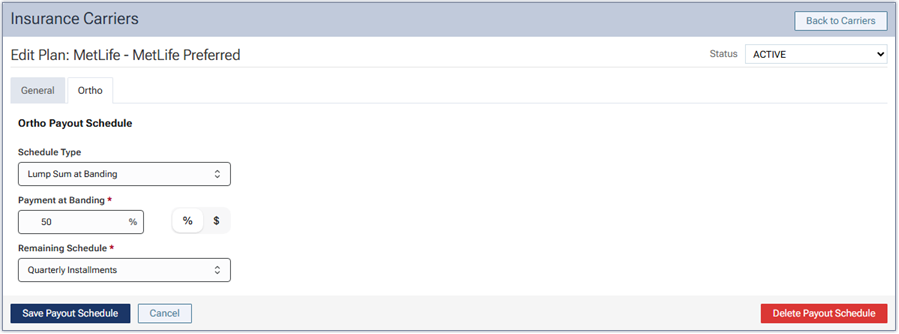
3. Click Delete Payout Schedule.
A confirmation message appears.
Warning: This action cannot be undone.
4. Click Remove.
Removing an Ortho Payout Schedule (Patient)
You can remove an ortho payout schedule at the patient level if the schedule has been overridden for the patient. If you do so, one of the following occurs:
- If a schedule exists at the plan level, the patient starts inheriting that schedule.
- If a schedule does not exist at the plan level, a schedule no longer applies to the patient.
Note: Removing an ortho payout schedule at the patient level requires the “Delete Ortho Payout Schedule – Patient” security right (in the “Insurance” category).
To remove an ortho payout schedule at the patient level
1. With a patient selected, do one of the following:
- Click the Insurance box on the patient’s Overview page. Select a plan under Patient’s Plans. Select the Ortho tab.
- Click the Insurance Plan Information (shield) icon on the patient ribbon. Select a plan under Patient’s Plans. Select the Ortho tab.
- Click the Ortho Payout Schedule icon on the patient ribbon to go directly to the Ortho tab of the patient’s primary insurance plan.
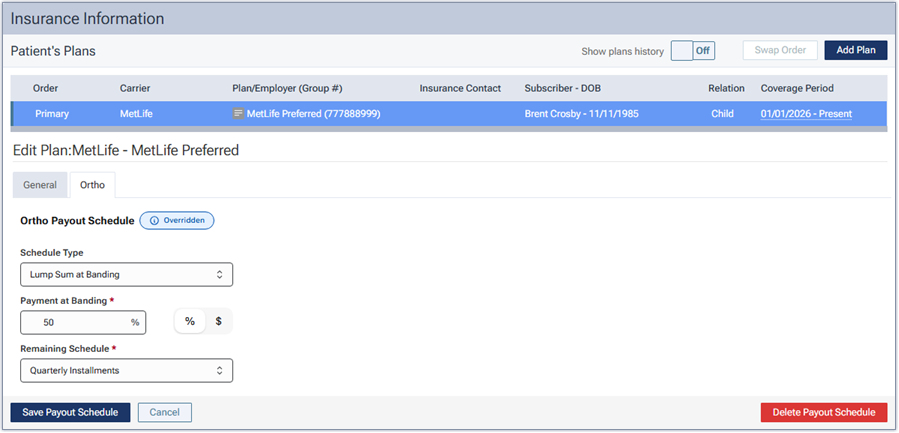
Note: If the schedule is currently being overridden, the indicator next to “Ortho Payout Schedule” displays Overridden.
2. Click Delete Payout Schedule.
A confirmation message appears.
Warning: This action cannot be undone.
3. Click Remove.
If a schedule exists at the plan level, the indicator next to “Ortho Payout Schedule” changes to Inherited From Plan.