
Released 8/26/26
You can now move or resize scheduling template time blocks for a specific day from the Calendar page.
Benefits:
- Front office staff can visually manage their day in real time and keep the schedule optimized for production.
- Patients can see the per-day availability changes on the online booking website.
Notes:
- Making per-day changes to a scheduling template’s time blocks from the calendar is available only for a single-location view (not the multi-location view) of the calendar.
- Making per-day changes to a scheduling template’s time blocks from the calendar requires the existing “View and Edit Schedule Templates” security right.
- The Search for Openings utility returns accurate results based on per-day changes made to a scheduling template’s time blocks from the calendar.
- Per-day changes made to a scheduling template’s time blocks from the calendar are synced with the online booking website:
- If you are using the new online scheduler – Allow up to 24-hours for the overnight automatic sync to occur; otherwise, perform a manual sync.
- If you are using the legacy online booking service – Allow up to 24-hours for the overnight automatic sync to occur.
- If you are using the new online scheduler – Allow up to 24-hours for the overnight automatic sync to occur; otherwise, perform a manual sync.
- A per-day change to a scheduling template’s time block from the calendar affects that time block only for that day. The day-specific time block overrides (takes precedence over) the corresponding time block in the scheduling template to which it pertains but only for that day. If you edit the scheduling template later, the day-specific time block remains. If the day-specific time block and a time block in the scheduling template overlap, the one defined in the scheduling template is suppressed for that day.
To resize a time block
1. Make sure your view of the Calendar page is displaying operatories and scheduling time blocks.
2. Navigate to the day of the week for which you want to modify a time block.
3. Drag the lower edge of the time block up or down.
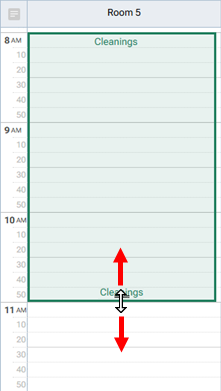
Note: The time block cannot overlap another time block.
To move a time block
1. Make sure your view of the Calendar page is displaying operatories and scheduling time blocks.
2. Navigate to the day of the week for which you want to modify a time block.
Note: A template block cannot be moved if it is fully covered by appointments.
3. Click and hold the time block for about two seconds (until the move pointer appears), and then drag the time block up or down within the operatory.
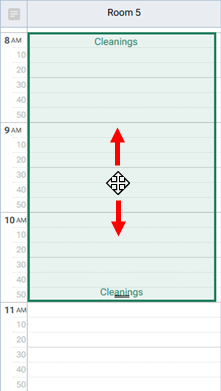
Note: The time block cannot overlap another time block.