
Released 8/11/26
When you add or update a schedule template or appointment reason in Dentrix Ascend, you can now immediately sync the change to the online booking website instead of having to wait up to 24 hours for the automatic sync to occur, and you can do this from the same area in Dentrix Ascend where you made the change.
To sync schedule templates
1. If you are not already viewing the correct location, select it on the Location menu.
2. On the Settings menu, select Schedule Template.
The Schedule Template page opens.
3. Click Online Booking Setup.
The Online Booking Setup dialog box appears.
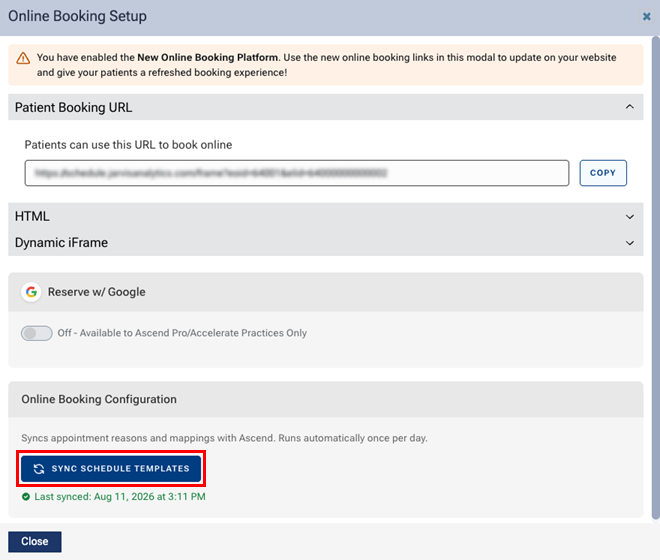
4. Under Online Booking Configuration, click SYNC SCHEDULE TEMPLATES.
Notes:
- The date and time of the most recent sync (“Last synced”) appears below the button.
- In the audit log, a sync is attributed to the logged-in user who triggered it.
5. Click Close.