
Released 7/15/26
Manually charting a periodontal exam can be time consuming, repetitive, and prone to human error. With Dentrix Ascend Voice Perio, a voice‑enabled periodontal charting experience, you can enter a full perio exam using natural voice commands. Also, an AI-generated oral health summary is generated for each exam; you can print that summary and give it to the patient. Voice Perio reduces manual data entry, improves workflow efficiency, supports hands‑free operation, and maintains clinical accuracy and compliance.
Notes:
- Voice Perio was built in collaboration with Amazon Web Services (AWS).
- Voice Perio is available only with a Dentrix Ascend Accelerate subscription or the Ambient add-on (purchased separately).
- For information about Voice Notes, see the release notes.
Entering a Perio Exam
1. On the Perio tab of a patient’s clinical record, click New Perio Exam.

The New Perio Exam dialog box appears.
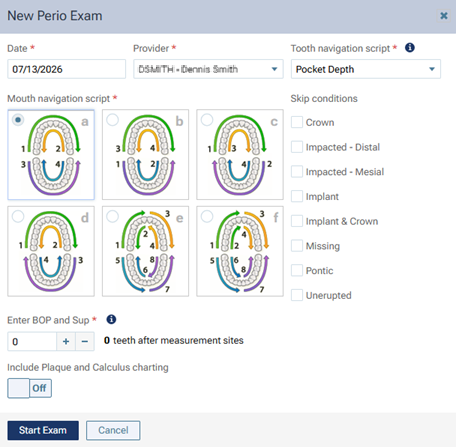
2. Click Start Exam.
The options to enter a perio exam become available.
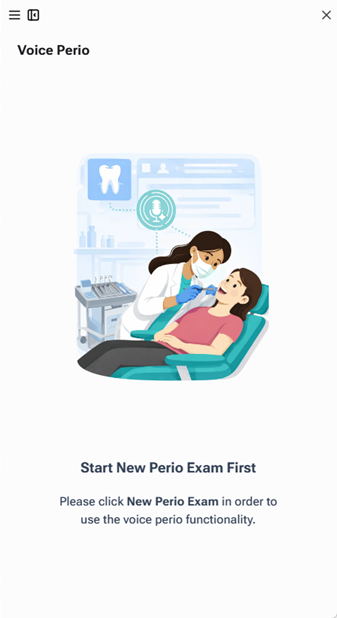
3. Click the Voice Perio button.
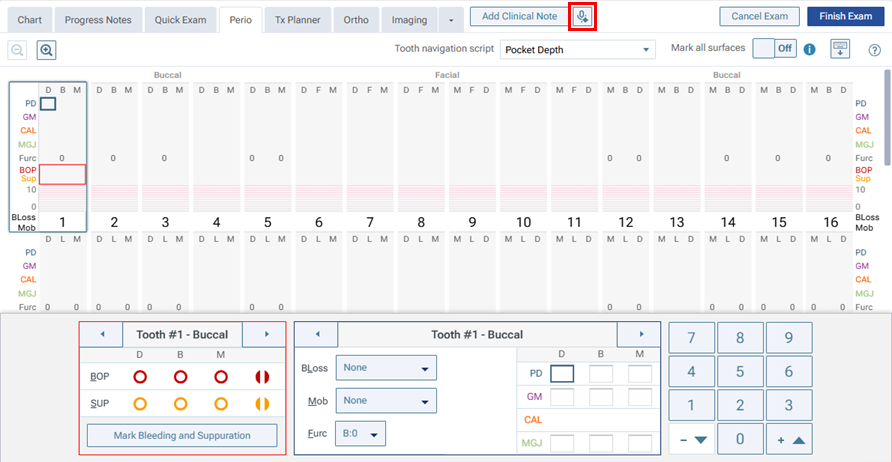
The Voice Perio panel appears on the right.
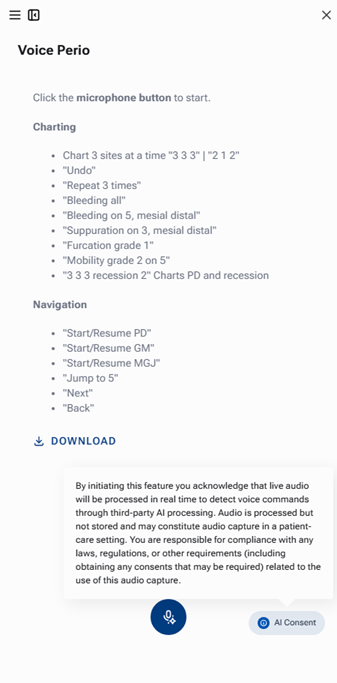
Note: Read the consent message that appears, and then click AI Consent to close the message.

4. To start the recording, click the microphone icon.

A timer appears, indicating that the microphone is actively listening. You can pause the recording as needed by clicking the pause icon.

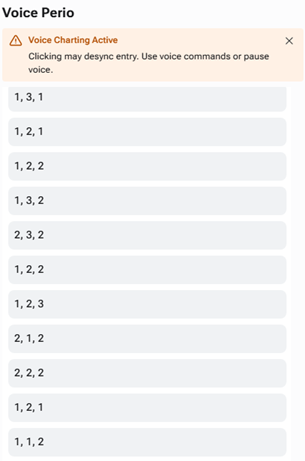
5. Dictate the exam with voice commands, and use your mouse and keyboard as needed to chart conditions that are not supported by Voice Perio.
While voice charting is active, each recognized voice command appears. After each command is recognized, and you hear a ding/chime in your earphones, you can speak the next command.
6. To save the exam, click Finish Exam.
An Oral Health Summary, which is generated by the AI engine, appears.
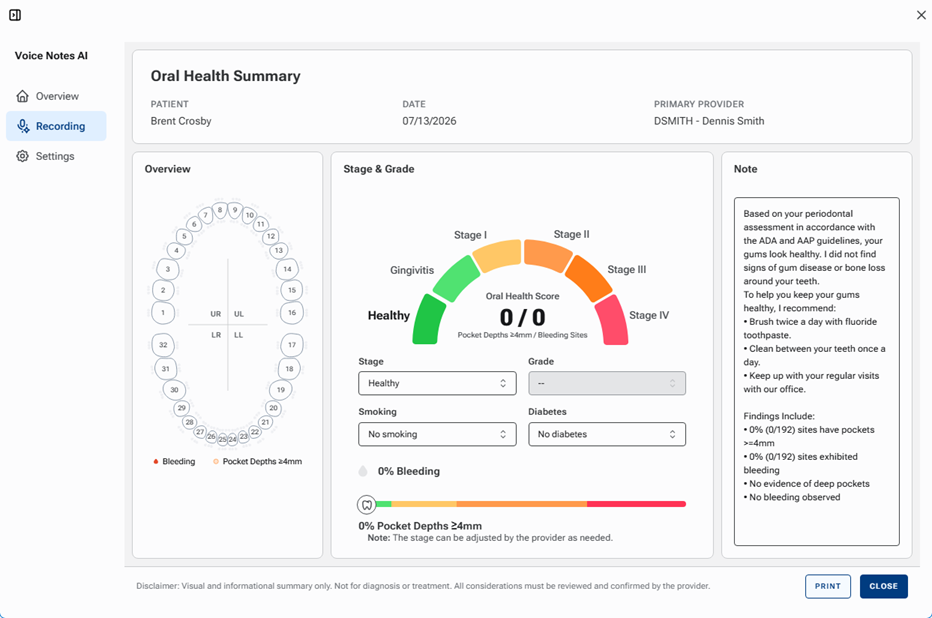
7. Change any of the following as needed:
- Stage
- Grade (if available)
- Smoking
- Diabetes
- Note
8. To print the summary, click Print. In the print dialog box that opens, you can choose the desired printer and specify other print settings.
9. Click Close.
10. To close the Voice Perio panel, click the panel’s X (in the upper-right corner).
Editing a perio exam
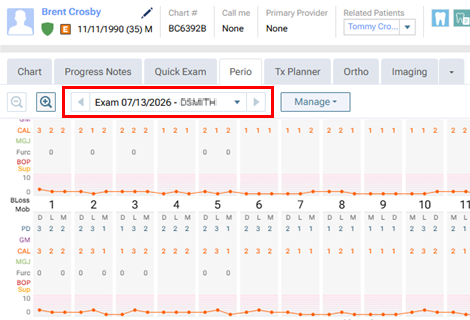
1. On the Perio tab of a patient’s clinical record, select a perio exam.
2. On the Manage menu, select Edit Exam.
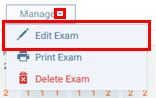
The Edit Perio Exam dialog box appears.
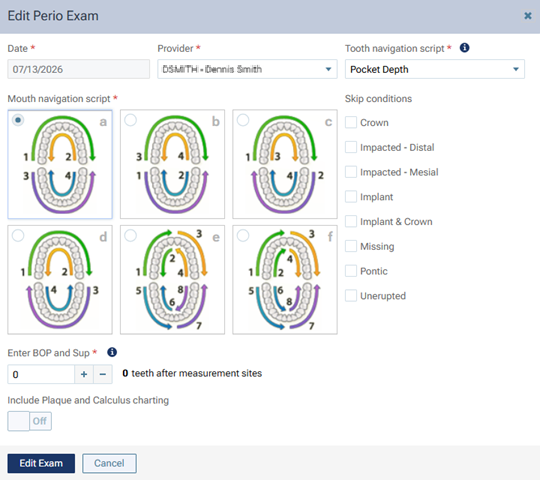
3. Click Edit Exam.
The options to edit the perio exam become available.
4. Click the Voice Perio button.

The Voice Perio panel appears on the right.
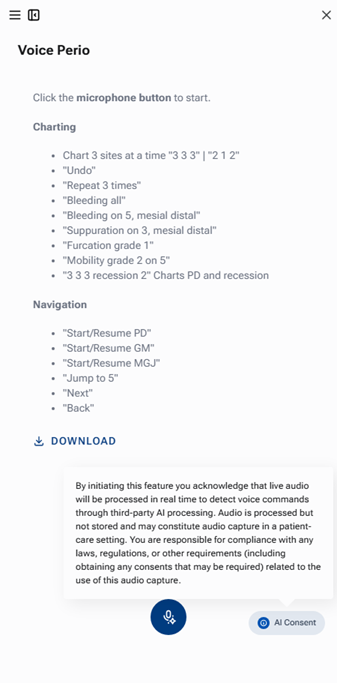
Note: Read the consent message that appears, and then click AI Consent to close the message.

5. To start the recording, click the microphone icon.

A timer appears, indicating that the microphone is actively listening. You can pause the recording as needed by clicking the pause icon.

6. Dictate the changes to the exam with voice commands, and use your mouse and keyboard as needed to chart conditions that are not supported by Voice Perio.
While voice charting is active, each recognized voice command appears. After each command is recognized, and you hear a ding/chime in your earphones, you can speak the next command.
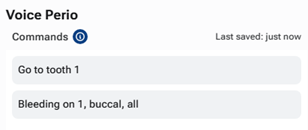
7. To save the exam, click Finish Exam.
An Oral Health Summary, which is generated by the AI engine, appears.
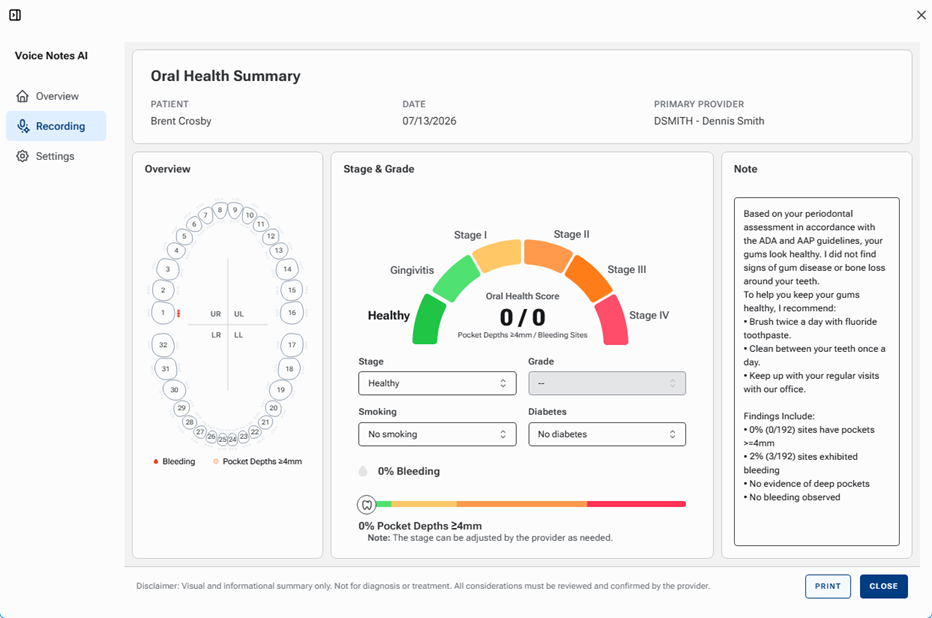
8. Change any of the following as needed:
- Stage
- Grade (if available)
- Smoking
- Diabetes
- Note
9. To print the summary, click Print. In the print dialog box that opens, you can choose the desired printer and specify other print settings.
10. Click Close.
11. To close the Voice Perio panel, click the panel’s X (in the upper-right corner).

Commands
Charting
- Chart 3 sites at a time “3 3 3” | “2 1 2”
- “Undo”
- “Repeat 3 times”
- “Bleeding all”
- “Bleeding on 5, mesial distal”
- “Suppuration on 3, mesial distal”
- “Furcation grade 1”
- “Mobility grade 2 on 5”
- “3 3 3 recession 2” charts PD and recession
Navigation
- “Start/Resume PD”
- “Start/Resume GM”
- “Start/Resume MGJ”
- “Jump to 5”
- “Next”
- “Back”