
Released 8/19/26
If you are using Dentrix Ascend Pay for credit card processing, to easily offset credit card processing fees, we are making it possible for you to have surcharges added automatically to credit card payments that you process in office using a terminal.
The following functionality is available:
- Turning on surcharging
- Changing surcharging options
- Turning off surcharging
- Processing credit card payments with surcharges
- Voiding credit card payments with surcharges
- Processing full and partial refunds for credit card payments with surcharges
- Generating a surcharge report
Turning on Surcharging
After you have set up a house provider for each location with a Worldpay account and notified Worldpay that you will be including surcharges with payments, you can turn on surcharging for your organization.
Note: Turning on surcharging requires you to be granted the following security rights for at least one location with a Worldpay account: “View Credit Card Options” and “Manage Credit Card Options.”
To turn on surcharging
1. Use the Location menu to select a location that has a Worldpay account set up.
2. On the Settings menu, select Credit Card Options.
The Credit Card Options page opens.
3. Click Add Surcharging.
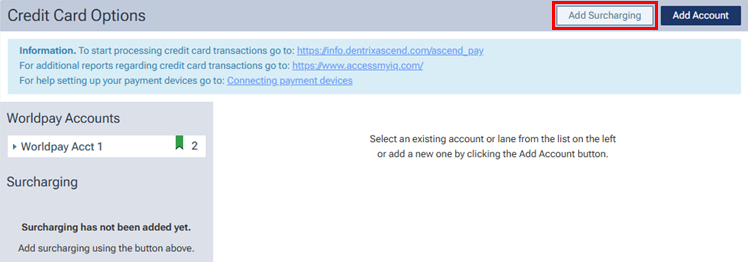
Note: This button is available only if (1) this location has a Worldpay account, and (2) a house provider has been set up for each location with a Worldpay account.
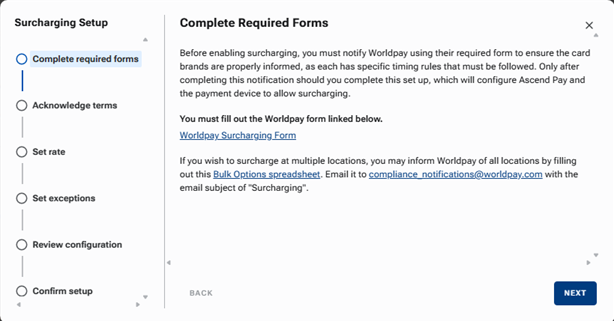
The Surcharging Setup dialog box appears. The Complete required forms step is selected.
4. Do one of the following:
- If only one location has a Worldpay account – To enable surcharging for one location, click the Worldpay Surcharging Form link to complete and submit the form on the Worldpay website.
- If multiple locations have Worldpay accounts – To enable surcharging for multiple locations, click the Bulk Options spreadsheet link to download Merchant Bulk Surcharge Template.xlsx, enter the necessary information in the spreadsheet, and then email it to Worldpay at the email address shown.
DO NOT PROCEED until you have completed this step. Once you have submitted the required form/spreadsheet to Worldpay, return to this point to set up surcharging.
5. Click Next.
The Acknowledge terms step is selected.
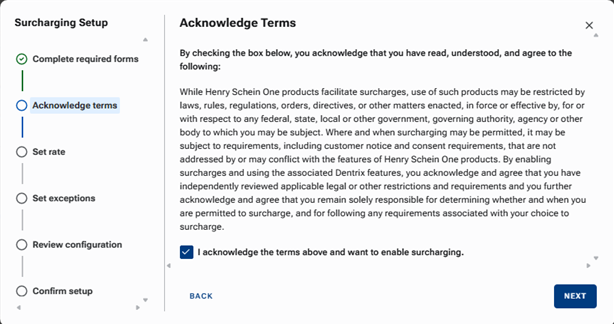
6. Read the terms, and then select the I acknowledge the terms… checkbox.
7. Click Next.
The Set rate step is selected.
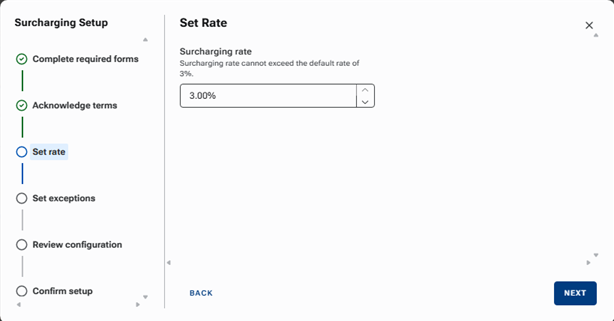
8. Specify the Surcharging rate. The default is 3.00%, which is the maximum. Each click of the up or down chevron increases or decreases the rate by 0.01. You can also change the rate directly in the box by selecting any portion of the rate or the entire rate and then typing a new value.
9. Click Next.
The Set exceptions step is selected.
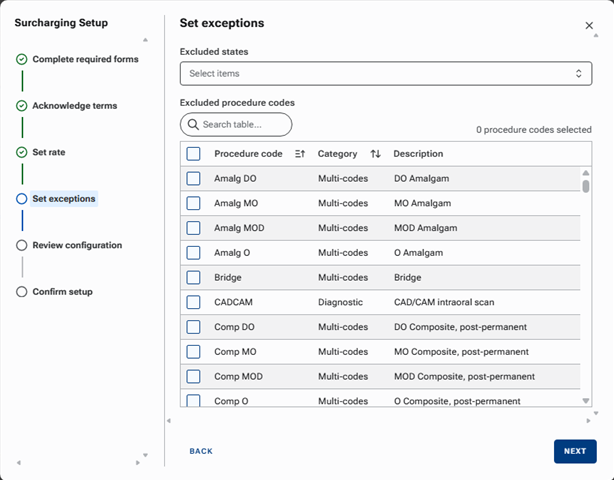
10. Select the Excluded states. Surcharging will not be turned on for locations in the selected states, so surcharges will not be applied to payments in the selected states.
From the list, select a state. Repeat to select other states.
Note: To quickly find a state, begin typing part of a state’s name in the search box. The states whose names contain those characters appear. Select the correct state. Repeat to select other states.
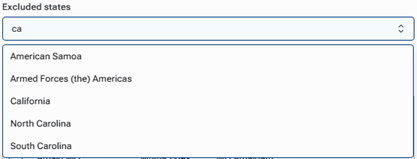
Each state that you select appears in the box.

Note: To remove a selected state, click its X.
11. Specify the Excluded procedure codes. Surcharges will not be applied to the portions of payments for the selected procedures.
In the list, select the checkbox of each procedure code to be excluded.
Note: To quickly find procedure codes to exclude, begin typing a procedure code in the search box at the top of the list. The matching procedure codes appear in the list. Select the checkbox of each procedure code to be excluded.
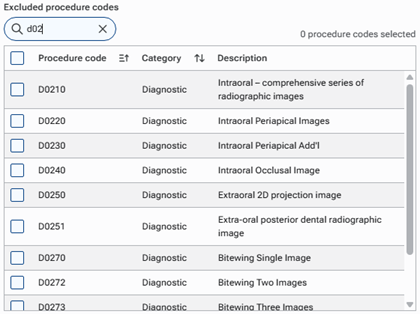
12. Click Next.
The Review configuration step is selected.
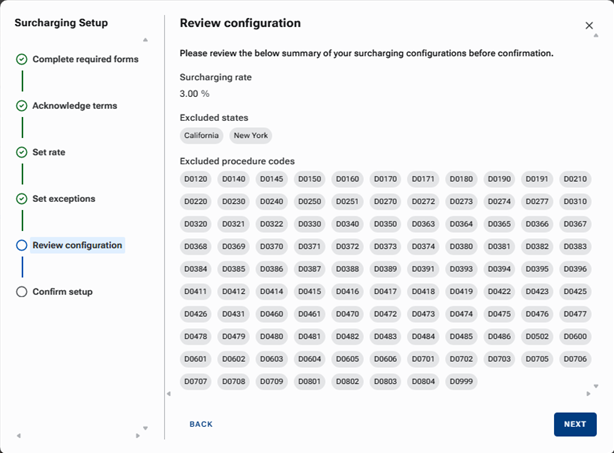
13. Make sure that all the settings are correct.
14. Click Next.
The Confirm setup step is selected.
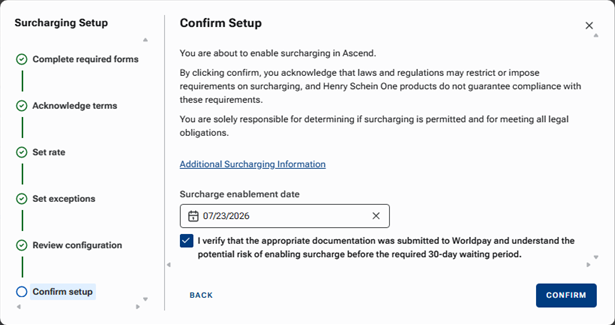
15. Specify the Surcharge enablement date. This is the date that you want to start adding surcharges to credit card payments. By default, the date is 31 days in the future, which is the earliest date that you will be able start processing payments with surcharges, but you can change the date to a later date by clicking in the box, navigating to the correct month on the calendar that appears, and then selecting the correct day.
16. Select the I verify that the appropriate documentation was submitted… checkbox.
17. Click Confirm.
The location name now appears under Surcharging on the left. With the location name selected, the surcharging options appear on the right.
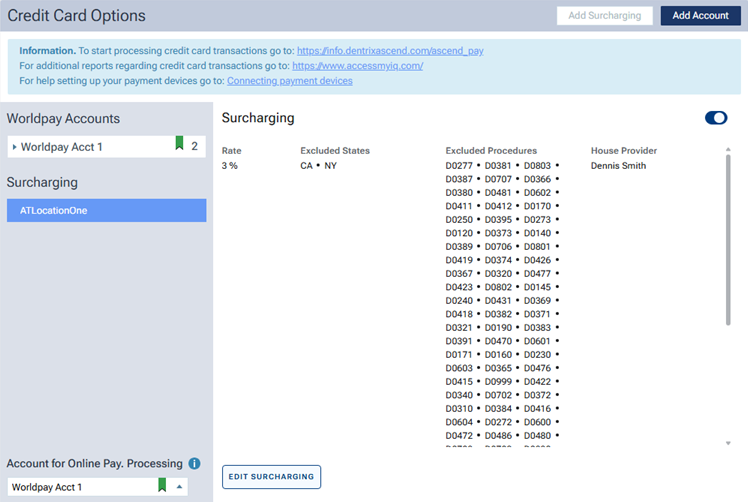
Note: The House Provider shown will be used for credit card payments processed at this location. The house provider for other locations will be used for credit card payments processed at those locations.
Changing Surcharging Options
As needed, you can change the rate, exceptions, and enablement date (if available) for surcharging. Changes apply to all locations.
Note: Editing surcharging options requires you to be granted the following security rights for at least one location with a Worldpay account: “View Credit Card Options” and “Manage Credit Card Options.”
To change surcharging options
1. Use the Location menu to select a location that has a Worldpay account set up.
2. On the Settings menu, select Credit Card Options.
The Credit Card Options page opens.
3. Select the location’s name under Surcharging on the left.
The Surcharging options appear on the right.
4. On the right, click Edit Surcharging.
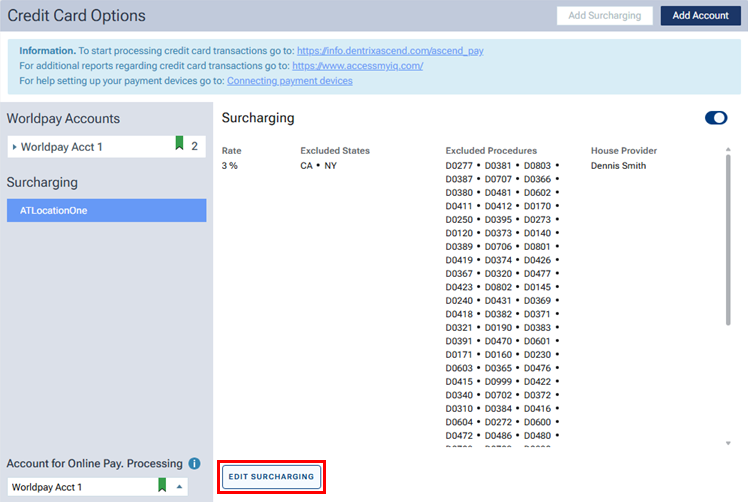
The Surcharging Setup dialog box appears. The Set rate step is selected.
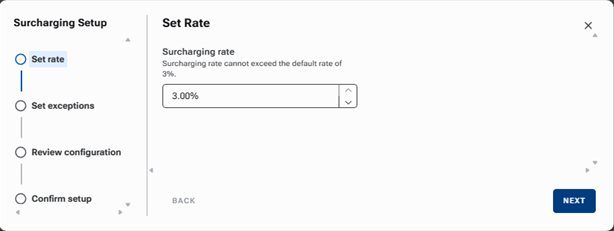
5. If needed, change the Surcharging rate.
6. Click Next.
The Set exceptions step is selected.
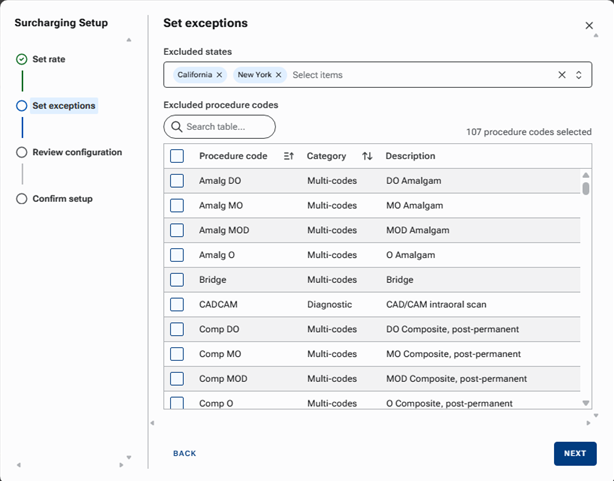
7. If needed, change the Excluded states and/or Excluded procedure codes.
8. Click Next.
The Review configuration step is selected.
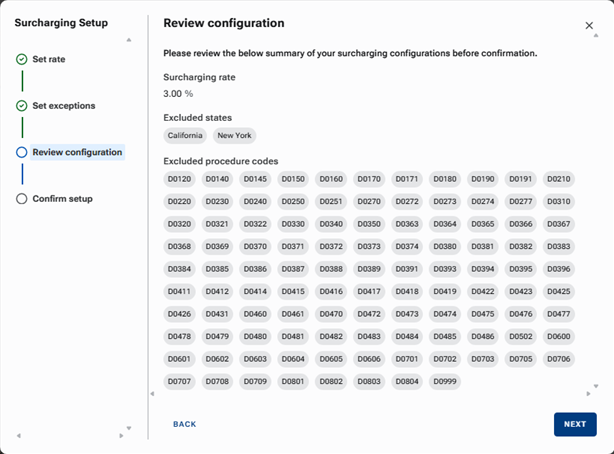
9. Make sure that all the settings are correct.
10. Click Next.
The Confirm setup step is selected.
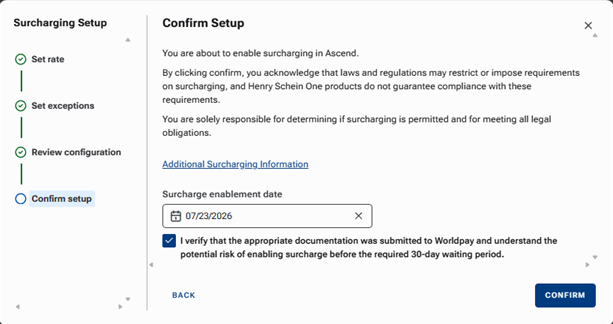
11. If needed, change the Surcharge enablement date. The date must be at least 31 days after surcharging was turned on.
Note: This option will not be available to change after the specified date has been reached.
12. Select the I verify that the appropriate documentation was submitted… checkbox.
13. Click Confirm.
Surcharging is turned on for all locations except those that are in the excluded states.
Turning off Surcharging
If you no longer want to charge surcharges, you can turn off surcharging for all locations.
Note: Turning off surcharging requires you to be granted the following security rights for at least one location with a Worldpay account: “View Credit Card Options” and “Manage Credit Card Options.”
To turn off surcharging
1. Use the Location menu to select a location that has a Worldpay account set up.
2. On the Settings menu, select Credit Card Options.
The Credit Card Options page opens.
3. Select the location’s name under Surcharging on the left.
The Surcharging options appear on the right.
4. On the right, turn off the switch (in the upper-right corner).
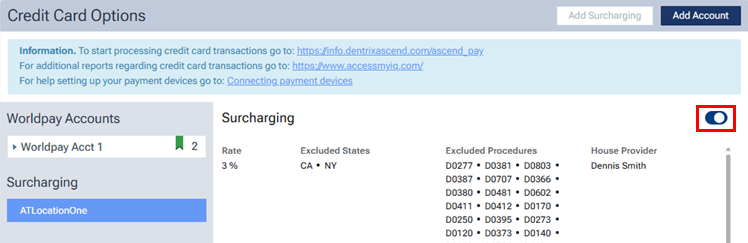
A confirmation message appears.
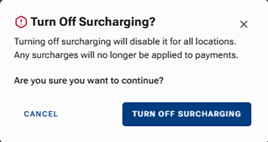
5. Click Turn Off Surcharging.
Surcharging is turned off for all locations.
Processing Credit Card Payments with Surcharges
With surcharging turned on, when you process credit card payments, surcharges are added as applicable.
Notes:
- These steps apply only for a credit card payment that you process through an interaction with a physical payment device (a terminal or card reader).
- The card being processed must be a credit card only. It cannot be a debit card or a credit card that can be run as a debit card.
To process a credit card payment with a surcharge
1. On a patient’s Ledger page, click Payment.
The Enter Payment dialog box appears.
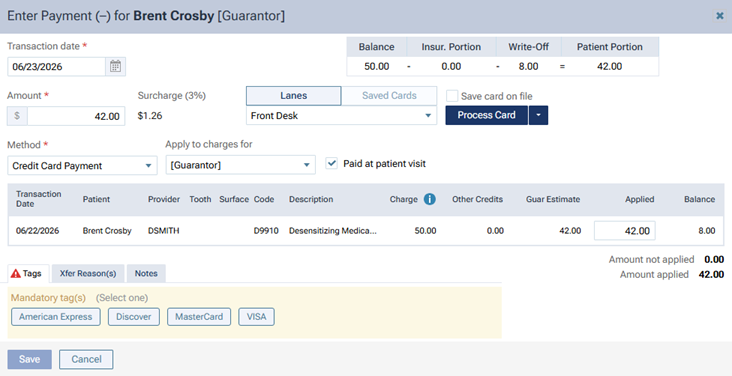
2. Enter the Amount of the payment (before the surcharge).
3. From the Method list, select Credit Card Payment.
Note: For your reference, the Surcharge (percentage and dollar amount) appears next to the Amount.
4. Select the Lanes option, and then select the correct payment device from the corresponding list.
5. Click Process Card.
6. Interact with the payment device to process a credit card. During that interaction, on the payment device, you must confirm the surcharge amount and then the total payment amount (which is the sum of the Amount and the Surcharge).
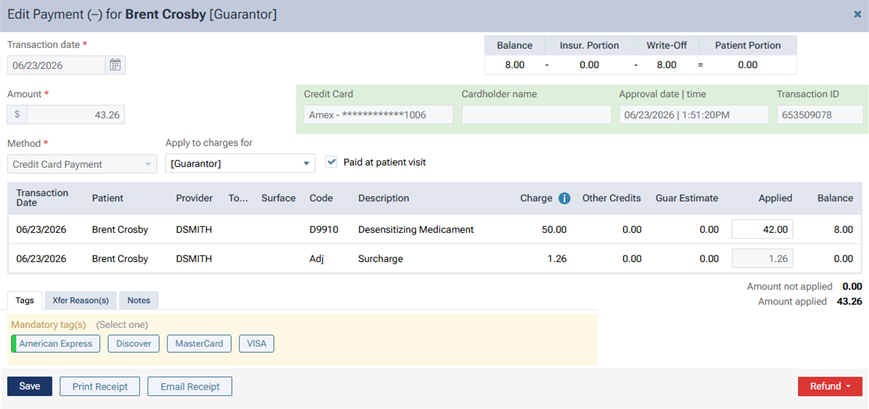
Once the transaction has been processed, the details of the transaction appear for your reference. In the Edit Payment dialog box, the procedures that the payment has been applied to are listed along with the associated surcharge.
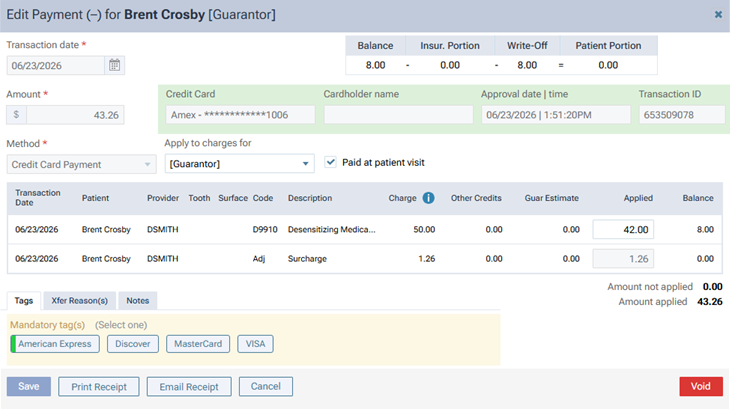
On the patient’s ledger, the payment and the surcharge (which is a charge adjustment) are posted separately. The surcharge is assigned to the house provider.

Voiding Payments with Surcharges
When you void a payment with a surcharge, the surcharge is voided in full as well.
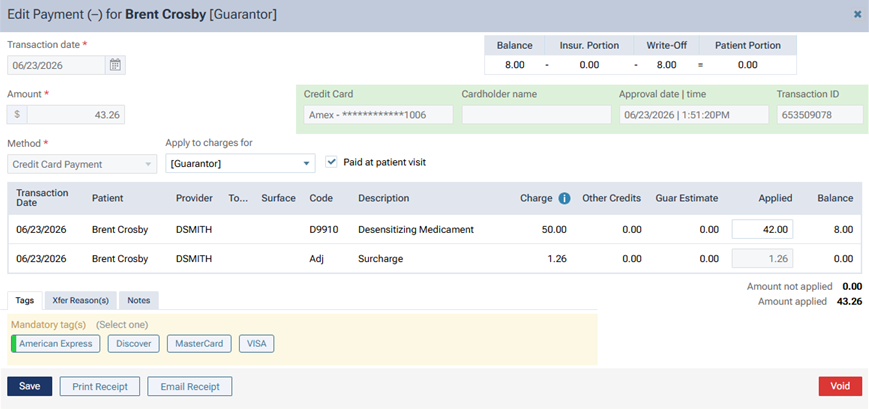
Note: You cannot void a surcharge by itself.
Issuing Refunds for Payments with Surcharges
- When a full refund is issued for a payment with a surcharge, the surcharge is refunded in full as well.
- When a partial refund is issued for a payment with a surcharge, the surcharge is refunded proportional to the amount of the partial refund.
Note: You cannot issue a refund for a surcharge by itself, but you can post a credit adjustment for the amount of the surcharge if you are not going to refund any of the payment.
Surcharge Report
If your practice is actively surcharging, the Surcharge Report lists each transaction that had a surcharge applied to it in the location that you are currently logged in to.
To view the Surcharge Report
1. If you are not already viewing the correct location, select it on the Location menu.
2. On the Home menu, select Surcharge.
The Surcharge Report page opens.
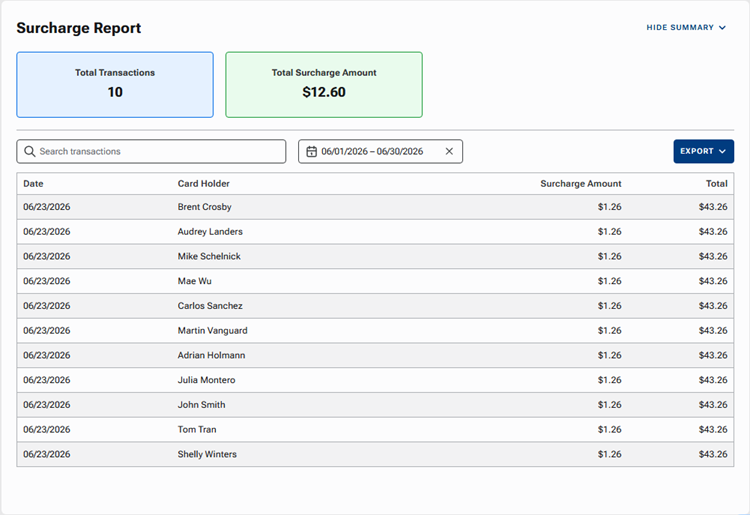
By default, any transactions with surcharges within the past 30 days appear in the list. For each transaction, the date, cardholder’s name (if known), surcharge amount, and transaction amount appear.
The following boxes at the top of the report provide statistics related to the specified date range of the report:
- Total Transactions – The number of transactions that incurred a surcharge.
- Total Surcharge Amount – The sum of the surcharges.
3. Do any of the following:
- To search for a transaction by card holder name, begin typing a name in the Search transactions box to view matches in the list, and continue typing as needed to narrow down the list.
- To change the date range of the report, click the X in the date range box, click the date range box to display a calendar, navigate to the desired month, select the starting date of the range, navigate to the next month (if applicable), and then select the ending date of the range. The date range cannot exceed 30 or 31 days (depending on the number of days in the month that contains the starting date of the range); if the calendar does not allow you to change the month or select a day, it is because doing so would allow the date range to exceed that 30/31-day limit.
- To save the report with the information that is currently being displayed, select CSV or PDF from the EXPORT menu.