
EARLY ACCESS ONLY
When an appointment breaks or a slot opens up, you usually have to work the phone or scroll through the ASAP list to fill it. The new quick fill functionality in Ascend helps you quickly fill an open slot. It shows you a short list of patients who already asked to come in sooner and need that type of appointment. It drafts a text message with the new date and time and a link. You review the message, customizing it as needed, and then click Send. The first patient to tap the link moves their appointment into the open slot.
Notes:
- This functionality is available only with an Ascend Pro or Accelerate package.
- To use this functionality, online booking and SMS registration must be set up.
- This functionality requires the “Manage Communications setup” security right.
- Sent messages can be tracked through the campaigns dashboard.
To quickly fill a time slot
1. On the Calendar page, do one of the following:
- Broken appointment – Position your pointer over a broken appointment, and then click Quick Fill.
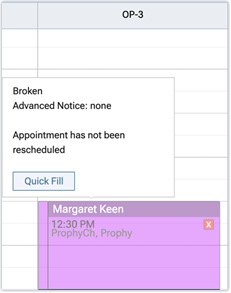
- Open time slot – Click an open time slot, and then click Quick Fill.
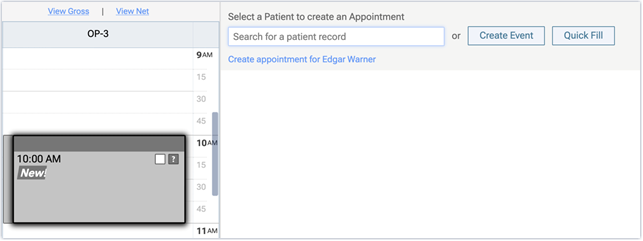
Notes:
- For broken appointments or open time slots, the quick-fill option is available only if the date is today or a future date.
- The quick-fill option is available only if the side panel with the ASAP, Broken/No Show, and Pinboard Lists is not being displayed.
The Appointment QuickFill dialog box appears.
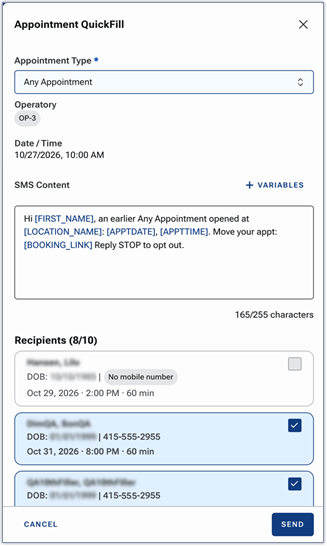
Note: The operatory, date, and time that you are trying to fill appear for your reference.
2. Select an appointment reason from the Appointment Type list. If you do not want to filter recipients by appointment reason, use the Any Appointment option.
Note: The available options are pulled either from the broken appointment or from the appointment reasons defined for your schedule templates, depending on how you started the quick-fill process. Appointment types are not required, but they can help match existing ASAP appointments.
3. Review the SMS Content. You can customize it as needed. You can click + VARIABLES to add variables as needed.
Notes:
- The message can be up to 255 characters.
- Do not remove or re-type the [BOOKING LINK] variable so each patient gets a personalized link.
- Make sure you use verbiage to “move” (not “book”) an appointment because the patients already have an appointment. You are offering them an earlier time.
4. Under Recipients, select up to 10 patients.
Notes:
- By default , up to the first 10 available patients (if any) are selected. Patients appear in reverse chronological order according to the date and time of their existing appointments.
- A patient appears on the list but is not available for selection if the patient does not have a mobile phone number on file or if the patient has opted out of receiving text messages. A patient is omitted from the list if the patient is on the ASAP list for a different appointment or if the patient has an appointment that does not fit in the time slot.
- For each patient, the following details appear: name, birth date, mobile phone number (if one exists), appointment date, appointment time, and appointment length.
5. Click SEND.
A confirmation message appears and states how many patients will receive a text message.
6. Click CONFIRM.
A notification appears in the lower-right corner of the page.
7. Do one of the following:
- Click View in Campaigns to see delivery results. Each set of quick-fill messages sent is treated as a campaign, so you can see what was sent, to whom, and how many appointments were filled.
- Click the X to dismiss the notification.
8. A patient who receives a text message does the following:
a. Taps the booking link to see his/her current appointment next to the new time.
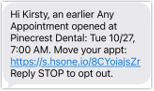
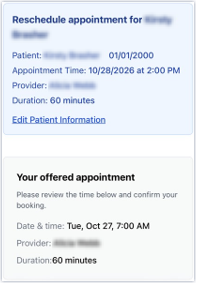
b. Taps Move my appointment to this time.
Note: If the patient wants to keep their existing appointment as scheduled, the patient can tap No thanks – keep my current appointment. Nothing changes on the schedule, and the patient stays on the ASAP List.
A confirmation appears.
In Ascend, the patient is removed from the ASAP List, the appointment is moved to the new time slot, and the Calendar page is updated automatically.
Important: Only one patient can take the time slot. Once the first patient accepts the change and sees the confirmation, for subsequent patients who tap the booking link in the received text message, the page explains that the slot has already been filled, his/her current appointment has not changed, and he/she is still on the ASAP List.