
Released 12/17/25
While you are reviewing a patient form, you can send a request to redo the form, but now the form in the online portal is pre-filled with all the patient’s previous responses so the patient can quickly correct or update inaccurate or incomplete information instead of having to start from scratch.
Notes:
- The form in the portal will be pre-filled with information from the patient’s record, as with any form, but by requesting a redo, the form also includes the patient’s responses to all questions, including custom questions.
- The form in the portal will be pre-filled with the patient’s previous responses for up to one month from the date of the form’s original completion (the “Received” date). That one-month time limit resets each time you request a redo.
- The original version of the completed form remains in the patient’s record when you send the request to redo the form. When the patient completes the form again, the new version is saved in the patient’s record as a separate entry.
To resend a form
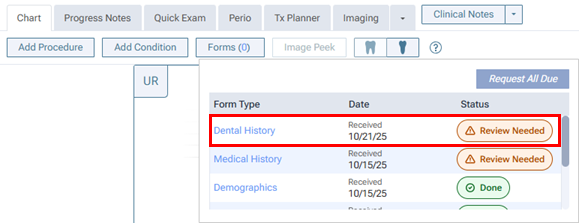
1. On the Chart tab of a patient’s clinical record, click Forms to view a list of forms (due, done, and review needed).
2. For a form with a status of “Review Needed,” click the Form Type link or the Status indicator.
The Review Form dialog box appears.
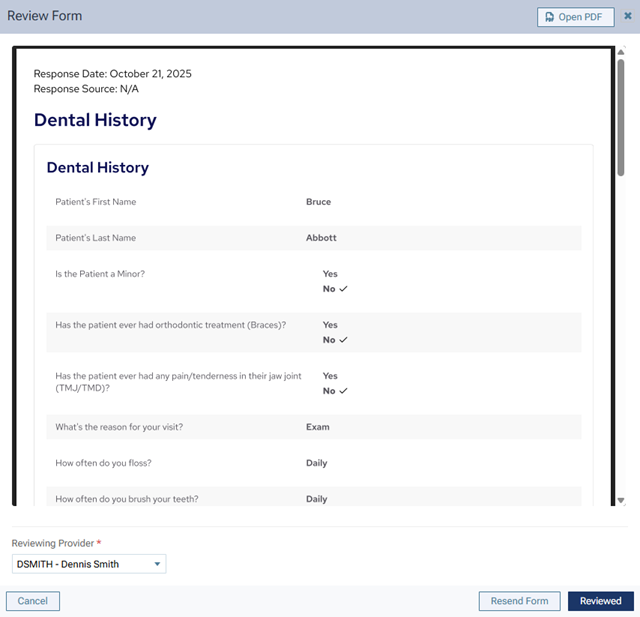
3. Click Resend Form.
The Resend Form for [Patient Name] dialog box appears.
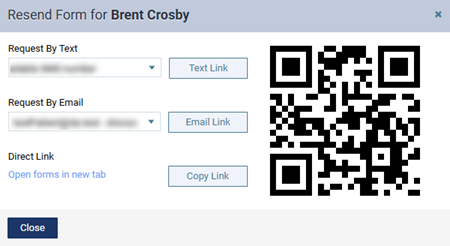
4. Do one of the following:
- To send the portal link to a mobile phone number, select the desired number from the list, and then click (or tap) Text Link.
- To send the portal link to an email address, select the desired address from the list, and then click (or tap) Email Link.
- To copy the portal link to the Window Clipboard, click (or tap) Copy Link. You can then paste the link in a document or email message for the patient.
- To open the patient’s portal on another tab of your Web browser (for instance, if you are opening it on a practice-owned mobile device that the patient can use to complete forms in the office; be sure to close any other Dentrix Ascend tabs before giving the device to the patient), you can click (or tap) the Open forms in new tab link.
- To access the patient’s portal link on a mobile device, use the camera on that device to scan the QR code, and then tap the link that appears on the mobile device.
5. Click Close.