
EARLY ACCESS ONLY
You can now create, track, schedule, and manage internal (within your organization) and external (outside your organization) patient referrals in Ascend. The new referral management features connect dental practices across your organization. Manual phone calls, sticky notes, and paper slips are replaced with an automated, trackable in-system workflow:
- Internal referrals (within your organization) – The system automatically syncs patient data, appointment bookings, and clinical completion across offices without duplicate data entry.
- External referrals (outside your organization) – The system tracks referrals at creation (made/sent). You can print/email referral letters for outbound cases, and you can enter information manually for inbound cases.
Note: Referral management is available only if you have purchased the Specialty package.
New security rights
The following new security rights (in the “Settings” category) control access to referral management:
- View Referral Management Hub – Allows the user to access the referral hub. Allows the user to see the Referred Cases box on a location’s Overview page (dashboard).
- Send referral – Allows the user to create and send internal or external referrals.
- Schedule referral appointment – Allows the user to schedule a referral from the chart or hub.
- Cancel referral – Allows the user to cancel unscheduled referrals.
Note: By default, Administrator, Provider, and Receptionist roles have full access; the Billing Coordinator role does not.
Creating an internal outbound referral
Use this workflow when you are referring a patient to a specialist or another provider within your organization.
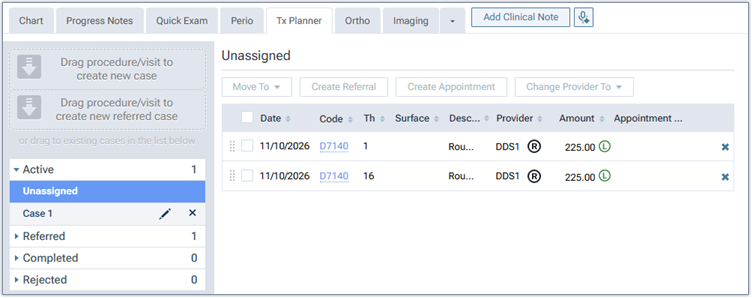
1. On the Tx Plan tab of a patient’s clinical record, select planned procedures (under Active; unassigned or assigned to a case) or referred (under Referred; unassigned or assigned to a case) procedures.
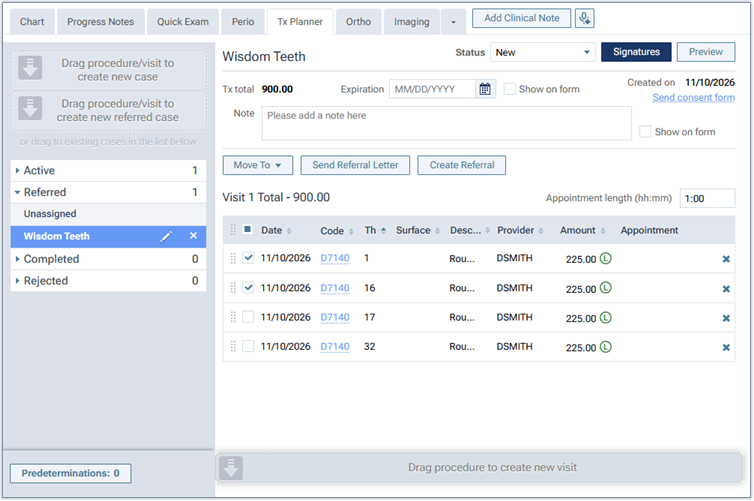
2. Click Create Referral.
The Create Referral dialog box appears. The Internal tab is selected by default.
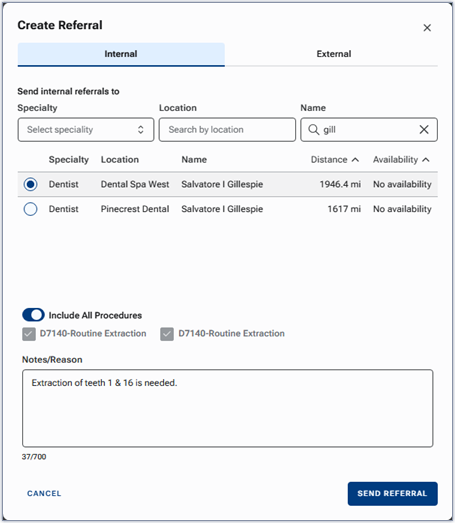
3. Use the Specialty, Location, and/or Name filters to locate a provider to whom you are referring the patient.
4. Select the correct provider.
5. To include all the selected procedures with the referral record, leave the Include All Procedures switch enabled.
6. In the Notes/Reason box, enter a clinical reason and/or any relevant referral notes.
6. Click SEND REFERRAL.
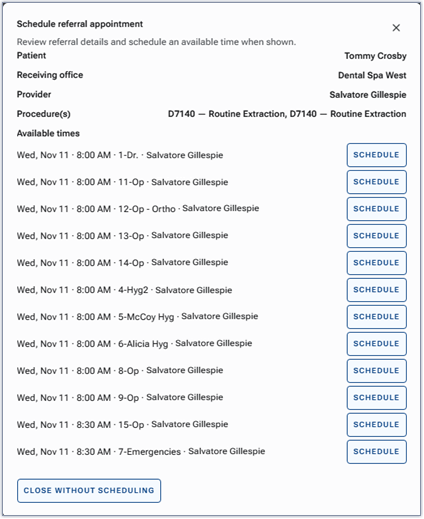
The Schedule referral appointment dialog box appears.
7. Do one of the following:
If the provider has availability, possible time slots appear. To schedule an appointment, click the SCHEDULE button of the desired time slot. To not schedule an appointment, click CLOSE WITHOUT SCHEDULING.
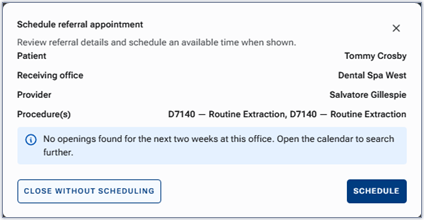
If the provider does not have availability in the next two weeks, either click SCHEDULE to view the calendar and find an available time slot, or click CLOSE WITHOUT SCHEDULING to not schedule an appointment.
If the statuses of the procedures you referred are not already Tx Plan, the statuses are changed to Tx Plan, and the procedures are moved to the Unassigned section under Active. The procedures you referred have an “R” symbol to indicate that a referral is attached.
Creating an external outbound referral
Use this workflow when you are referring a patient to an independent specialist or practice outside your organization.
1. On the Tx Plan tab of a patient’s clinical record, select planned procedures (under Active; unassigned or assigned to a case) or referred (under Referred; unassigned or assigned to a case) procedures.
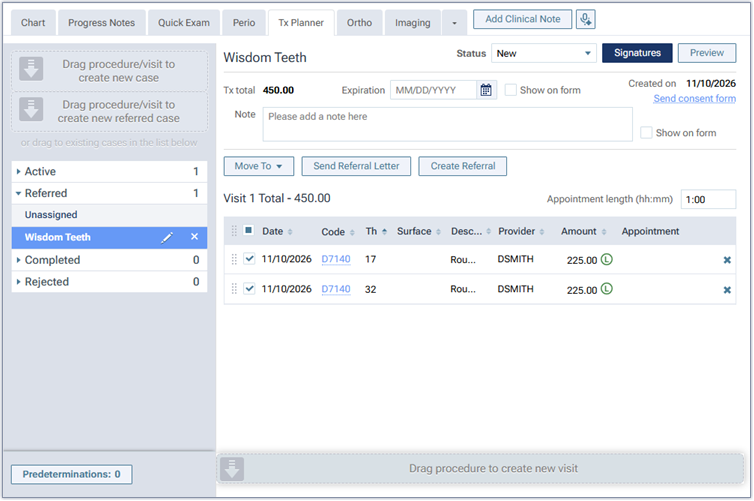
2. Click Create Referral.
The Create Referral dialog box appears. The Internal tab is selected by default.
3. Select the External tab.
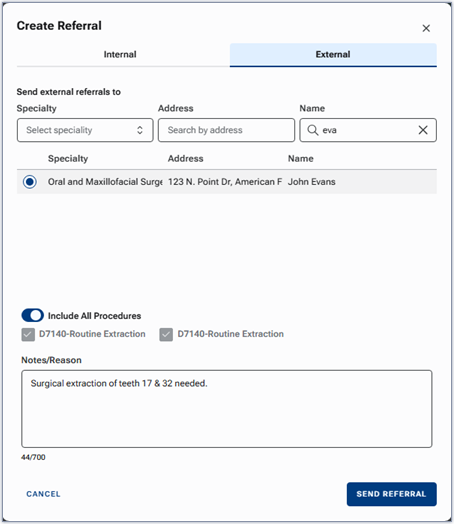
4. Use the Specialty, Address, and/or Name filters to locate an external referral (from the referral sources configured in your database).
5. Select the correct provider or business.
6. To include all the selected procedures with the referral record, leave the Include All Procedures switch enabled.
7. In the Notes/Reason box, enter a clinical reason and/or any relevant referral notes.
8. Click SEND REFERRAL.
The procedures you referred have an “R” symbol to indicate that a referral is attached.
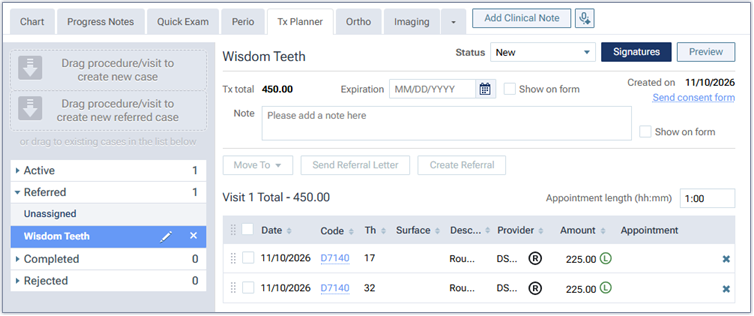
9. To create a referral letter (pre-populated with patient and procedure details) that you can print or email, select the checkbox of each of the referred procedures, and then click Send Referral Letter.
Alternatively, from the referral hub, you can create a referral letter that you can print or email. Go to Home > Referral Hub, select the External Referral tab, select OUTGOING, and then click the referral’s letter icon (in the Actions column).
Monitoring and managing referrals
Location dashboard
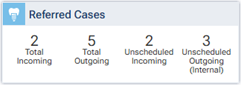
The Referred Cases box on a location’s Overview page (dashboard), displays the number of inbound and outbound referrals within your organization and the number of inbound and outbound referrals within your organization that are not scheduled. You can click the box to open the referral hub.
Opening the referral hub (menu option)
To open the referral hub, you can also select Referral Hub (under Location) on the Home menu.
Internal Referral tab, with INCOMING selected
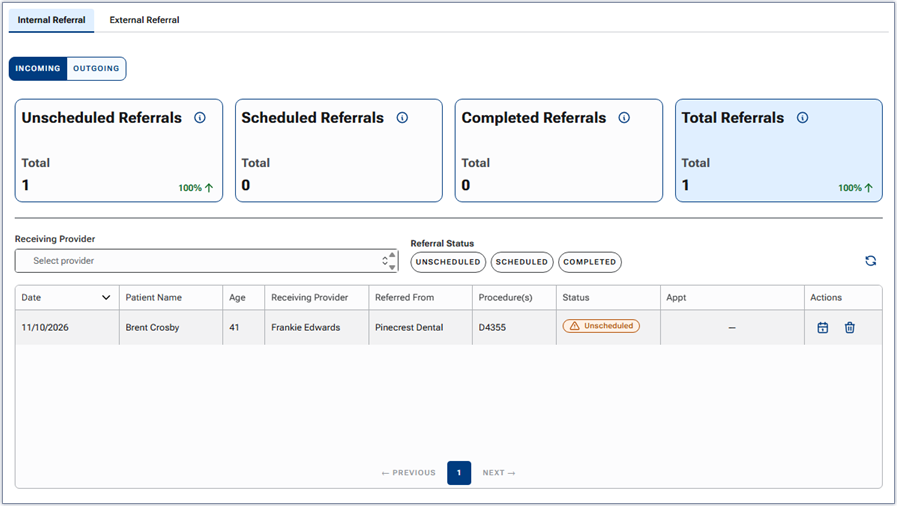
The following metrics appear:
- Unscheduled Referrals – The number of internal inbound referrals that have not been scheduled.
- Scheduled Referrals – The number of internal inbound referrals that have been scheduled.
- Completed Referrals – The number of internal inbound referrals that are attached to completed appointments.
- Total Referrals – The number of internal inbound referrals.
To filter the list of referrals by provider, select each desired provider in turn from the Receiving Provider list. Only the providers associated with internal inbound referrals are available for selection.
To filter the list of referrals by status, select each desired status under Referral Status: UNSCHEDULED, SCHEDULED, and/or COMPLETED.
For each referral, the following details appear: date, patient’s name and age, receiving provider, originating location, procedures, status, and appointment date (if applicable).
For any unscheduled referral, do any of the following:
- To schedule an appointment, click the calendar icon (in the Actions column). In the Schedule referral appointment dialog box that appears, if time slots are available, click the SCHEDULE button that corresponds to the time slot that works for the patient.
- To delete the referral, click the trash can icon (in the Actions column). Click CONTINUE on the confirmation message that appears.
Note: These options are available in the Actions column only if the status of the referral is Unscheduled.
Internal Referral tab, with OUTGOING selected
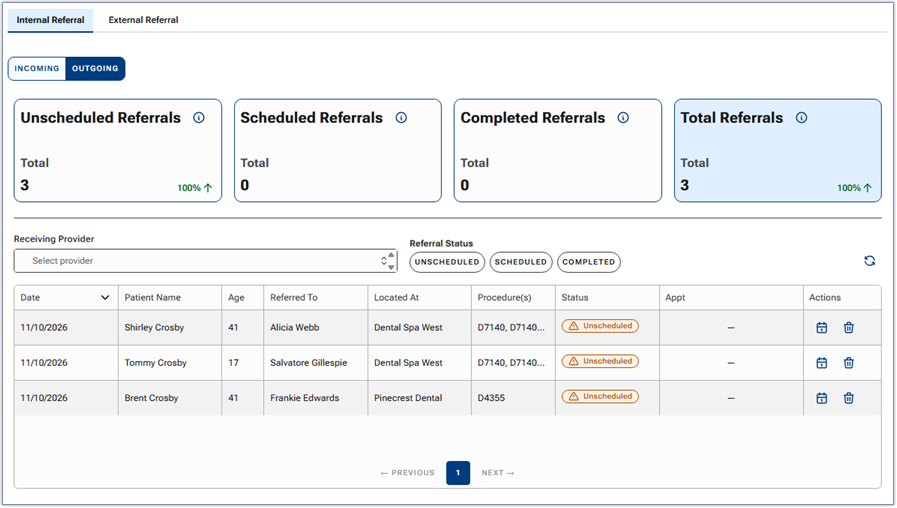
The following metrics appear:
- Unscheduled Referrals – The number of internal outbound referrals that have not been scheduled.
- Scheduled Referrals – The number of internal outbound referrals that have been scheduled.
- Completed Referrals – The number of internal outbound referrals that are attached to completed appointments.
- Total Referrals – The number of internal outbound referrals.
To filter the list of referrals by provider, select each desired provider in turn from the Receiving Provider list. Only the providers associated with internal outbound referrals are available for selection.
To filter the list of referrals by status, select each desired status under Referral Status: UNSCHEDULED, SCHEDULED, and/or COMPLETED.
For each referral, the following details appear: date, patient’s name and age, receiving provider, destination location, procedures, status, and appointment date (if applicable).
For any unscheduled referral, do any of the following:
- To schedule an appointment, click the calendar icon (in the Actions column). In the Schedule referral appointment dialog box that appears, if time slots are available, click the SCHEDULE button that corresponds to the time slot that works for the patient.
- To delete the referral, click the trash can icon (in the Actions column). Click CONTINUE on the confirmation message that appears.
Note: These options are available in the Actions column only if the status of the referral is Unscheduled.
External Referral tab, with INCOMING selected
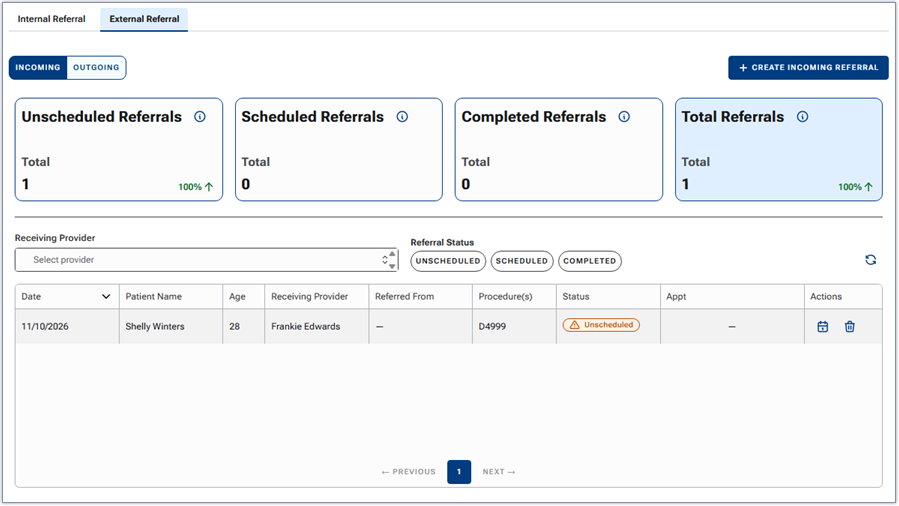
The following metrics appear:
- Unscheduled Referrals – The number of external inbound referrals that have not been scheduled.
- Scheduled Referrals – The number of external inbound referrals that have been scheduled.
- Completed Referrals – The number of external inbound referrals that are attached to completed appointments.
- Total Referrals – The number of external inbound referrals.
To filter the list of referrals by provider, select each desired provider in turn from the Receiving Provider list. Only the providers associated with external inbound referrals are available for selection.
To filter the list of referrals by status, select each desired status under Referral Status: UNSCHEDULED, SCHEDULED, and/or COMPLETED.
For each referral, the following details appear: date, patient’s name and age, receiving provider, referring organization, procedures, status, and appointment date (if applicable).
For any unscheduled referral, do any of the following:
- To schedule an appointment, click the calendar icon (in the Actions column). In the Schedule referral appointment dialog box that appears, if time slots are available, click the SCHEDULE button that corresponds to the time slot that works for the patient.
- To delete the referral, click the trash can icon (in the Actions column). Click CONTINUE on the confirmation message that appears.
Note: These options are available in the Actions column only if the status of the referral is Unscheduled.
Creating an external inbound referral
To create an external inbound referral, do the following:
a. Click + CREATE INCOMING REFERRAL.
The Incoming Referral dialog box appears.
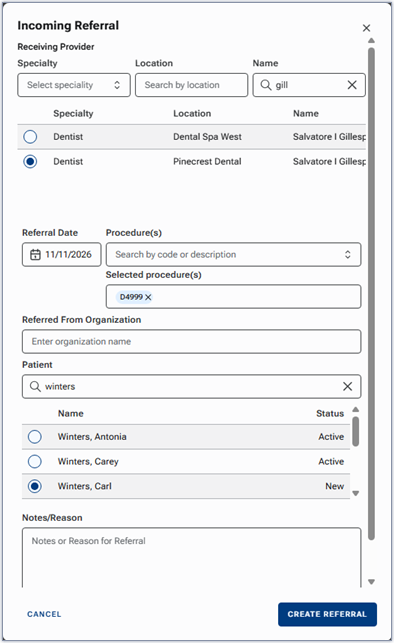
b. Under Receiving Provider, use the Specialty, Location, and/or Name filters to locate a provider to whom you are referring the patient.
c. Select the correct provider.
d. Leave today as the Referral Date, or specify the correct date that the referral was issued.
e. Add one or more Procedure(s) to the referral.
f. Optionally, enter the Referred From Organization.
g. Select the Patient being referred to your practice.
h. Enter a clinical reason and/or any relevant referral notes in the Notes/Reason box.
i. Click CREATE REFERRAL.
External Referral tab, with OUTGOING selected
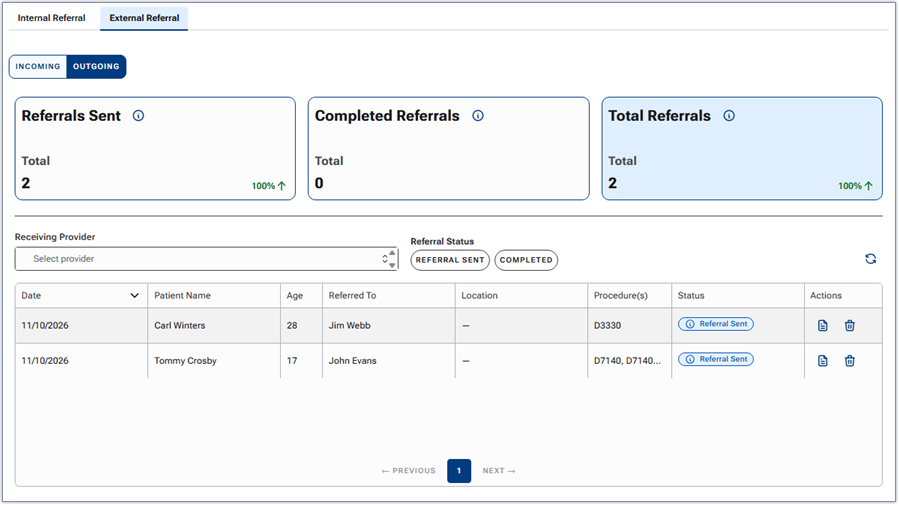
The following metrics appear:
- Unscheduled Referrals – The number of external outbound referrals that have not been scheduled.
- Scheduled Referrals – The number of external outbound referrals that have been scheduled.
- Completed Referrals – The number of external outbound referrals that are attached to completed appointments.
- Total Referrals – The number of external outbound referrals.
To filter the list of referrals by provider, select each desired provider in turn from the Receiving Provider list. Only the providers associated with external outbound referrals are available for selection.
To filter the list of referrals by status, select each desired status under Referral Status: UNSCHEDULED, SCHEDULED, and/or COMPLETED.
For each referral, the following details appear: date, patient’s name and age, receiving provider, procedures, and status.
For any unscheduled referral, do any of the following:
- To create a referral letter (pre-populated with patient and procedure details) that you can print or email, click the letter icon (in the Actions column).
- To delete the referral, click the trash can icon (in the Actions column). Click CONTINUE on the confirmation message that appears.
Note: These options are available in the Actions column only if the status of the referral is Unscheduled.
Cancelling an internal unscheduled referral
Be aware of the following if you delete an internal (inbound or outbound) referral that is unscheduled:
- The referral is removed from both sending and receiving queues in the referral hub.
- The status of the associated procedures are changed from Tx Plan to Referred (if the procedures were originally marked as Referred).
- Ascend sends a retraction notification to the inbox of the sending location and the inbox of the receiving location.
- Scheduled referrals cannot be cancelled directly. If you want to delete a referral, the associated appointment must be cancelled or broken on the schedule first.
Inbox
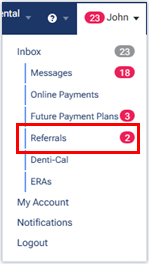
A list of internal inbound and external inbound referrals appear in a location’s inbox. On the User menu, select Referrals to open the Inbox page with the Referrals tab selected.
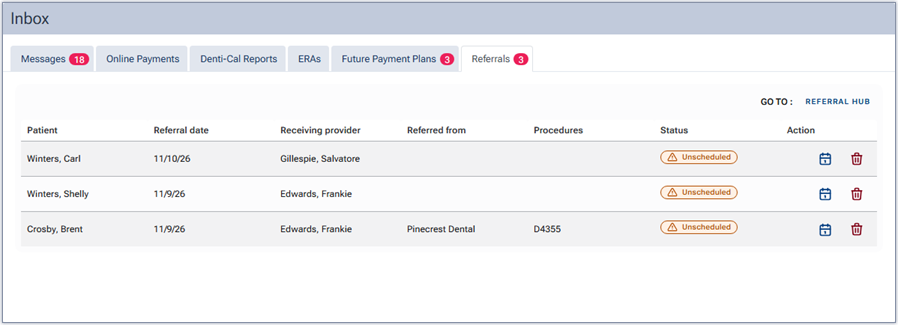
From the inbox, you can do any of the following:
- To schedule an unscheduled referral, click the calendar icon.
- To delete an unscheduled referral, click the trash can icon.
- To open the referral hub, click the REFERRAL HUB link.
Patient information
In the Referrals section of a patient’s Patient Information page (go to Patient > Patient Information), external outbound referrals appear on the Referred To tab.
Audit log
All referral actions (including creation, field modifications, status transitions, and cancellations) are recorded in the audit log. Practice administrators and compliance teams can inspect the audit log by patient or referral to verify timestamps, actor IDs, locations, and changes.