Released 7/1/26
You can now quickly close a day on your calendar.
To quickly close a day
1. On the Calendar page (go to Schedule > Calendar), navigate to a day that you want to close.
2. On the Actions menu, select Close Day.

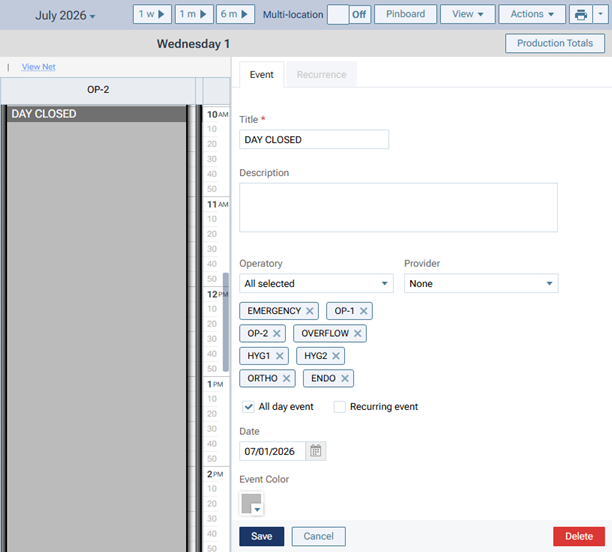
An all-day event for every operatory is created. The event is named “DAY CLOSED.”

Additional details
When you close a day, any appointments already scheduled on that day remain scheduled.

If you want to customize a “DAY CLOSED” event, you can edit that event just like any other event. Click the event (in any operatory), make the necessary changes (such as entering a different name or selecting a different color), and then click Save.
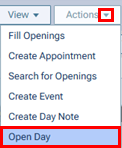
To re-open a closed day, on the Actions menu, select Open Day.
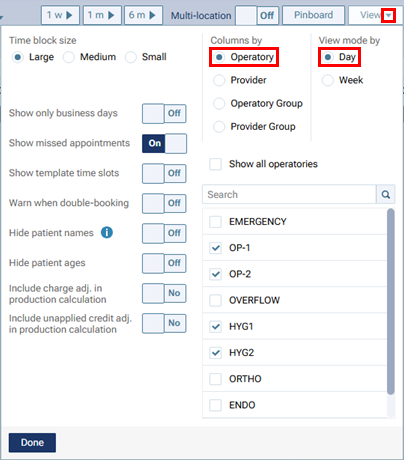
The options to close and open a day are available only if you are viewing the calendar by Day and by Operatory and if your user account has been granted the “Manage Events” security right. Also, you can see the “CLOSED DAY” events on the calendar only if you are viewing the calendar by Day and by Operatory.
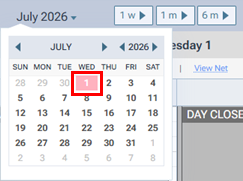
On the pop-up calendar for switching between days, closed days are red, so you can quickly identify them without having to navigate to each day individually. A red day appears on the pop-up calendar for any event, whether it was created manually or using the “Close Day” option, if it is set for all day and all active operatories. This red indicator appears regardless of the view settings for the calendar (for example, even if you are viewing the schedule by provider or by week).