
Released 1/7/26
“Waiting Period” has been added as a new exception type. Currently, it is for reference purposes only and not used for insurance estimate calculations. With this exception type, you can specify that a waiting period of a certain number of days, weeks, months, or years applies to a procedure.
To add an exception, do the following:
1. On the Home menu, select Carriers.
2. Select a carrier.
3. Select an insurance plan.
4. Click Coverage Table.
5. Click Manage Exceptions.
6. Click Add New Exception to open the New Exception for Procedure(s) in [Plan Name] dialog box.
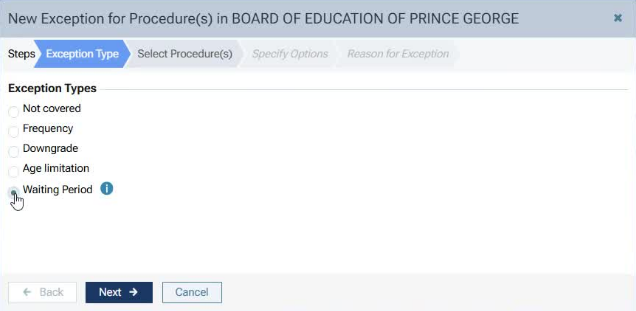
7. On the Exception Type tab, select the Waiting Period option, and then click Next.
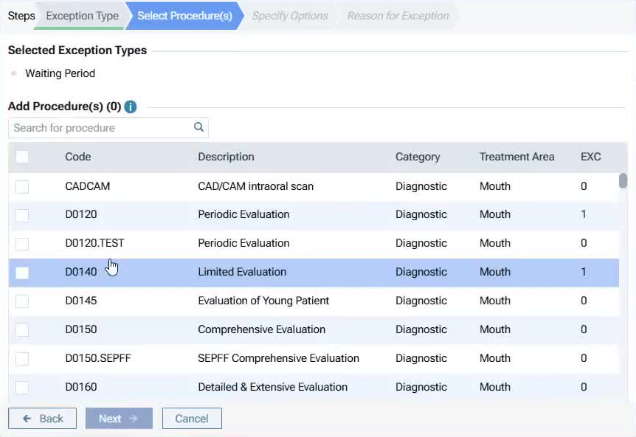
8. On the Select Procedure(s) tab, select the checkboxes that correspond to the procedure codes that have a waiting period, and then click Next.
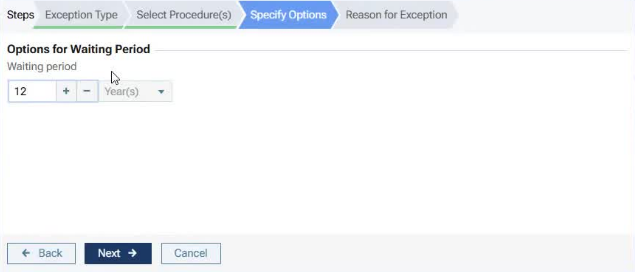
9. On the Specify Options tab, specify the length of the waiting period, and then click Next.
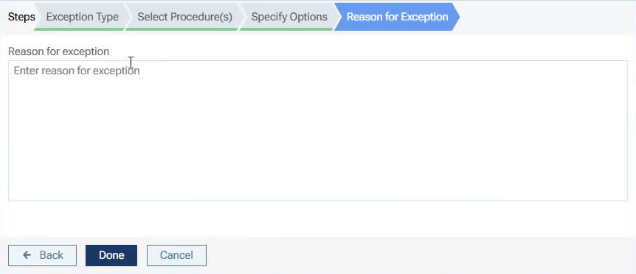
10. On the Reason for Exception tab, enter the reason for the exception in coverage for the selected procedures, and then click Done.
You are returned to the Manage Exceptions for [Plan Name] dialog box. The exception type now appears for the applicable procedures.
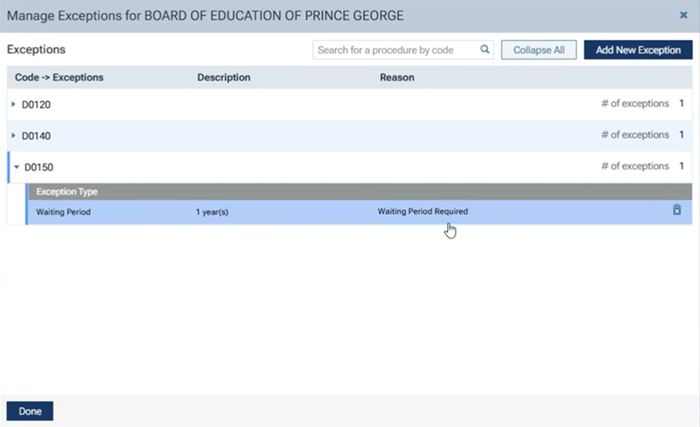
Note: To delete the exception type for a procedure, click the corresponding trash can icon, and then click Delete on the confirmation message that appears.