
Released 7/29/26
A new exception type, “Shared Frequency,” is now available. It allows you to have a single frequency exception that can apply to multiple procedures.
Examples of when you can use the shared frequency exception:
- A patient cannot have a tooth extracted more than once, but there are multiple procedure codes that can be used for a tooth extraction.
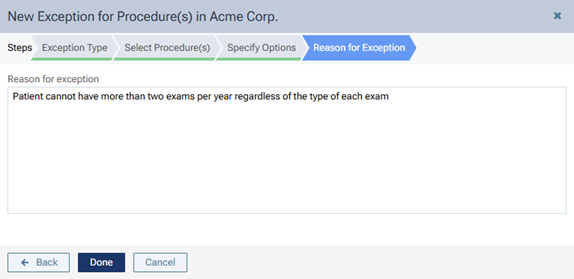
- A patient cannot have more than two exams per year regardless of the type of each exam (such as limited or comprehensive).
- A patient cannot have more than four cleanings per year regardless of the reason for each (such as prophy or perio maintenance).
To add a shared frequency exception
1. On the Home menu, select Carriers.
2. Select a carrier, and then select a plan.
3. Click Coverage Table.
4. Click Manage Exceptions.
5. Click Add New Exception.
The options for adding the exception become available.
6. Select Shared Frequency.
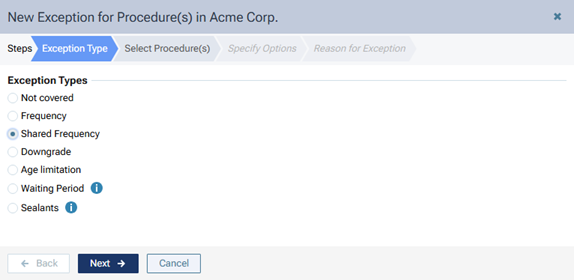
7. Click Next.
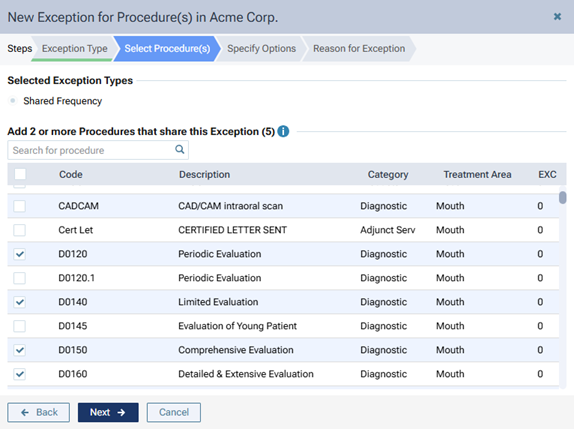
8. Select the checkbox of each applicable procedure. You must select at least two procedures.
Notes:
- To search for a procedure by code or description, use the Search for procedure box.
- A procedure may be associated with at most one of each frequency exception type: one Frequency exception and one Shared Frequency exception.
- Only procedures that are not associated with a Shared Frequency exception are available for selection.
- After you select the first procedure, only procedures with the same treatment area (such as mouth or tooth) are available for selection.
9. Click Next.
10. Specify how often the insurance carrier covers these procedures within a given time period. For How many times, either enter a number, or click (or tap) + or – to change the number. For Over the course of, enter a number, and then select Year(s), Month(s), or Day(s) from the list.
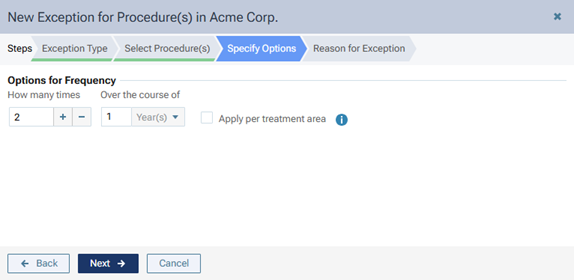
11. Either leave the Apply per treatment area checkbox selected to specify that the selected procedure codes are covered the specified number of times in the specified period if the treatment area differs, or clear the checkbox to specify that the selected procedure codes are covered the specified number of times in the specified period without regard to the treatment area.
12. Click Next.
13. In the box, enter the reason for the exception in coverage for these procedures.
14. Click Done.
You are returned to the Manage Exceptions for [Pan] dialog box. An entry for the codes that use the shared frequency exception appears.
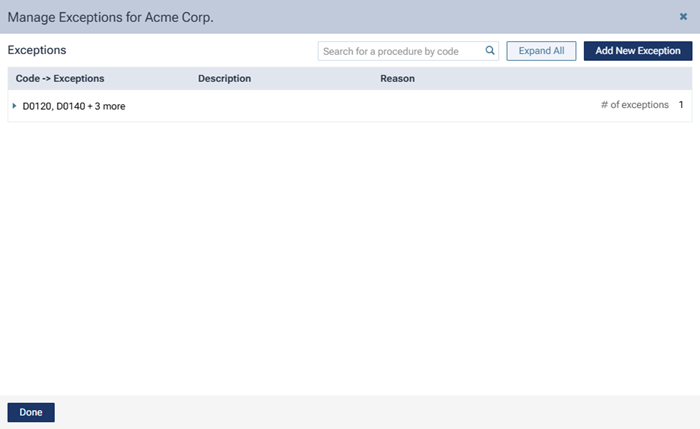
Note: To delete the exception, click the codes to view the exception, and then click the trash can icon.

15. Click Done.
You are returned to the Coverage Table for [Plan] dialog box. The exception count (in the EXC column) is incremented as applicable for each affected code range.
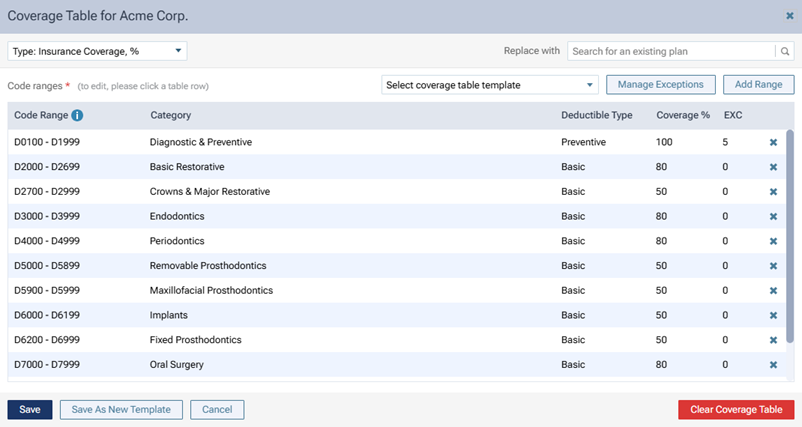
16. Click Save.