
Released 6/29/26
Important Note: An updated acquisition agent may be required for features in this release. For instructions on checking for updates, refer to the “Updating the acquisition agent” Help topic.
Enhancements
This release provides the following enhancements.
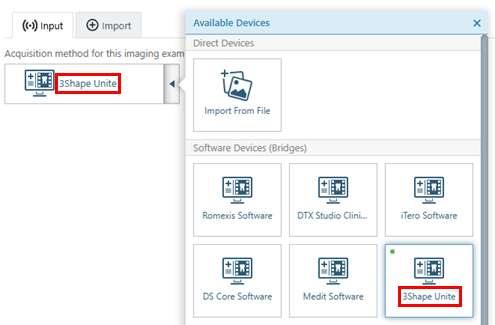
3Shape to 3Shape Unite
Any user interface element that had “3Shape” in its name is now labeled “3Shape Unite.”
AI Settings
Settings have been added regarding AI.
Note: These settings are workstation specific.
To see the new options, click the cog icon next to the Images and Tools tabs.
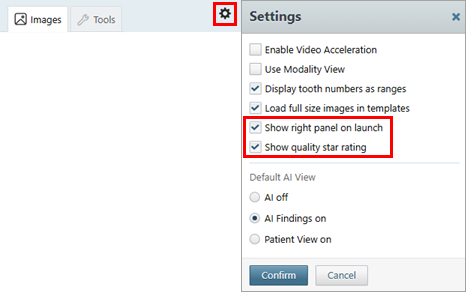
Select the checkbox for any of the following new options:
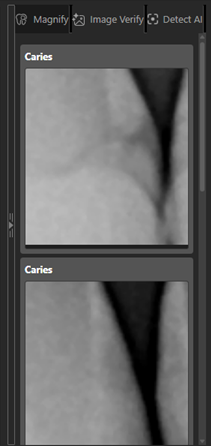
- Show right panel on launch – With this checkbox selected, the AI panel (on the right) is expanded by default. With this checkbox clear, the AI panel (on the right) is collapsed by default. This option is available only if any AI functionality (Magnify, Image Verify, or Detect AI) is enabled.

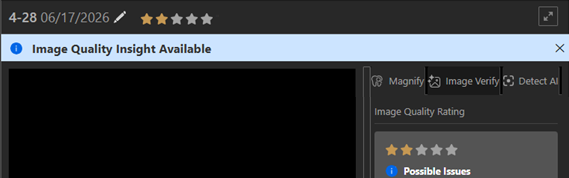
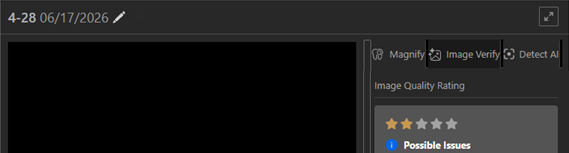
- Show quality star rating – With the checkbox selected, the star rating in the header and image quality banner/notification appear (existing functionality from previous releases). With the checkbox clear, the star rating in the header and image quality banner/notification are hidden (the star rating still appears on the Image Verify tab of the AI panel—the panel on the right). This option is available only if Image Verify is enabled.
Standard Text for Low-rated Images
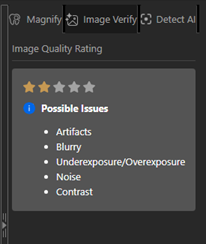
On the Image Verify tab of the AI panel (panel on the right), if an image being viewed has a rating from one to three stars, a standard list of possible quality issues appears: Artifacts, Blurry, Underexposure/Overexposure, Noise, and Contrast.
Blue Image Quality Notification
The image quality banner/notification that can appear when you acquire or view an image is now blue.

Image Quality Notification Text
The text for the image quality banner/notification that can appear when you acquire or view an image has been changed from “Consider Retake” to “image Quality Insight Available.”

State Persistence of AI Panel
- If you have collapsed or expanded the AI panel (the panel on the right), the panel remains collapsed or expanded as you switch between a patient’s exams.
- Whichever tab you have selected on the AI panel (the panel on the right) remains selected as you switch between a patient’s exams.
“Other Information” Removed from AI Panel
On the Image Verify tab of the AI panel (the panel on the right), the “Other Information” section has been removed so only clinically-relevant quality information appears.
Dismissed Image Quality Notification
If you dismiss the image quality banner/notification that can appear when you acquire or view an image, the notification remains dismissed as you switch between a patient’s exams.
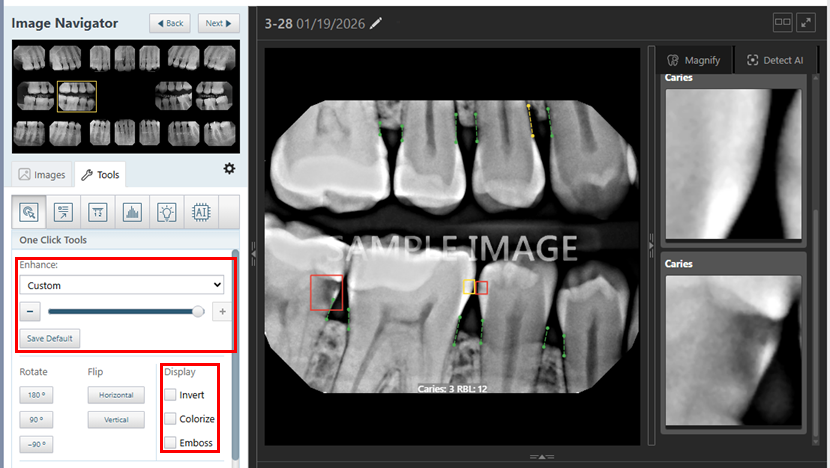
Applying Enhancement or Adjusting Brightness/Contrast Affects Magnify Tab
When you apply an enhancement (Enhance, Invert, Colorize, or Emboss) to an image in the viewer, the same enhancement is applied to the images on the Magnify tab.
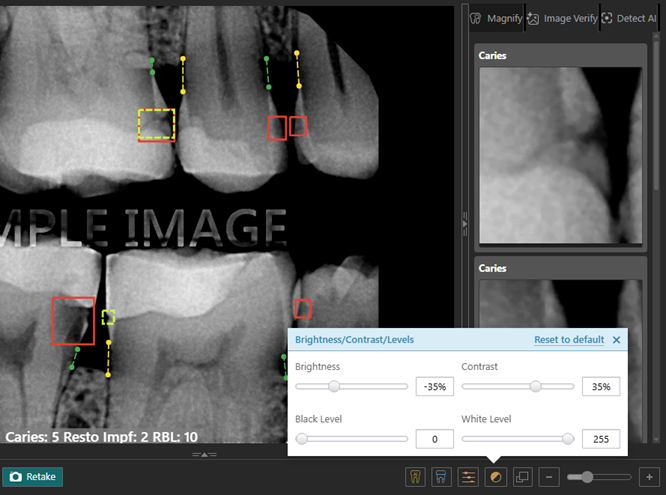
When you adjust the brightness or contrast of an image in the viewer, the same adjustment is applied to the images on the Magnify tab.
Fixes
This release resolves the following issues:
- With Image Verify enabled, if you select an exam and then select another one too quickly, an Uncaught Type Error appears, and Image Verify appears to become disabled. (IMG-907)
- In the Modality View, when you click the “Show/hide AI findings” button, an Uncaught Type Error appears. (IMG-909)
- When you move your pointer off an AI detection, the detection remains highlighted. (IMG-916)
- When you attempt to acquire an image, an Uncaught Type Error appears. (IMG-935)
- If you have the scaling for your display set to any value besides 100%, the slice plane indicators for a 3D volume are not rendered correctly or do not appear at all. (IMG-830)
- In the Modality View, if you turn image enhancement on or off, the images thumbnails shift if there is more than 7 intraoral X-rays or extraoral X-rays. (IMG-871)
- The “No magnify preview to display” and “Magnify Disabled” messages can appear simultaneously. (IMG-899)
- In the acquisition agent preferences, you are unable to log in to your 3Shape account due to an OAuth error, which prevents you from using the 3Shape software bridge. (IMG-925)
- After you select the Density tool, if you select the Images tab, AI results do not appear, and the footer buttons no longer appear. (IMG-950)
- The blue Image Verify icon is upside down so it looks like an exclamation point (!) instead of an “i.” (IMG-951)
- On the AI panel (panel on the right), there is no indicator of which tab is selected. (IMG-959)
- When you are navigating an image stack, if you click the Next button after reaching the last image in the stack, an icon appears and overlaps the Next button. (IMG-961)
- For a Panoramic, Cephalometric, 2D Oral/Facial Photos, or CAD/CAM Scan procedure, the instruction that appears mentions a “Proceed with Acquisition” button instead of the “Start” button. (IMG-968)
- With the “Edit” access right disabled, you can still rotate and flip the images using the “Rearrange Exam” option. (IMG-971)
- With the “Reassign Exam” access right disabled, you can still reassign exams to other patients using the footer button. (IMG-972)
- In the Modality view, clicking the acquisition button takes you to the advanced acquisition mode whether the advanced or simple acquisition mode was used previously. (IMG-975)
- In the Modality View, with an Extraoral Color image or Extraoral X-ray selected, when you click “Share”, select any option other than “Entire exam in one image”, and then click “Print,” an Uncaught TypeError is thrown, and the Print/Save As window does not open. (IMG-987)
- Sometimes, no AI results are displayed for an image, and the following error is thrown: “Uncaught TypeError: Cannot read properties of undefined (reading ‘x’).” (IMG-990)