
Released 5/26/26
Important Note: An updated acquisition agent may be required for features in this release. For instructions on checking for updates, refer to the “Updating the acquisition agent” Help topic.
Magnify Tab
There is now a Magnify tab on the AI panel (the panel on the right) to provide zoomed-in views of AI findings, including caries and PRL. The Magnify tab displays a magnified view for each AI finding on an image, allowing you to quickly assess areas of concern without having to manually zoom in. The Magnify tab is selected by default when you view an acquired image.
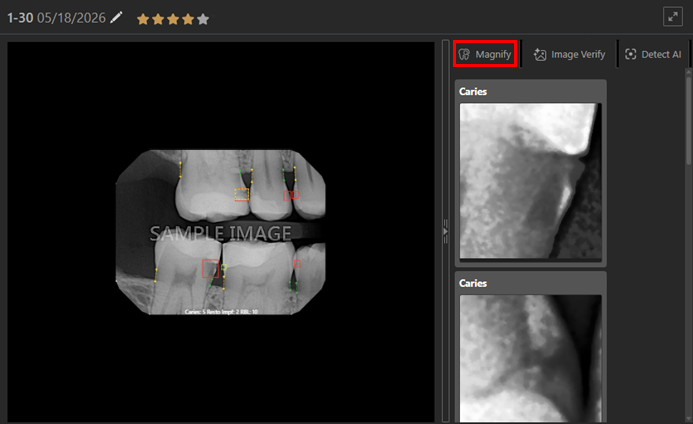
When you position your pointer over an AI finding on an image in the viewing area, the corresponding magnified view on the Magnify tab is selected automatically (a yellow indicator box appears around that magnified view).
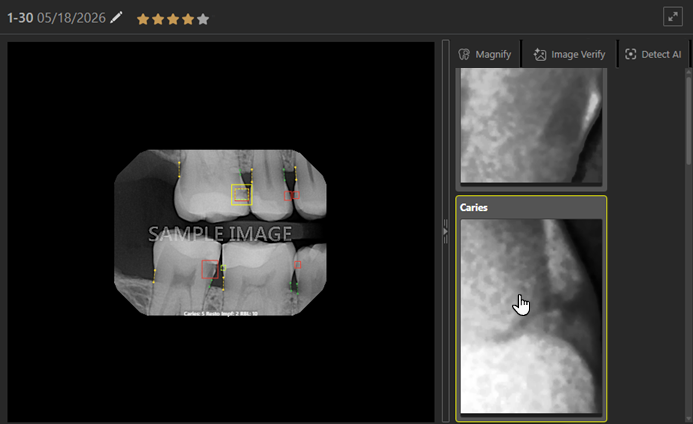
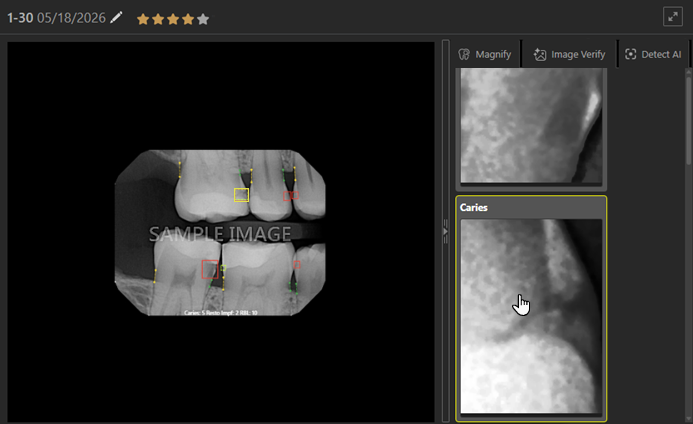
When you position your pointer over a magnified view on the Magnify tab, the corresponding AI finding on the image in the viewing area is selected automatically (a yellow indicator box appears around that AI finding).
Notes:
- The Magnify tab is available only if Detect AI is enabled and you are viewing an intraoral X-ray image that is eligible for AI findings.
- If any tool besides “One Click Tools” is active, the Magnify tab does not display magnified views.
- If AI findings are turned off, the Magnify tab does not display magnified views.
- Depending on the width of the AI panel , the tabs names may be hidden, leaving only icons to identify the tabs.
Fixes
This release resolves the following issues:
- When reassigning a 3D volume that has had a snapshot taken using the more options reassign exam button, the following error is thrown: “Uncaught TypeError: Cannot read properties of undefined (reading ‘removeExam’).” (IMG-627)
- With the edit access right disabled, you cannot click images to view them in Big Template mode or if Anatomical is selected for the Intraoral X-ray/Intraoral Color categories in Modality View. (IMG-725)
- The DICOM extractor uses the Study Date as the exam date instead of the Series Date. (IMG-787)
- In modality view, the most recently selected image is highlighted, but no images should be highlighted. (IMG-818)
- The AI side panel is not hidden when in full screen mode after navigating to another image. (IMG-826)
- If you start on an image with Image Verify results and then select another image that has no results, the “No Quality Information Available” banner appears, but the side panel continues to display the last image’s rating. (IMG-836)