
EARLY ACCESS ONLY
Previously, claims management in Dentrix Ascend could be done only at the location level. Billing teams and insurance coordinators struggled to monitor, prioritize, and work claims across the organization, and they often could not see the full picture without leaving Dentrix Ascend. That lead to repeated use of Power BI, spreadsheets, and third-party tools, slowing follow-up and increasing the risk that claims impacting revenue were missed or worked inconsistently.
The claims manager gives multi-location organizations a centralized, real-time view of open claims across all locations in Dentrix Ascend. It reduces reliance on Power BI reports, spreadsheets, and third-party tools by putting organization-wide claim inventory, filtering, and action in one place. The claims manager is intended to help billing managers and insurance coordinators who work open claims across locations, and it can benefit revenue cycle management leadership. Use the claims manager to quickly identify priorities and keep work moving.
For this initial release of the claims manager, you get a cross-location list of all claims that you can search, filter, sort, personalize, and act on (including bulk submit/resubmit). You can also open an individual claim to edit and submit/resubmit it as needed. Additionally, you can assign claims to specific billing staff.
The claims manager helps your team:
- Manage claims across locations from one workspace.
- Identify at-risk claims faster.
- Assign and balance work.
- Track follow-ups without spreadsheets.
- Find unbilled procedures before they affect revenue.
Future enhancements planned:
- More robust claims assignment and work queue functionality.
- Claim follow-up.
- Analytics.
- Agent productivity reporting.
- Create claims.
- Automation for claim attachments and submission.
- Claim exceptions.
- Save and load views.
- Additional KPI cards and lifecycle queues.
New security right:
Accessing the claims manager requires the “Claims Manager Access” security right (in the “Insurance” category). By default, this new security right is selected for the following user roles: Administrator and Billing Coordinator.
To use the claims manager (primary workflow)
1. Open the claims manager: on the Home menu, under Insurance, select Claims Manager.
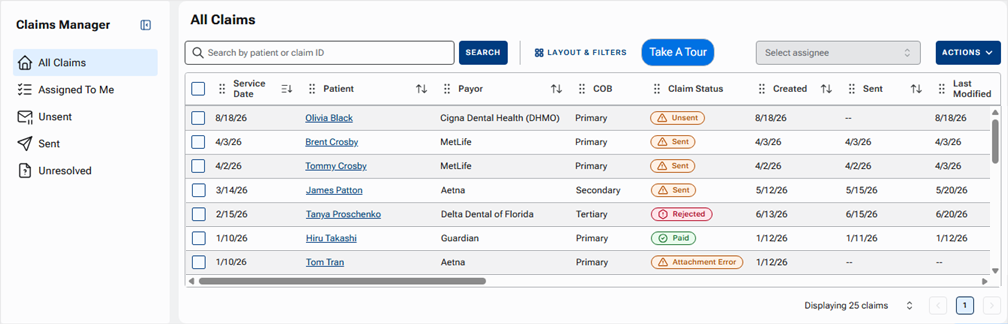
2. On the left panel, choose a work focus: all unassigned claims, unassigned claims with a certain status (unsent, sent, or unresolved), or claims assigned to you.
3. To optionally narrow the list further, do any of the following:
- To locate a claim, enter a patient name or claim ID in the Search by patient or claim ID box, and then click SEARCH.
- To specify which columns to display and set up filtering, click LAYOUT & FILTERS to open the All Filters dialog box. Select or clear the checkbox of each column you want to view or hide, respectively, in the claims list. For most columns, you can specify filtering criteria (such as viewing claims in specific locations, for specific payers, and with specific statuses). Then, click APPLY. For example, you can filter by carrier to review related claims while speaking with the insurance company, or you can prioritize claims with the highest potential financial impact.
4. Sort and scan the grid to prioritize claims that require action or follow-up. The Claim Status column helps you know which claims may need immediate attention (such as unsent claims and claims with errors).
5. To manage claims in bulk, select one or more claims, and then do any of the following:
- To assign/reassign the selected claims to a specific staff member, select the person’s name from the Select assignee list. This can help balance workloads and clarify ownership.
- To submit/resubmit the selected claims, select SUBMIT from the ACTIONS menu.
6. When a claim needs deeper work, open the Claim Details dialog box by clicking that claim in the list, make the necessary changes, and then save or submit/resubmit it.
Note: Clicking a patient’s name (which is a link) opens that patient’s ledger on a new browser tab.
7. Return to the list to work with other claims that require action.