
EARLY ACCESS ONLY
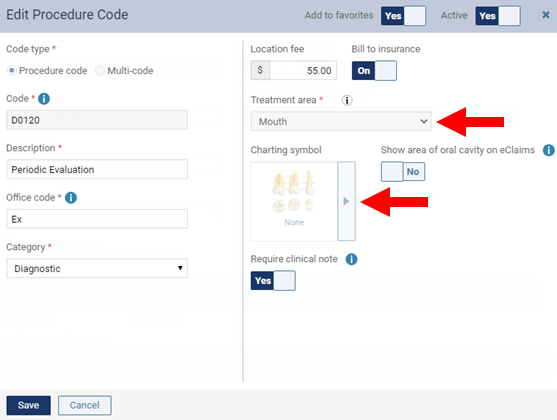
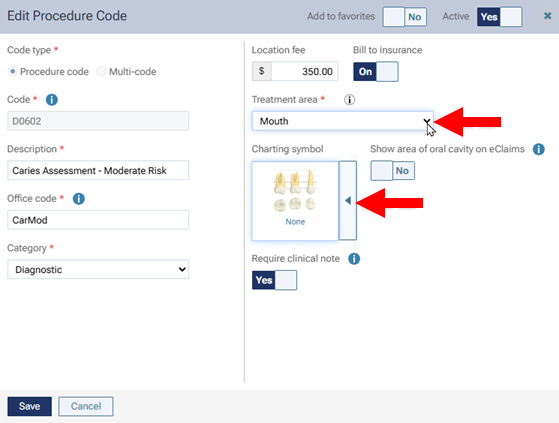
Previously, if a procedure was posted to any patient records, the treatment area (such as mouth or range) could not be changed for that procedure code. To help meet the needs of practices (especially the need to report accurate information on insurance claims), you can now change the treatment area setting for any procedure code (by going to Settings > Procedure Codes & Conditions) whether or not it was posted previously so, going forward, the correct information can be specified when that procedure is posted.
Before
Now
Notes:
- After you change the Treatment area, a confirmation message appears if the procedure has been posted previously. Click Yes (to keep the change) or No (to undo the change).
- If you change the Treatment area, previously posted procedures in patients’ records are unaffected. Only future postings of the procedure will use the new treatment area. For example, if a D1234 with a treatment area of “Quadrant” has been posted 100 times, and the office manager changes the procedure code’s treatment area to “Tooth,” all 100 instances of that procedure that were posted previously still have the treatment area of “Quadrant,” but from now on, when the someone posts a D1234, a tooth number must be specified.
- As in previous versions, the charting symbols that are available are based on the selected treatment area. If you change the treatment area (for example, from tooth to mouth), the charting symbol might need to change (for example, from a surface restoration to “None”). If the Charting symbol is changed, previously posted procedures in patients’ records are unaffected. Only future postings of the procedure will use the new charting symbol.