
EARLY ACCESS ONLY
In Dentrix Ascend, if your organization has multiple locations, you can now build and manage your organizational structure. You can define a hierarchy that reflects how your organization operates, with various business units grouped by geography, market, brand, specialty, and so forth. Then, you can assign each location to one of those business units within the hierarchy.
To configure an organizational structure
1. On the Settings menu, select Organizational Structure.
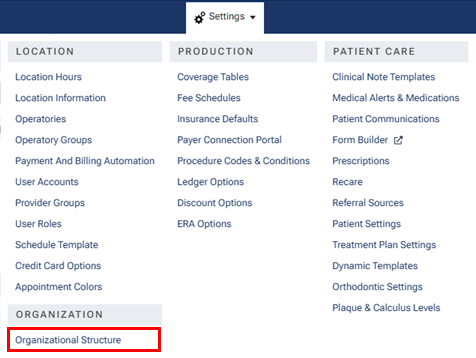
Note: This option is available only for organizations with multiple locations.
The Organizational Structure page opens.
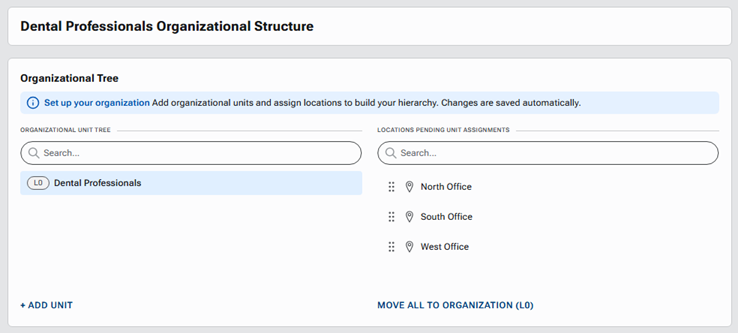
Note: If the organization’s structure/hierarchy has not been configured yet, the page displays the organization root on the left and unassigned locations on the right.
2. To model your network (create regions, markets, or custom groupings and assign locations under the applicable units), do any of the following as needed:
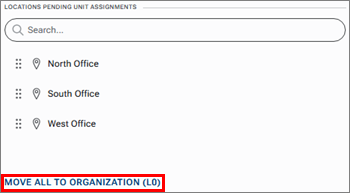
- Move all locations to the organization – Click MOVE ALL To ORGANIZATION (L0) (in the lower-right corner).
- Add an organizational unit – With a level selected on the left, click + ADD UNIT (in the lower-left corner), and then enter a name for the unit in the editable box that appears.



- Rename a unit – Double-click a unit’s name to make the box editable, and then change the text.

- Delete a unit – Select a unit, and then click its trash can icon. You can delete a unit only if it does not contain other units. If you delete a unit that contains locations, those locations are moved back to the right.

- Move a unit – Drag a unit by its handle to a different unit (at any level) to make the destination unit the parent of the unit being moved.
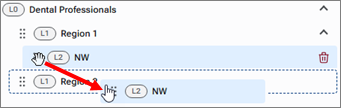
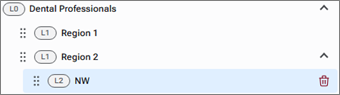
- Move a location – Drag a location by its handle to a unit (from the right to the left, from one unit to another, or from the left to the right).

Notes:
- Use the Search box at the top of the right list to filter the list to include only locations that match your search criteria.
- Use the Search box at the top of the left list to filter the list to include the units and locations that match your search criteria. Any ancestor units of a matching unit or location are displayed. Any descendants (units and locations) of a matching unit are displayed.
- Unit names must be unique across the entire organization.
- Units can be nested up to five levels deep for each branch of the organizational tree.
- A location can be assigned to only one unit (that unit can have ancestor units, of course).
- Units and locations are automatically arranged alphabetically.
- All changes are saved automatically.
- Changes to the organization structure are recorded in the audit log.