
Released 8/18/26
Important Note: An updated acquisition agent may be required for features in this release. For instructions on checking for updates, refer to the “Updating the acquisition agent” Help topic.
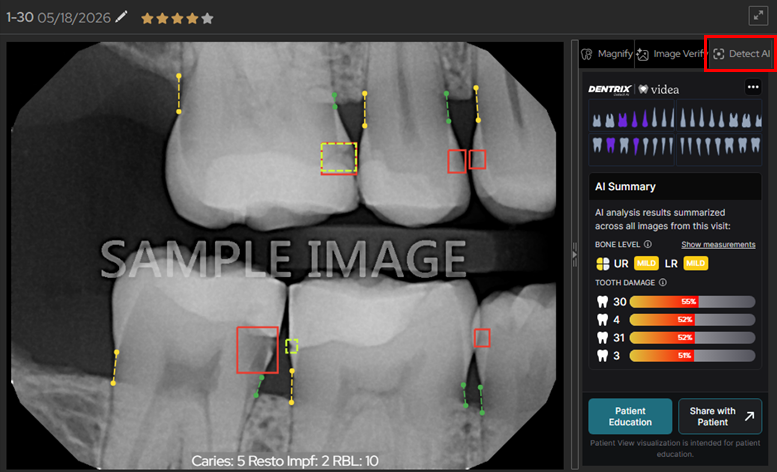
Detect AI Tab Is Selected by Default
If Detect AI is enabled for the location that you are logged in to, on the AI panel (the panel on the right), the Detect AI tab is now selected by default for each patient (when you start a new image-viewing session for that patient). Previously, the Magnify tab was selected by default.
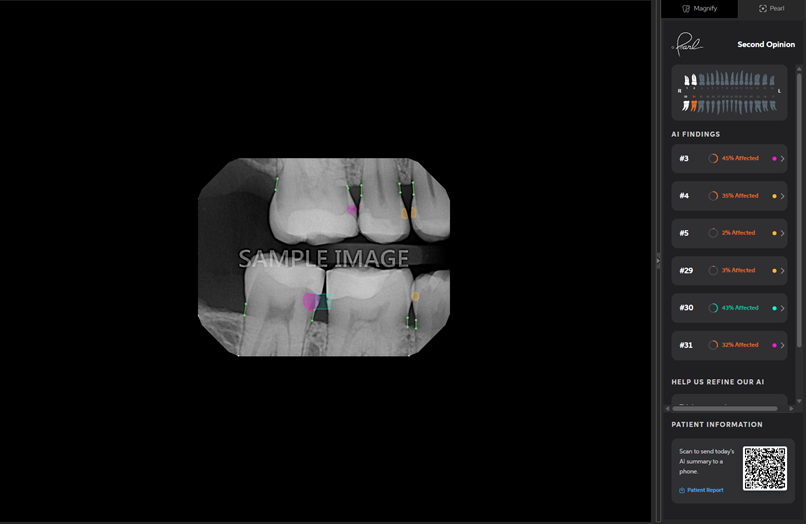
Pearl Tab
If Pearl AI has been activated, for an intraoral X-ray image being viewed, a Pearl tab is now available on the AI panel (the panel on the right). The tab displays a summary of the AI analysis performed on the displayed teeth.
Vatech Clever One Software Bridge
Dentrix Ascend Imaging now integrates with the Vatech Clever One software through a bridge. In the acquisition device list, use the Vatech CleverOne / EzDent-i option (previously “Vatech EzDent-i”).
Note: If you have both Clever One and Ez-Dent-i installed, Clever One is used for acquisitions.
Magnify Tab Messaging Improvement
If AI results are not available yet, or no findings were found, on the Magnify tab, the green check mark icon has been removed, and the wording of the message has been changed from “No magnify preview to display.” to “No Findings Detected. Enable AI to view magnified findings.”
Fixes
This release resolves the following issues:
- After checking and/or unchecking an option in the “Narrow down the results” menu, the Tools tab is grayed out and cannot be clicked until another image is selected. (IMG-1104)
- If you are acquiring images using the ‘DEXIS/Kavo Sensors’ device option and the sensor disconnects from the PC, disconnection is not detected, and it stays green. (IMG-1138)
- If a dialog box has a scrollbar, the whole dialog box scrolls instead of the header and footer always being visible and the middle section being the part that scrolls. (IMG-1153)
- When you close the AIDE view, findings that had been hidden are no longer hidden. (IMG-1162)
- In the Ortho Report composer, parts of the image tools (flip, delete, etc.) are cut off at minimum resolution. (IMG-1163)
- In the Exam View, rearranging an exam sometimes causes an uncaught TypeError. (IMG-1164)
- In the Modality View’s “More Options” dialog box, the cursor turns into a pointer in random areas with nothing to click on. (IMG-1165)
- In the Exam View, you can toggle checkboxes by clicking a distance away from the checkbox and text. (IMG-1168)
- Images displayed on the Magnify tab have extra black space along the bottom, and occasionally the sides. (IMG-1178)
- Sometimes errors appear because a job is trying to scan files that were deleted. (IMG-1196)
- For claim attachments, if you click a dropdown list, a box appears around the corresponding text (label). (IMG-1198)
- The dropdown list for changing the default enhancement for Simple Mode acquisitions is missing. (IMG-1199)
- For an Ortho Report, you can enter the date only in the US format (MM/DD/YYYY). (IMG-1201)
- Incorrect cross-tenant handling in legacy RealCloud. (IMG-1203)
- DICOM extraction fails on images with an “Unknown laterality” error when a DICOM file contains an Anatomic Region Sequence and Image Laterality is empty. (IMG-1207)
- When you have selected a patient to sync his/her offline images, the Imaging Data Synchronization dialog box has “(undefined)” after the patient’s name and birthday. (IMG-1102)
- When you are searching for a matching patient to sync his/her offline images, in the Imaging Data Synchronization dialog box, on the Patient Selection tab, there is an empty scroll bar visible even when not needed. (IMG-1177)
- In the Modality View, selecting the intraoral X-ray modality results in a scrollbar appearing in the Modality display window. (IMG-1244)
- In the Modality View, the More Options footer is cut off at the minimum supported resolution. (IMG-1245)
- When you are sharing a CBCT, the device selection screen does not fully expand. (IMG-1251)
- In the Modality View’s X-ray Series, when you click “Reset to default,” the names change to “Vertical Bitewing”, “4 Bitewing”, and “FMX.” (IMG-1256)
- When you are selecting a patient to reassign an exam to, the dropdown is cut off at the end of the dialog box. (IMG-1259)
- In the Modality View, for More Options, if you select an additional tooth (Palmer notation) and then attempt to save the change, an error appears. (IMG-1260)
- Using the VixWin Extractor, incorrect dates (Canada) appeared in converted data. (IMG-1277)
- After ending a 4BW acquisition after the 3rd image, the uncaptured 4th BW slot shows Magnify/Detect content from the previous image. (IMG-1288)
- Clicking the “Launch Patient” button opens the general Videa patient list instead of the intended patient. (IMG-1306)
- Using the SOTA Extractor, some images with AdvancedFilter set to NULL or empty throw errors and are not extracted. (IMG-1321)