EARLY ACCESS ONLY
You can now quickly close a day on your calendar.
To quickly close a day
1. On the Calendar page (go to Schedule > Calendar), navigate to a day that you want to close.
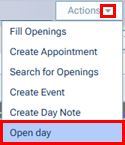
2. On the Actions menu, select Close day.

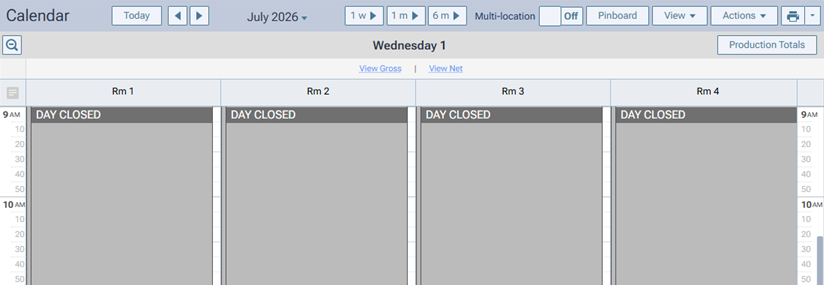
An all-day event for every operatory is created. The event is named “DAY CLOSED.”
Notes:
- When you close a day, any appointments already scheduled on that day remain scheduled.
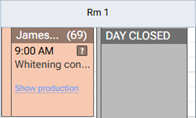
- If needed, you can click a “DAY CLOSED” event in any operatory to edit that event (existing functionality).
- To re-open a closed day, on the Actions menu, select Open day.