
Released 7/1/26
Per location, you can now designate a “house” provider and automatically assign selected procedure codes to that provider so that production dollars are credited to that provider when the specified procedures are posted unless an exception has been designated. For example, you can have imaging procedure codes automatically credit production to the house provider (representing the equipment owner); however, if a hygienist is configured as an exception for those codes, production is attributed to that hygienist.
A house provider eliminates the need for manual corrections by automating production attribution in scenarios such as the following:
- Shared equipment usage (imaging, scanners, and so forth).
- Practice-level services or promotions.
- Revenue attributed to the organization rather than an individual provider.
Key Benefits:
- Reduces administrative overhead.
- Improves reporting accuracy.
- Ensures consistent production attribution.
- Supports DSOs and multi-provider practices.
To set up a house provider
1. While logged in to the correct location, go to Settings > Location Information.
The Location Information page opens.
Note: Accessing this page requires the “Manage Location Information” security right. With this right granted, you can set up a house provider.
2. Under House Provider Settings, click Set Up House Provider.
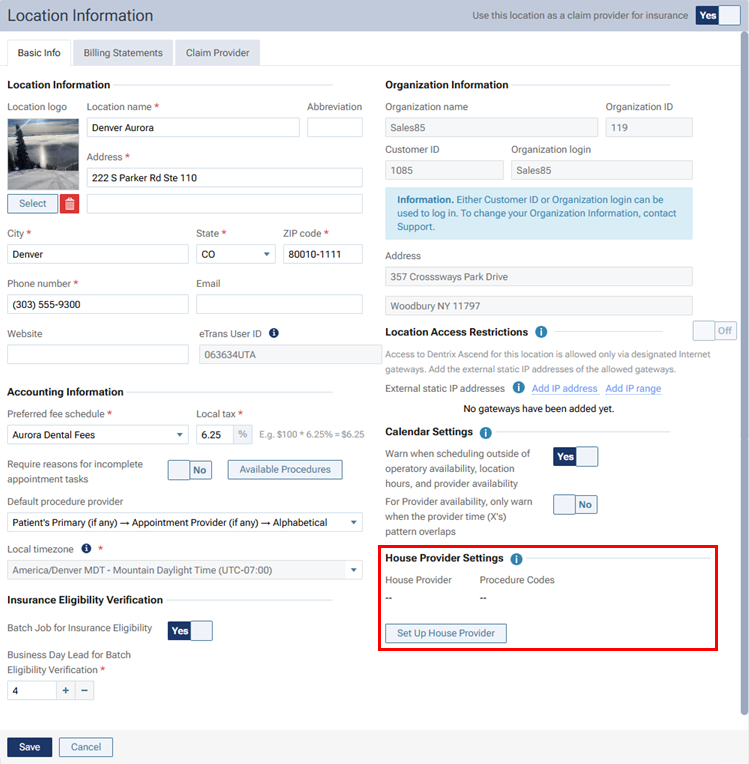
The Assign Procedure Codes to House Provider dialog box appears.
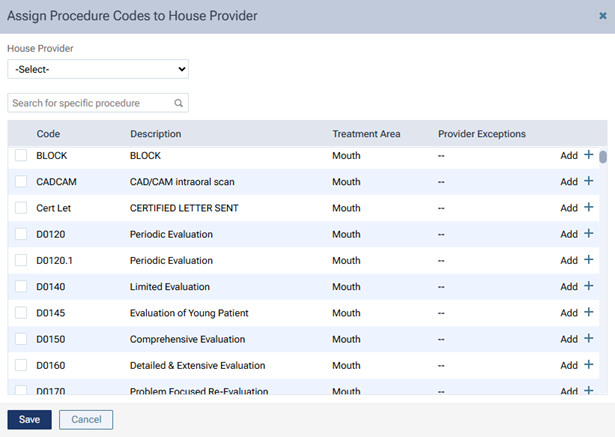
3. Select the House Provider.
4. Select the checkboxes of the procedure codes that you want to assign to the specified house provider.
Note: To filter the list to show only procedures that match search criteria that you enter, in the Search for specific Procedure box located above the list, begin typing a code or description.
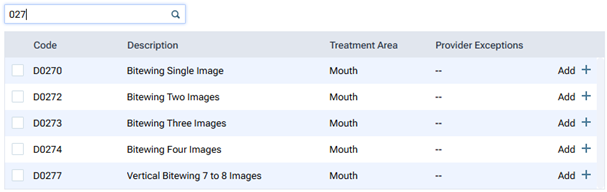
5. For each selected procedure code, to add an exception, do the following:
a. In the Provider Exceptions column, click Add +.

The Select Providers list becomes available.

b. Expand the list, select the checkbox of each provider who you want to add an exception for (such as a hygienist), and then click Apply Selected.
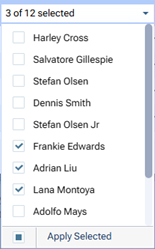
Note: Until you start adding exceptions for another procedure code, to change the exceptions for the procedure code you have just added exceptions to, expand the list, and then select or deselect providers. However, to change the exceptions that you added to a procedure code previously (a procedure code other than the one you have just added exceptions to), click that procedure code’s pencil icon in the Provider Exceptions column to make the list of providers available, and then select or deselect providers.

6. Click Save.
Notes:
- One house provider per location is allowed.
- Multiple procedure codes can be assigned.
- Multiple providers can be exceptions for the same procedure code.
- Only procedures that are charted/posted from this point on are affected. Procedures that existed in patients’ treatment plans and ledgers prior to the change are not affected.
- If the documenting provider is listed as an exception, the house provider is not used.