EARLY ACCESS ONLY
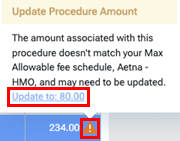
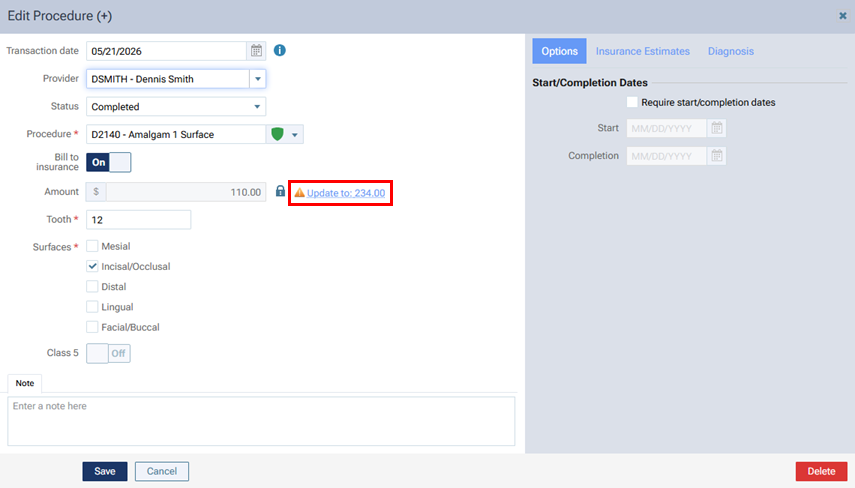
There is a new security right that determines if a user can update a procedure’s amount by clicking the Update to: [amount] link (next to the Amount box).

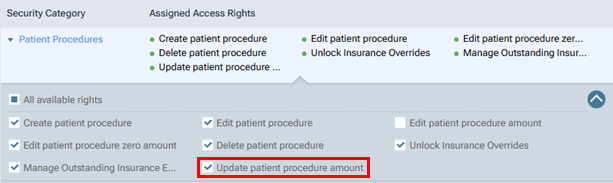
The new “Update patient procedure amount” right is in the “Patient Procedures” category.
Notes:
- If a user role has already been granted the “Edit patient procedure” right:
- If that role has not already been granted the “Edit patient procedure amount” right, the role is granted the new “Update patient procedure amount” right automatically.
- If that role has already been granted the “Edit patient procedure amount” right, the new “Update patient procedure amount” right is also granted automatically because it is required if the “Edit patient procedure amount” right is granted.
- If that role has not already been granted the “Edit patient procedure amount” right, the role is granted the new “Update patient procedure amount” right automatically.
- For new Dentrix Ascend organizations, all default user roles (Administrator, Receptionist, Provider, and Billing Coordinator) are granted the “Edit patient procedure amount” right by default, so the new “Update patient procedure amount” right is granted because it is required if the “Edit patient procedure amount” right is granted.
With the new “Update patient procedure amount” security right, be aware of how the three rights that control access to procedure amounts operate:
- Edit patient procedure amount:
- On a patient’s Ledger page, when the user is posting or editing a patient procedure, allows the user to change the procedure’s amount in the Amount box directly or by clicking the Update to: [amount] link (next to the Amount box).
- On the Progress Notes and Tx Planner tabs of a patient’s clinical record, when the user is editing a patient procedure, allows the user to change the procedure’s amount in the Amount box directly or by clicking the Update to: [amount] link (next to the Amount box).
- On the Tx Planner tab of a patient’s clinical record, when the user changes the provider for multiple procedures at once (if the Edit patient procedure right has been granted), allows the user to choose the option to have the procedures’ amounts updated automatically based on the new provider’s fee schedule (if applicable).
- Notes:
- This right is available only if the Create patient procedure or Edit patient procedure right is selected.
- Selecting this right automatically selects the Edit patient procedure zero amount and Update patient procedure amount rights, and you cannot deselect those two rights (the Edit patient procedure zero amount and Update patient procedure amount rights) because they are required when the “Edit patient procedure amount” right has been granted.
- The Override Locked Transaction right is required to allow the user to unlock a procedure for editing if that procedure is locked due to it being in a locked time period.
- This right is available only if the Create patient procedure or Edit patient procedure right is selected.
- On a patient’s Ledger page, when the user is posting or editing a patient procedure, allows the user to change the procedure’s amount in the Amount box directly or by clicking the Update to: [amount] link (next to the Amount box).
- Edit patient procedure zero amount:
- On a patient’s Ledger page, when the user is posting or editing a patient procedure, if the procedure’s amount is zero, allows the user to change the amount in the Amount box directly or by clicking the Update to: [amount] link (next to the Amount box).
- On the Progress Notes and Tx Planner tabs of a patient’s clinical record, when the user is editing a patient procedure, if the procedure’s amount is zero, allows the user to change the amount in the Amount box directly or by clicking the Update to: [amount] link (next to the Amount box).
- Notes:
- This right is available only if the Create patient procedure or Edit patient procedure right is selected and if the Edit patient procedure amount right is not selected.
- The Override Locked Transaction right is required to allow the user to unlock a procedure for editing if that procedure is locked due to it being in a locked time period.
- This right is available only if the Create patient procedure or Edit patient procedure right is selected and if the Edit patient procedure amount right is not selected.
- On a patient’s Ledger page, when the user is posting or editing a patient procedure, if the procedure’s amount is zero, allows the user to change the amount in the Amount box directly or by clicking the Update to: [amount] link (next to the Amount box).
- Update patient procedure amount:
- On a patient’s Ledger page, when the user is posting or editing a patient procedure, if the procedure’s amount is not zero, allows the user to change the amount by clicking the Update to: [amount] link (next to the Amount box).
- On the Progress Notes or Tx Planner tab of a patient’s clinical record, when the user is editing a patient procedure, if the procedure’s amount is not zero, allows the user to change the amount by clicking the Update to: [amount] link (next to the Amount box).
- Notes:
- This right is available only if the Create patient procedure or Edit patient procedure right is selected and if the Edit patient procedure amount right is not selected.
- The Override Locked Transaction right is required to allow the user to unlock a procedure for editing if that procedure is locked due to it being in a locked time period.
- This right is available only if the Create patient procedure or Edit patient procedure right is selected and if the Edit patient procedure amount right is not selected.
- On a patient’s Ledger page, when the user is posting or editing a patient procedure, if the procedure’s amount is not zero, allows the user to change the amount by clicking the Update to: [amount] link (next to the Amount box).
Also, be aware that, if the user has not been granted the Edit patient procedure amount right, the following restrictions apply:
- If the procedure’s amount is a not zero – The amount is locked. Another user (one with the Edit patient procedure amount right granted) must unlock the amount (by clicking the icon and then entering credentials). With the amount unlocked, the first user can then change the amount. If that user has been granted the Update patient procedure amount right, that user can change the amount by clicking the Update to: [amount] link (next to the Amount box); otherwise, that user can change the amount in the Amount box directly.
- If the procedure’s amount is zero:
- If the user has been granted the Edit patient procedure zero amount right – The amount is not locked. The user can change the amount in the Amount box directly or by clicking the Update to: [amount] link (next to the Amount box).
- If the user has not been granted the Edit patient procedure zero amount right – The amount is locked. Another user (one with the Edit patient procedure amount right granted) must unlock the amount (by clicking the icon and then entering credentials). With the amount unlocked, the first user can then change the amount in the Amount box directly.
- If the user has been granted the Edit patient procedure zero amount right – The amount is not locked. The user can change the amount in the Amount box directly or by clicking the Update to: [amount] link (next to the Amount box).