
Released 7/29/26
You can now choose to have voice commands spoken back to you. You can also now choose to have feedback sounds play when commands are recognized or not.
To configure the settings
1. Start a new perio exam, or start editing a perio exam.
2. Click the Voice Perio button.

The Voice Perio panel appears on the right.
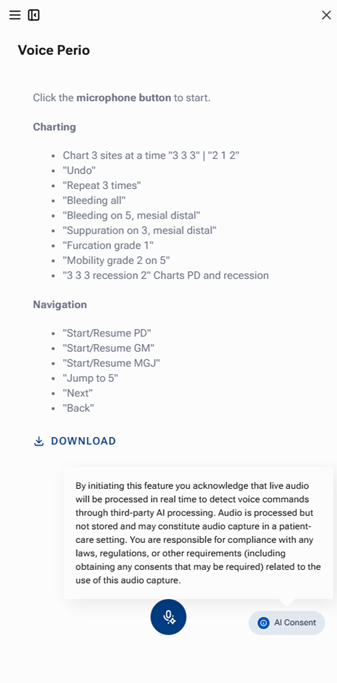
3. On the panel’s menu (to access it, click the three stacked horizontal lines), select Settings.
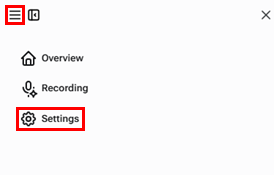
The Settings options appear.
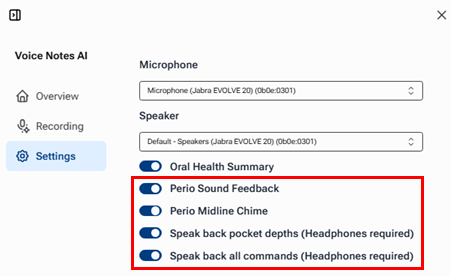
4. Set up any of the following options:
- Perio Sound Feedback – With this switch on, a pop sound plays after each recognized command, and a buzz sound plays after each unrecognized command.
- Perio Midline Chime – With this switch on, a chime sound plays when your charting of a perio exam has crossed the midline of the mouth.
- Speak back pocket depths – With this switch on, while you are charting pocket depths or gingival margins continuously for a perio exam, a voice repeats back to you what Voice Perio has heard and entered. This may help you stay on track.
- Speak back all commands – With this switch on, when you speak a command, a voice repeats back to you what Voice Perio has heard. This may help you stay on track.
Note: The settings are saved per user.
5. To return to the recording options, do the following:
a. Click the collapse icon in the upper-left corner of the panel
 to collapse the panel (so it is docked on the right).
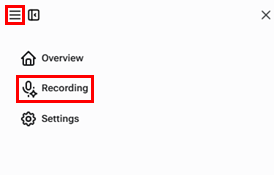
b. On the panel’s menu (to access it, click the three stacked horizontal lines), select Recording.
Note: See also “Error Messages for Unrecognized Voice Perio Commands.”