On the Patient Forms tab of a patient’s Patient Information page, the summary is now easier to scan and act on. The Date and Status columns give clearer information at a glance, and the Actions column makes it simpler to view or resend individual forms and to change a form’s due date.
The Last Received column has been replaced with a Date column, which indicates a form type’s “Received,” “Sent,” or “Due” date.
The Due Date column has been replaced with a Status column, which indicates a form type’s status.
There is now an Actions column, which has icons for performing the following actions for a form type:
View – To view the most recently received form, click the eye icon . This icon is available only if the form has been received. Clicking this icon opens the Review Form dialog box so you can review or resend the form.
Resend – To send a request for only this form to be completed (instead of all due forms), click the clockwise arrows icon . This icon is available only if the form was requested but not completed. Clicking this icon opens the Resend Form for [Patient Name] dialog box so you can choose the method to make the request. Note: If the form has a “Due Later” status, the icon is gray (not available) to indicate that the form is not due yet.
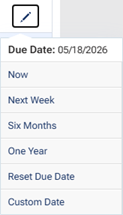
Edit Due Date – To change the due date of a form, click the pencil icon . A menu appears (with the due date, “Due Now,” or “No Expiry” at the top) so you can specify or reset the due date. Note: If the form has a “Disabled” status, the icon is gray (not available) to indicate that the form was required only one time or has been unpublished.
As before, you can expand a form type to view the corresponding forms that have been received. You can click a link to view a PDF version of the completed form on a new browser tab.



 . This icon is available only if the form has been received. Clicking this icon opens the Review Form dialog box so you can review or resend the form.
 . This icon is available only if the form was requested but not completed. Clicking this icon opens the Resend Form for [Patient Name] dialog box so you can choose the method to make the request.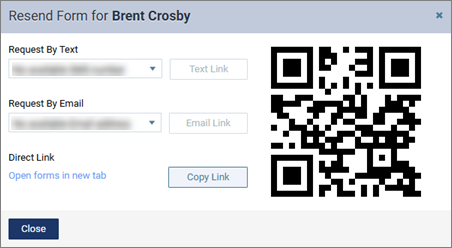
 . A menu appears (with the due date, “Due Now,” or “No Expiry” at the top) so you can specify or reset the due date.