
Released 9/16/26
You can now copy the “Contracted with” settings from one location to another so you no longer have to specify, one carrier at a time, all the carriers a location is contracted with. This is especially useful if you are setting up a new location that has the same (or mostly the same) carrier contracts as an existing location.
To copy contract settings
1. Open the Location Information page of a location that you want to set up contract settings for (while logged in to that location, go to Settings > Location Information).
2. If the location is not already designated as a billing provider for claims, set the Use this location as a claim provider for insurance switch to Yes.
3. Select the Claim Provider tab.
4. Next to Contracted with, click the Sync Contract Settings link to view a menu.
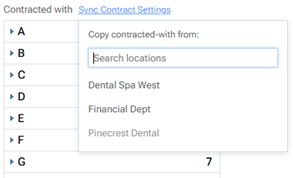
5. On the menu, select the location from which you want to copy the contract settings. Any existing contract settings in the current location will be overwritten by the contract settings from the selected location.
Notes:
- The current location appears on the menu but is not available for selection. All other locations in your organization are available for selection.
- You can use the Search locations box to find a location by name.
6. You can now select and deselect carriers to customize the contract settings for the current location as needed.