
Released 1/5/26
In certain areas with unions, you may need to support EPO plans so you can accept more patients. Typically, these plans have procedures that are considered “Paid in Full.” Instead of the patient being responsible for a portion of a charge, anything over the maximum allowed (contracted) rate gets written off. The patient’s portion is always $0 for a “Paid in Full” procedure.
Editing a Fee Schedule
You can enable “Paid in Full” procedures for an existing fee schedule.
Go to Settings > Fee Schedules to open the Fee Schedules page, select a fee schedule, select the Paid in Full Enabled check box, select the checkbox in the Paid in Full column for each applicable procedure, and then click Save.

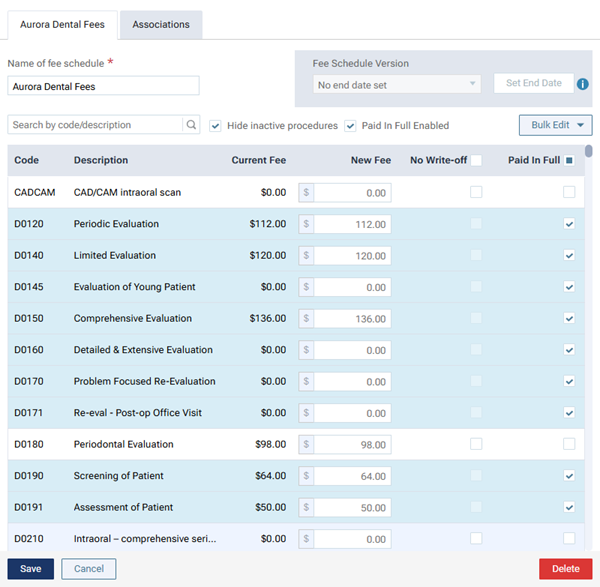
Note: The selecting or clearing of the Paid in Full Enabled check box for a fee schedule is recorded in the audit log.
Importing a Fee Schedule
You can import a .csv file to create a fee schedule with “Paid in Full” procedures.
Important:
- The .csv file must be less than 20 MB in size.
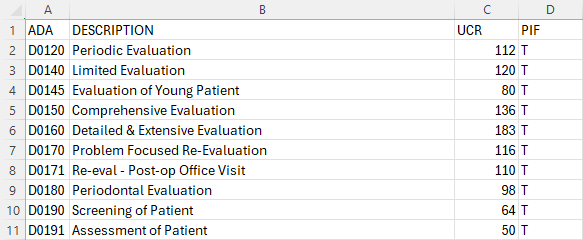
- The .csv file must have a column with ADA Procedure Codes and a column for indicating the procedures that are “Paid in Full.”
- The import tool recognizes a procedure as paid in full if one of the following is in the “Paid in Full” column: T, t, True, or true.
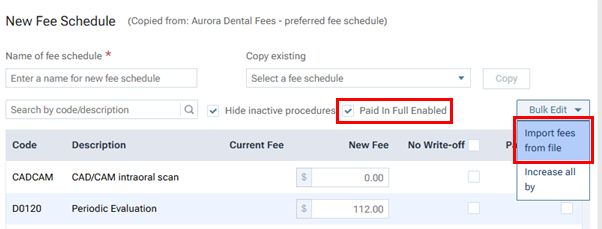
Go to Settings > Fee Schedules to open the Fee Schedules page, click Create New, enter a name for the fee schedule, select the Paid in Full Enabled checkbox, expand the Bulk Edit menu, and then select Import fees from file.
The Bulk Import dialog box appears with the Import Type step selected.

Select the Paid in Full procedures option.
Click Next.
The Upload File step is selected.
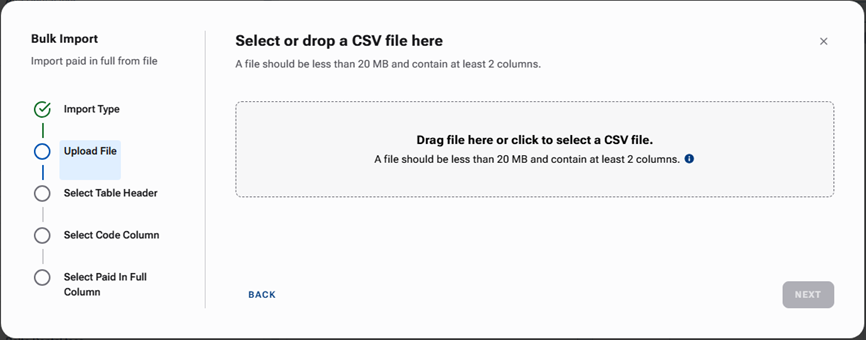
Either drag the correct .csv file from an open window to the Drag file here… box, or click the Drag file here… box to select the correct .csv file.

When the file is uploaded successfully, a message appears.
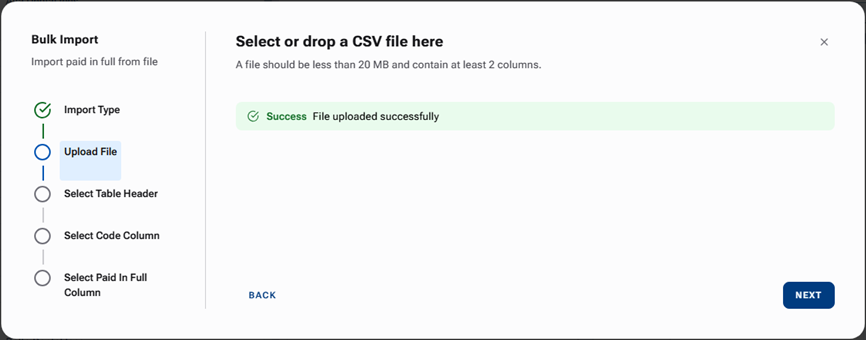
Click Next.
The Select Table Header step is selected.
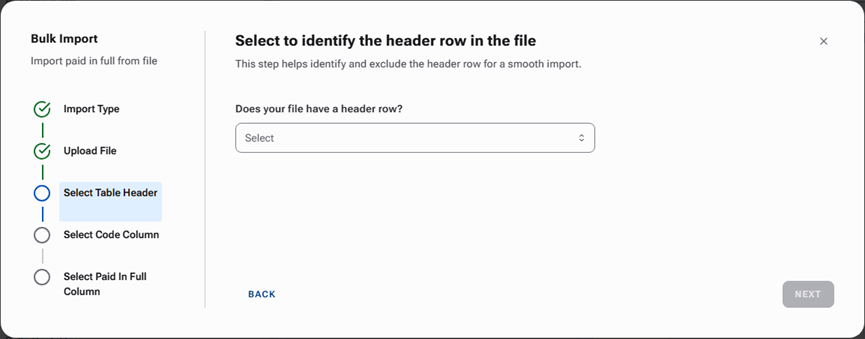
Select Yes or No to indicate whether your .csv file has a header row or not.

Click Next.
The Select Code Column step is selected.

Select the column of the .csv file that contains ADA Procedure Codes.

Click Next.
The Select Paid in Full Column step is selected.

Select the column of your .csv file that contains the indicators for procedures that are “Paid in Full.”
Note: If the import tool detects blank or invalid values in the selected column, a message appears. Those procedures will not be marked as “Paid in Full.”
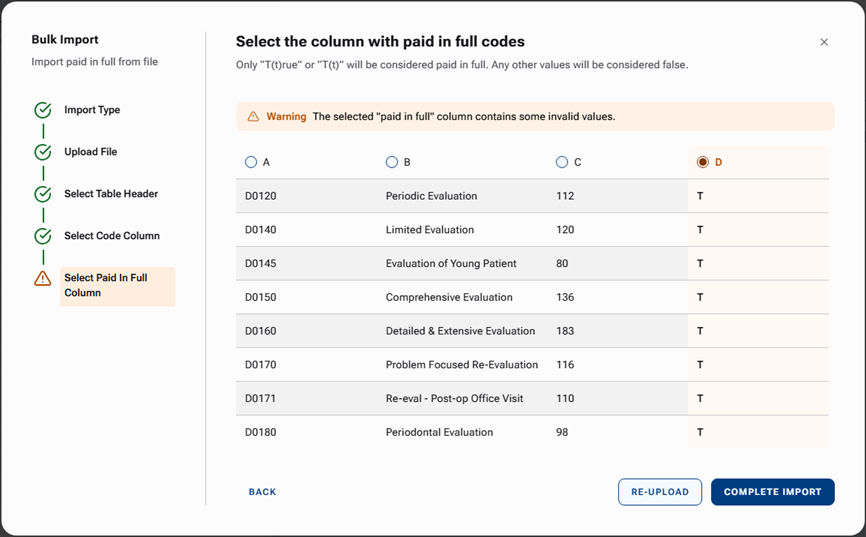
Click Complete Import.
When the import is completed successfully, click Done.

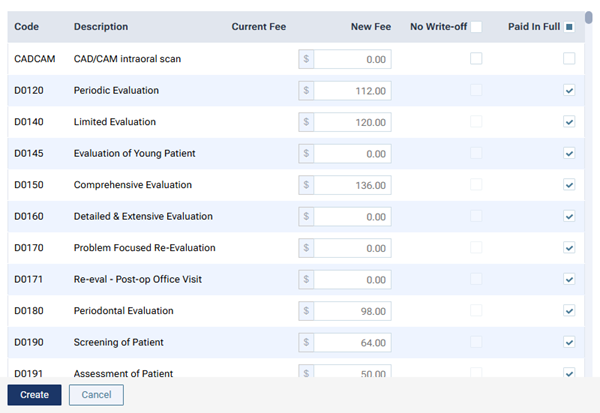
Note: If any procedures exist in the .csv file but not in your database, a yellow warning message appears and lists those procedures.

Make any necessary changes to the fee schedule, and then click Create.
Insurance Calculations
This table illustrates the differences between calculations for EPO/Union plans and other plans.
| Plan | UCR Fee | Allowed Fee | Coverage % | Write-off | Ins Portion | Pat Portion | |
| PPO (In Network) | $120 | $100 | 50% | $20 | $50 | $50 | |
| PPO (Out of Network) | $120 | $100 | 50% | $0 | $50 | $70 | |
| EPO/Union | $120 | $100 | 50% | $70 | $50 | $0 |