
Released 1/14/26
You can now record the following vitals signs in Dentrix Ascend: blood pressure, heart rate, oxygen saturation, temperature, blood glucose, and hemoglobin A1c.
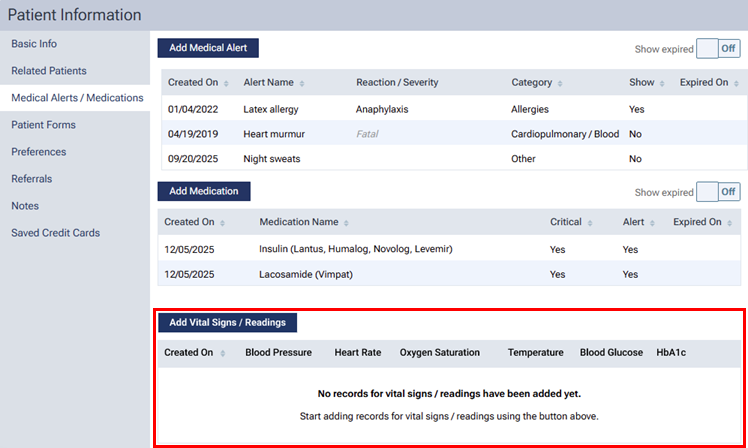
On the Medical Alerts/Medications tab of a patient’s Patient Information page, there is a new section for vital signs.
To add a vital signs record
1. Click Add Vital Signs/Readings.
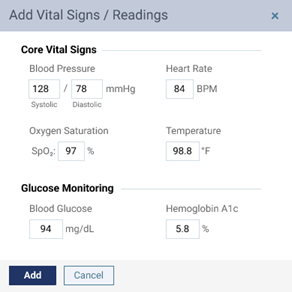
The Add vital Signs/Readings dialog box appears.
2. Enter any of the following information:
- Core Vital Signs:
- Blood Pressure – The patient’s blood pressure (systolic and diastolic; up to three digits each). The unit of measure is mmHg.
- Heart Rate – The patient’s heart rate (up to three digits). The unit of measure is BPM.
- Oxygen Saturation – The oxygen saturation level (up to three digits). The unit of measure is SpO₂ %.
- Temperature – The patient’s temperature (up to three digits for the whole number, a decimal point, and one digit after the decimal). The unit of measure is °F. (Note: If you do not enter a digit after the decimal point, 0 will be added automatically for you.)
- Blood Pressure – The patient’s blood pressure (systolic and diastolic; up to three digits each). The unit of measure is mmHg.
- Glucose Monitoring:
- Blood Glucose – The patient’s blood glucose level (up to three digits). The unit of measure is mg/dL.
- Hemoglobin A1c – The patient’s hemoglobin A1c level (up to two digits for the whole number, a decimal point, and one digit after the decimal). The unit of measure is a percentage (which represents the average blood glucose level over time). (Note: If you do not enter a digit after the decimal point, 0 will be added automatically for you.)
- Blood Glucose – The patient’s blood glucose level (up to three digits). The unit of measure is mg/dL.
3. Click Add.
To edit a vital signs record
1. Click the desired record.

The Edit Vital Signs/Readings dialog box appears.
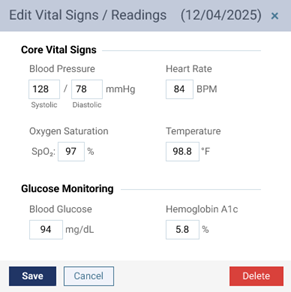
2. Make the necessary changes, and then click Save.
To delete a vital sign record
1. Click a record.

The Edit Vital Signs/Readings dialog box appears.
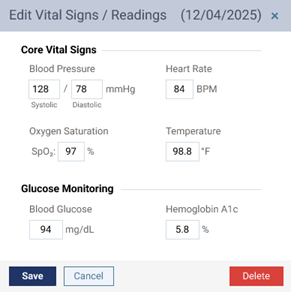
2. Click Delete.
3. On the confirmation message that appears, click Delete.