
Released 3/18/26
You can now have Dentrix Ascend post the contracted/allowed fee for a procedure in a patient’s ledger or treatment plan.
Video: Posting the Max Allowable Amount (2:55)
Summary
- Configurable Option – Your practice can enable this feature at your discretion. This is an organization-wide setting, so it affects all locations in your organization.
- Max Allowable Posting – The max allowable rate will be posted only when:
- The patient has a max allowable fee schedule attached to his/her primary insurance plan, and
- That carrier is in network with your Billing Provider (typically your location) or Rendering Provider. Whether the billing or rendering provider is used depends on your location’s insurance defaults.
- The patient has a max allowable fee schedule attached to his/her primary insurance plan, and
- Out-of-Network or No Max Schedule – If the insurance carrier is out of network or does not have a max allowable fee schedule, the UCR fee (provider or office fee) will continue to be posted.
- No Insurance – Patients without insurance will also continue to see the UCR fee posted.
- Discount Plans – For patients with discount plans, the discounted rate will be posted instead of the UCR fee, and the discount will appear in both the treatment plan and ledger.
- Claim Submissions – Claims will still be sent using the UCR fee (provider or office fee).
- Manual UCR Posting – If needed, you can still post the UCR fee for specific procedures by using the “Post UCR Fee” option in the fee schedule.
- Statements & Route Slips – These will also reflect the contracted/max allowable rate when applicable.
New Ledger Options
1. Go to Settings > Ledger Options, and then select the Ledger Rules tab.
Under Insurance Estimates & Write-offs, the Automatically post contracted write-offs when claims are created switch has been replaced with the following options:
- Automatically post contracted write-offs when claims are created – When you create a claim for procedures that are contracted with a patient’s insurance plan, a write-off adjustment will be posted automatically to the patient’s ledger to account for the difference between the allowed amount (from the plan’s “Max allowable amount fee schedule”) and the posted charges.
Note: This option is selected if the Automatically post contracted write-offs when claims are created switch was set to Yes.
- Manually post contracted write-off during claim adjudication – A contracted write-off adjustment will not be posted automatically. You will have to manually enter the adjustment when you post the insurance payment.
Note: This option is selected if the Automatically post contracted write-offs when claims are created switch was set to No.
- No write-off. Post contracted fee, if applicable – When you post a procedure that is contracted with a patient’s insurance plan, the allowed amount (from the plan’s “Max allowable amount fee schedule”) will be posted to the patient’s ledger or treatment plan. A write-off adjustment will not be posted automatically when you create a claim for that procedure. You may have to manually enter an adjustment when you post the insurance payment.
Previously

Now

2. If necessary, select a different option.
Notes:
- Changing the option for Insurance Estimates & Write-offs requires the “Manage Ins. Est. And Write-off Config” security right (in the “Settings” category). This right is granted by default if your user role had the “Manage Ledger Options” right prior to the implementation of the new right.
- Changing the option for Insurance Estimates & Write-offs affects all locations of your organization.
3. Click Save.
If one of the following has occurred, the Contracted Fee Updates message appears (if not, ignore the remaining steps):
- If the Automatically post contracted write-offs when claims are created or Manually post contracted write-off during claim adjudication option was selected since the last time the ledger options were saved, and if you selected the No write-off. Post contracted fee, if applicable option and then clicked Save.
- If the No write-off. Post contracted fee, if applicable option was selected since the last time the ledger options were saved, and if you selected the Automatically post contracted write-offs when claims are created or Manually post contracted write-off during claim adjudication option and then clicked Save.
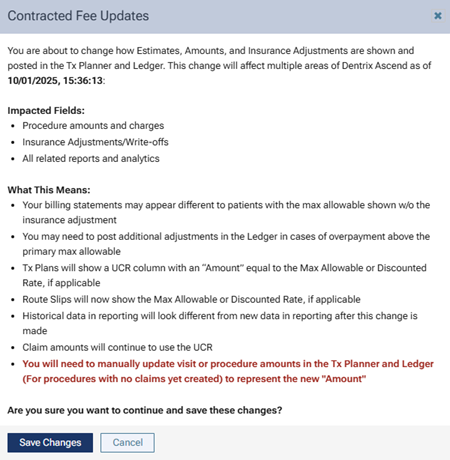
4. Read the message to understand what areas are impacted by the change and the significance of the change.
Note: If you do want to make this change, consider doing so at the end of month because of the impact it will have on reporting.
5. Click Save Changes or Cancel.
Affected Areas if Posting Contracted Fee
With the No write-off. Post the contracted fee option selected, treatment plans, ledgers, and other areas of Dentrix Ascend are affected.
Tx Planner
The following image shows what a treatment plan looked like before contracted fees started being posted.
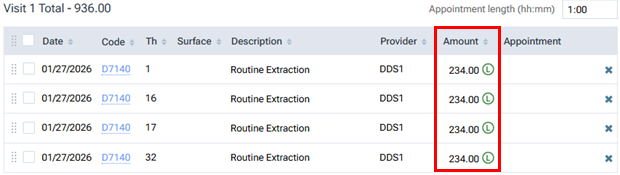
Note: The Amount column contained the location’s fees for the procedures (if a fee schedule had been assigned to the provider associated with the procedures, those fees would have appeared).
The following image shows what the treatment plan looks like with contracted fees being posted.
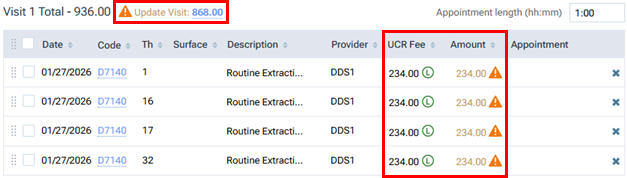
The Amount column still appears, but now a UCR Fee column also appears. Also, an orange, triangular warning icon appears in the Amount column for each procedure (and next to the visit total) because the amounts do not match the fees in the contracted fee schedule (assuming the patient has an in-network insurance plan with a Max allowable amount fee schedule selected).
Notes:
- The amounts in the treatment plan cannot be updated automatically to the contracted rate. It is fine if you choose not to update the amount because the write-off will still be estimated.
- For an appointment that was scheduled previously with a procedure from a patient’s treatment plan with the UCR fee, when you complete that procedure, if you do not update the amount, the procedure will be posted to the ledger with the UCR fee.
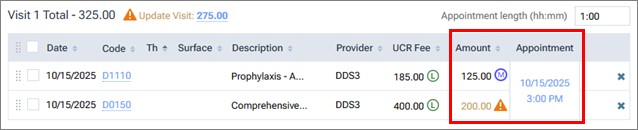
To update the Amount for each procedure to be the fee from the contracted fee schedule, you must either (1) update each procedure’s amount separately or (2) update the visit total.
The following image shows what the treatment plan looks like after you update the visit total.
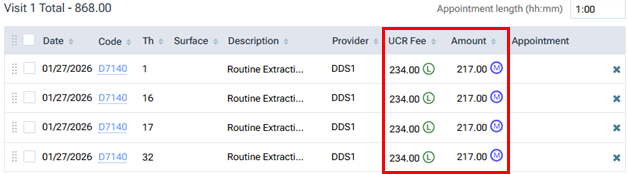
A UCR Fee comes from the fee schedule assigned to the provider associated with the procedure; or if a fee schedule is not assigned to the provider, the UCR fee comes from the fee schedule assigned to the location.
For an Amount to be the contracted fee, the patient must have insurance coverage, the billing or rendering provider (according to the location’s insurance defaults—the setting for using contracted amounts based on the billing or rendering provider, and the settings for the billing or rendering provider) must be contracted with the carrier of the patient’s insurance plan, and the plan must have a Max allowable amount fee schedule selected.
You can click a blue M icon to view the name of the fee schedule that the contracted fee is coming from.
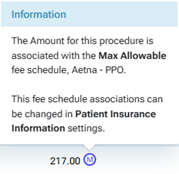
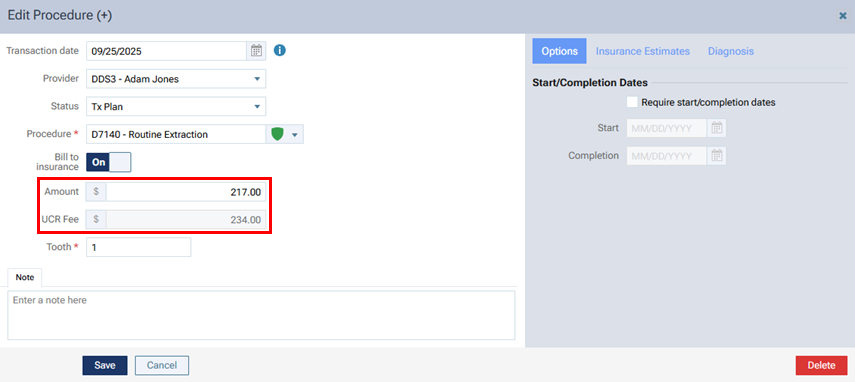
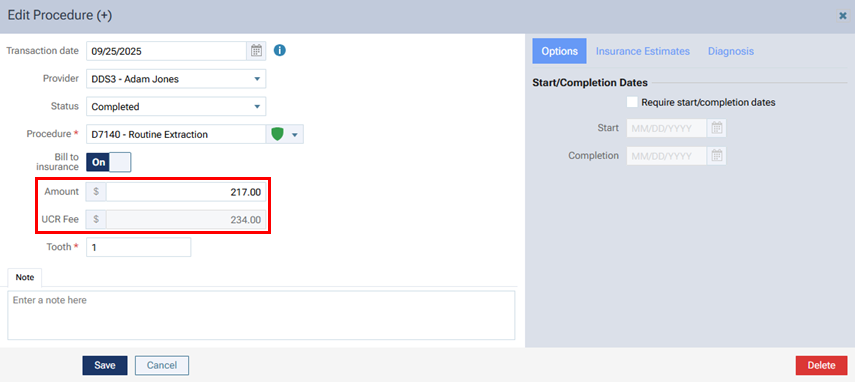
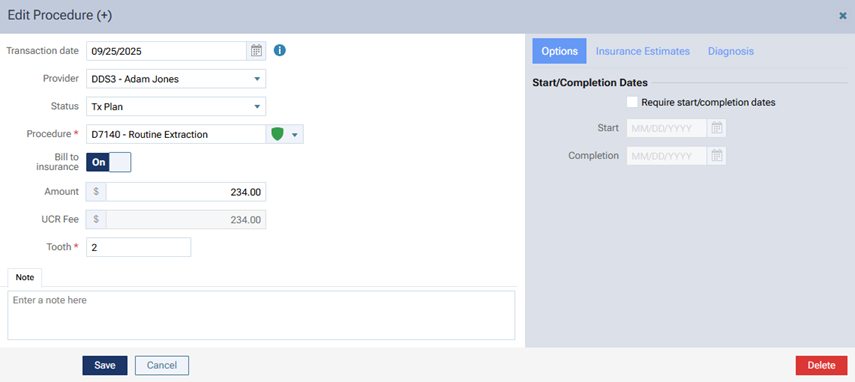
In the Edit Procedure dialog box that you open for procedure in a treatment plan, a UCR Fee box appears below the Amount box.
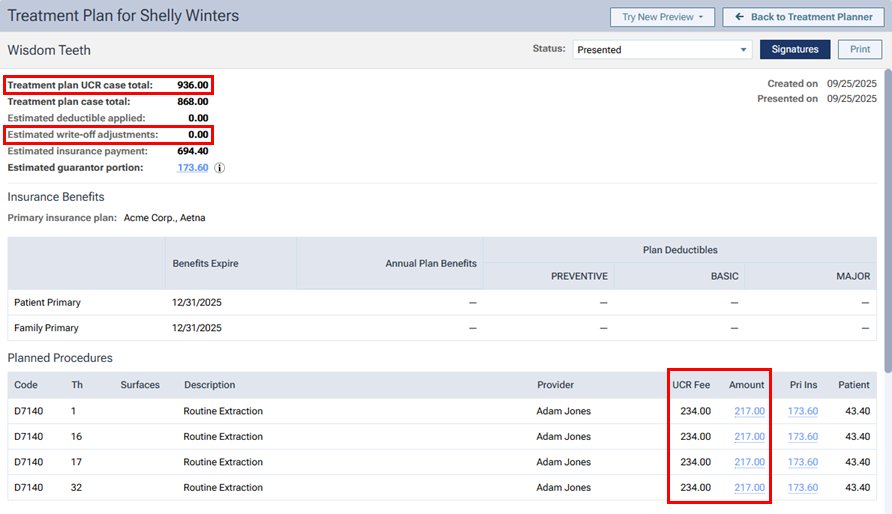
Treatment Plan Preview
When you are presenting a treatment plan, a UCR Fee column appears next to the Amount column, a Treatment plan UCR case total appears, and a zero-dollar amount (0.00) for the Estimated write-off adjustments appears.
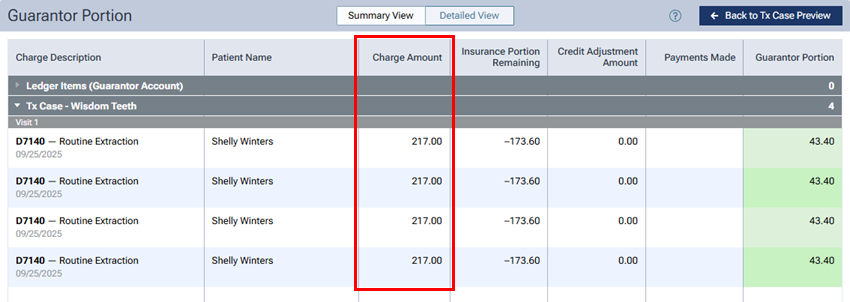
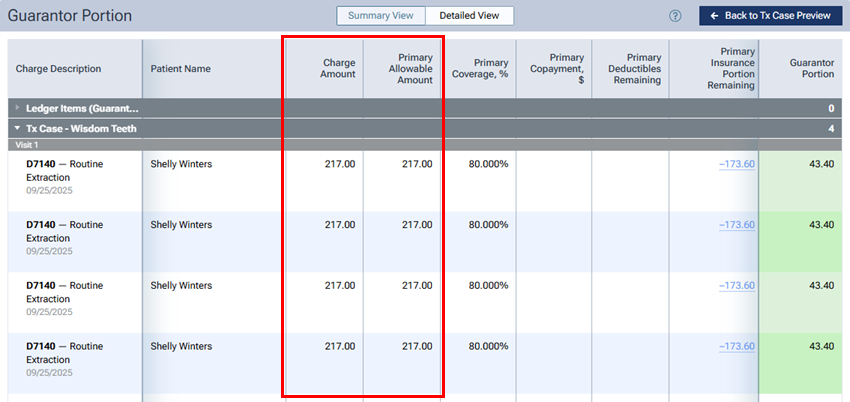
Treatment Plan Preview – Summary and Detailed View
In the Summary View and Detailed View of the treatment plan preview, the Charge Amount equals the Primary Allowable Amount if the contracted fee is posted.
Ledger and Claims
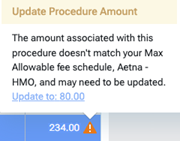
In a patient’s ledger, an indicator (orange, triangular warning icon) now appears if a procedure’s amount does not match the max allowable fee schedule.

Note: This indicator appears only if the following criteria are met:
- The No write-off. Post Contracted Fee, if applicable option is enabled.
- The amount for the procedure has changed due to insurance, contract status, fee change, or so on.
- The procedure was posted in the same location that you are currently logged in to.
- A claim has not yet been created for the procedure.
- The transaction date for the procedure is today.
You can click the warning icon to see which max allowable fee schedule the procedure amount does not match. To update the procedure amount to match what is in the max allowable fee schedule, click the Update to [amount] link.
In the Edit Procedure dialog box that you open for procedure on a ledger, a UCR Fee box appears below the Amount box.
If the contracted fee was posted for a procedure, when you complete the procedure, that amount appears in the Amount column on a patient’s Ledger page.
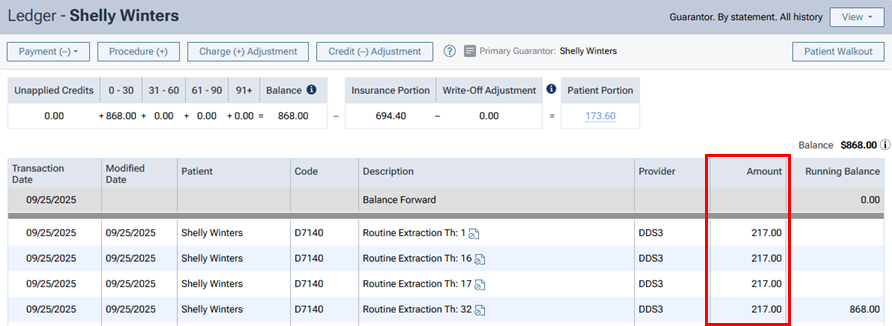
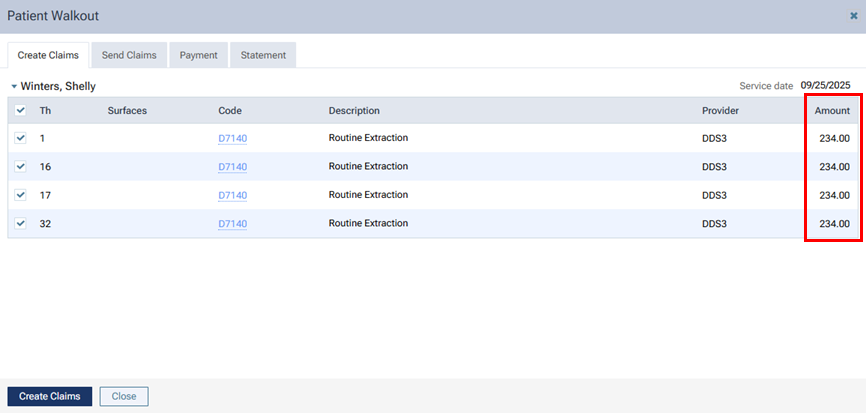
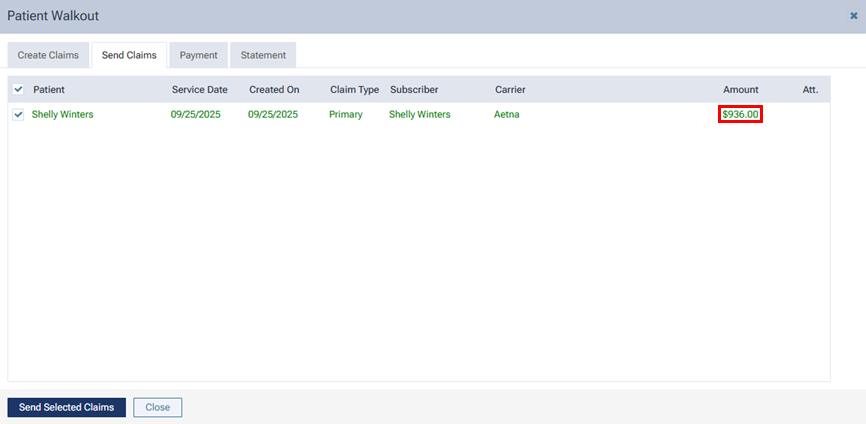
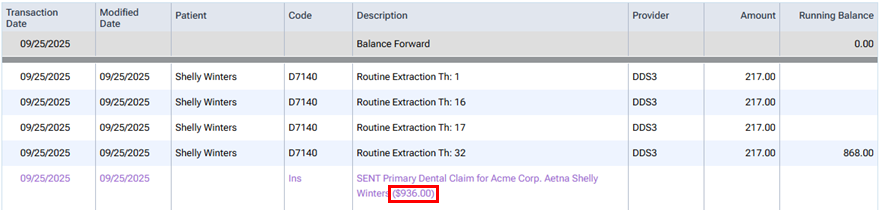
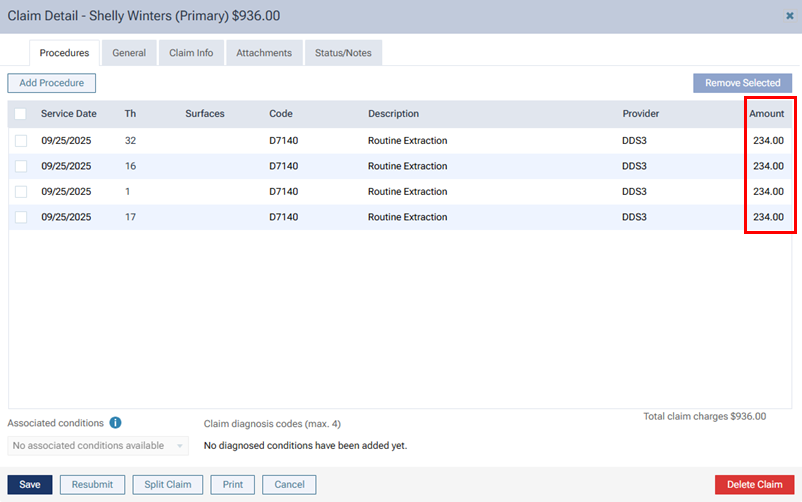
However, the UCR fees are associated with the claim throughout Dentrix Ascend (in the Patient Walkout dialog box, on the Ledger page, in the Claim Detail dialog box, on the patient’s Insurance Claims page, on the Create Claims page, on the Unsent Claims page, on the Sent Claims page, on the Unresolved Claims page, and on the Outstanding Claims page).
Fee Schedules
For fee schedules, the No Write-off column is replaced by a Post UCR Fee column.
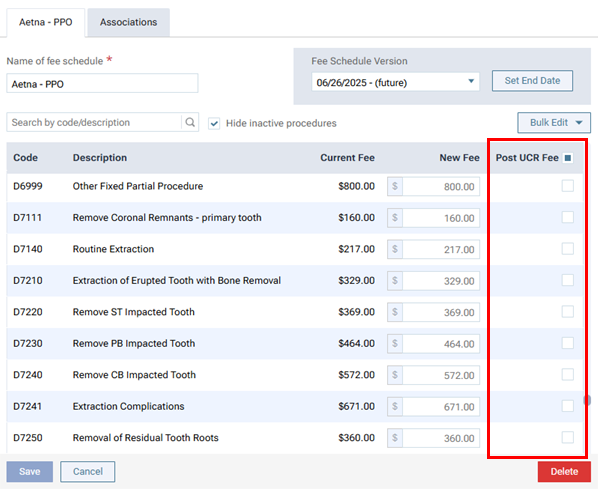
With the checkbox in this column selected for a procedure in the contracted fee schedule, when you post the procedure, the Amount comes from the UCR fee instead of the contracted fee schedule.


Other Considerations
- Generally, patient portions and overall balances should not change between your current configuration (posting a UCR fee with an insurance adjustment) versus the new configuration (posting a contracted fee without an adjustment).
- The estimated secondary insurance portion can be an amount up to the primary plan’s contracted fee.
- For discount plans, a procedure’s Amount comes from the discount/sliding fee schedule, and an adjustment is not posted. A discount plan assigned to a patient continues to apply only if the patient does not have insurance coverage.
- The Calendar page does not display “Gross Production” because that data will be similar if not the same as the “Net Production.”
- Route slips display the contracted fee, if applicable.
- The “Procedure Charges” on the Provider A/R Totals Report displays what was posted to the ledger (contracted fee, discount fee, or UCR fee), so you will likely see less in the “Credit Adj.” columns.
- On a day sheet, fields such as “Procedure Charges”, “Estimated Net Production”, “Average Production Per Patient”, and “Average Charge Per Procedure” display what was posted to the ledger (contracted fee, discount fee, or UCR fee). However, “Charges Billed to Insurance” displays the UCR fee because that is what was sent on the claim to insurance.
- Because the contracted/allowed amount becomes the amount that is charged for a procedure, there are no insurance adjustments (in theory), so you cannot use the Insurance Utilization Report to get an idea of how much you are writing off and use that information for negotiating rates with carriers. Similarly, any report you might have created that allowed you to see how much you were “giving away” with your discount plans is no longer relevant.
- If there is an insurance overpayment—which may happen more often now for patients with secondary insurance because the primary contracted fee is being posted—follow these steps:
- Create a new payment.
- Post the full amount of the payment.
- Select an offsetting insurance adjustment (using a “collection” charge adjustment).
- Ensure that the other payment allocations by procedure are correct.
- Save the payment.
- For each provider to whom you want to allocate these credits, do the following:
- Post a “production” charge adjustment for the amount to be credited to the provider’s production.
- Post a “collection” credit adjustment for the amount to be credited to the provider’s production.
- Post a “production” charge adjustment for the amount to be credited to the provider’s production.
- Create a new payment.