The Patient List Report is a new, built-in Dentrix Ascend report that helps you create targeted patient lists, review results on screen, and export them when needed. It supports common day-to-day scenarios, such as demographic reporting, outreach list creation (mail merge or email lists), orthodontia segmentation, and visit-based patient targeting.
This report provides a flexible way to build patient lists based on location, visit history, demographics, and billing details. With this report, you do not need to use Power Reporting for routine list building, such as creating demographic lists, building outreach lists, segmenting orthodontia patients, or running race and ethnicity lists for compliance needs.
Overview
Generates targeted patient lists natively in Dentrix Ascend for operational, compliance, and outreach use cases.
Supports common filtering scenarios across visit history, demographics, billing attributes, and patient status.
Notes:
This report does not support bulk patient actions, scheduling actions, saved reports, scheduled reports, or customizable columns/layouts.
Accessing the Patient List Report requires the “Patient Reports” security right (in the “Reports” category).
To view and export the Patient List Report
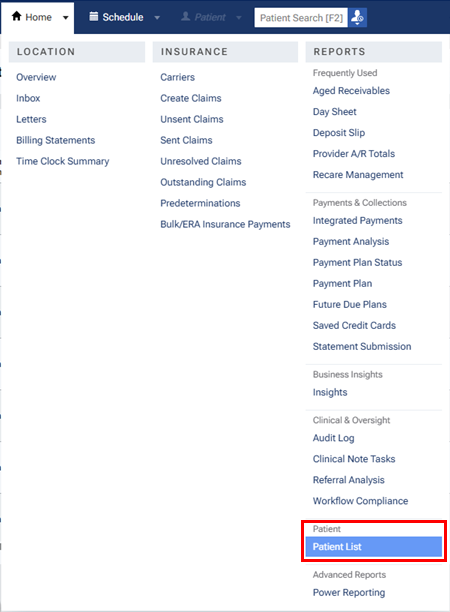
1. On the Home menu, under Reports, select Patient List.
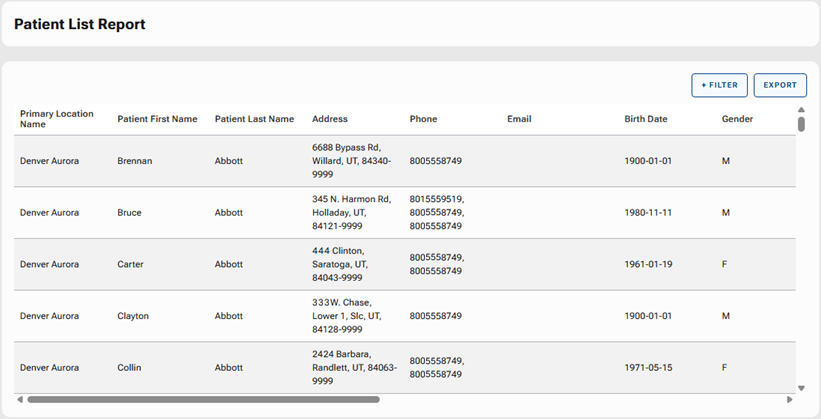
The Patient List Report page opens.
2. To filter the report, do the following:
a. Click Filter.
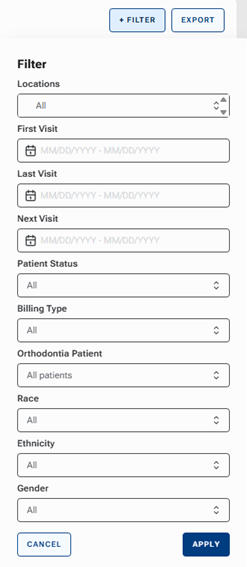
The Filter menu appears.
b. Set up any of the following filters:
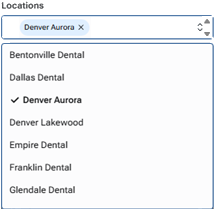
Locations – To include patients whose preferred location is one of the selected locations, select any of the locations on the list. Note: To remove a selected location, click its X.
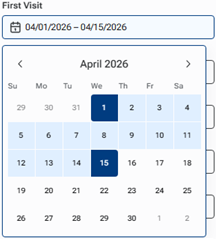
First Visit – To include patients whose first visit date is a specific date or a date in a specified range, select a date or the starting and ending dates on the calendar. Note: To remove a specific date, click it on the calendar to deselect it. To remove a date range, click the first date of the range to deselect the last date of the range, and then click the same date again to deselect it.
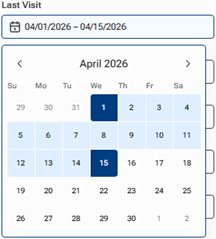
Last Visit – To include patients whose last visit date is a specific date or a date in a specified range, select a date or the starting and ending dates on the calendar. Note: To remove a specific date, click it on the calendar to deselect it. To remove a date range, click the first date of the range to deselect the last date of the range, and then click the same date again to deselect it.
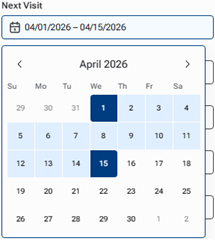
Next Visit – To include patients whose next visit date is a specific date or a date in a specified range, select a date or the starting and ending dates on the calendar. Note: To remove a specific date, click it on the calendar to deselect it. To remove a date range, click the first date of the range to deselect the last date of the range, and then click the same date again to deselect it.
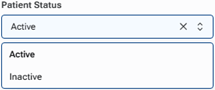
Patient Status – To include either active or inactive patients only, select Active or Inactive on the list. Note: To remove the selected status, click its X.
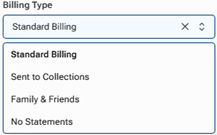
Billing Type – To include patients with a specific billing type, select that billing type on the list. Note: To remove the selected billing type, click its X.
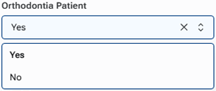
Orthodontia Patient – To include patients who are either marked as ortho patients or not marked as ortho patients, select Yes or No on the list. Note: To remove the selected option, click its X.
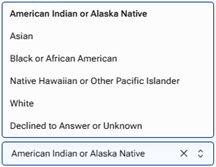
Race – To include patients of a specific race, select that race on the list. Note: To remove the selected race, click its X.
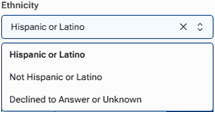
Ethnicity – To include patients of a specific ethnicity, select that race on the list. Note: To remove the selected ethnicity, click its X.
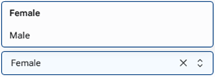
Gender – To include patients of a specific gender, select that race on the list. Note: To remove the selected gender, click its X.
c. Click Apply.
The patients who match your filter criteria appear.
Note: If no patients match your filters, the report is empty. Changing the filters does not automatically update the results; you must click Apply.
3. To export the report as it is currently being displayed, click Export.
Note: This button is available only if there is at least one patient in the list.