
Released 2/4/26
You can now mark procedures as “Referred” in a patient’s chart, progress notes, and treatment plan. You can also specify which specialist a patient has been referred to. This creates a structured way to document referrals and makes it easier for your team to track what procedures have been referred out and follow up as needed.
This release includes the following functionality:
- You can chart a procedure as “Referred” on the Chart tab of a patient’s clinical record.
- Referred procedures appear on the Tx Planner tab of a patient’s clinical record and can be edited or assigned to cases.
- Referred procedures appear on the Progress Notes tab of a patient’s clinical record and can be edited.
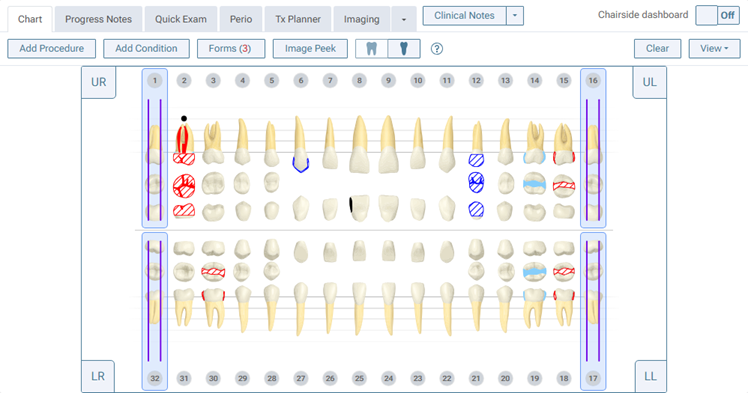
- Charting symbols for referred procedures are painted in a purple color on the odontogram of the Chart tab.
- Referred procedures appear in a purple color on the Progress Notes tab.
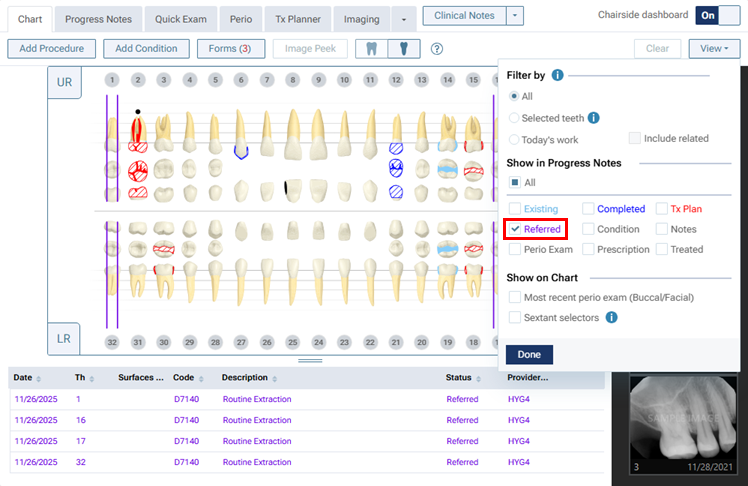
- On the Chart and Progress Notes tab, you can filter the view to show or hide referred procedures.
- You can attach a “Referred Out” referral source to a patient’s record (go to Patient > Patient Information > Referrals > Referred Out).
Marking a Procedure as “Referred”
You can now mark a procedure as “Referred” from the clinical areas of Dentrix Ascend.
Chart
1. On the Chart tab of a patient’s clinical record, select the applicable teeth.
2. Click Add Procedure.
3. Select the Referred tab.
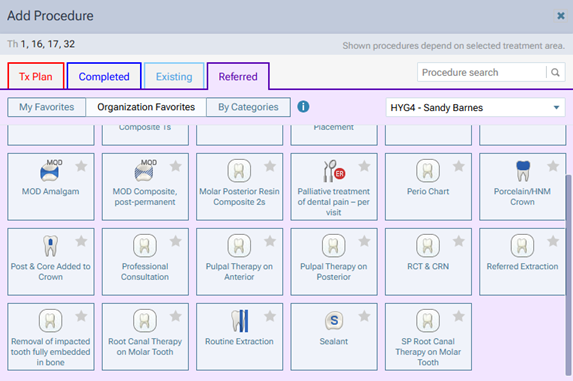
4. Select the procedure that you want to refer out.
The corresponding charting symbol appears on the odontogram in a purple color.
Chairside dashboard
While using the chairside dashboard, you can filter the progress notes to show or hide referred procedures, which appear in a purple color.
Progress Notes
Procedures that have been charted with a “Referred” status appear on the Progress Notes tab of a patient’s clinical record. You can filter the progress notes to show or hide referred procedures, which appear in a purple color.
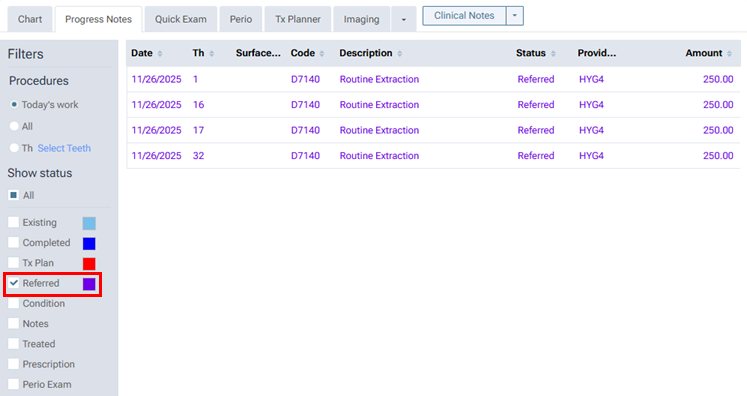
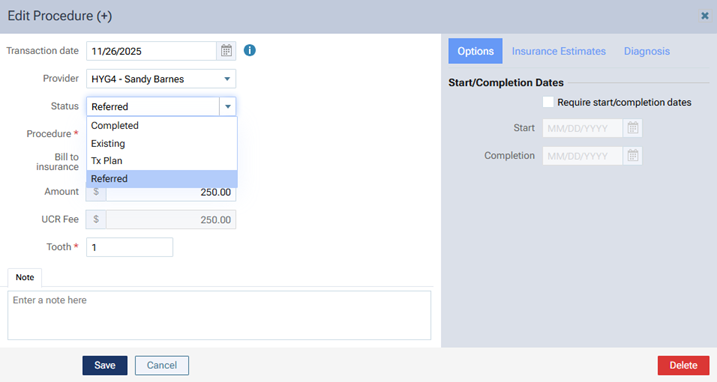
Also, you can edit a procedure to change its Status from/to Referred.
Treatment Planner
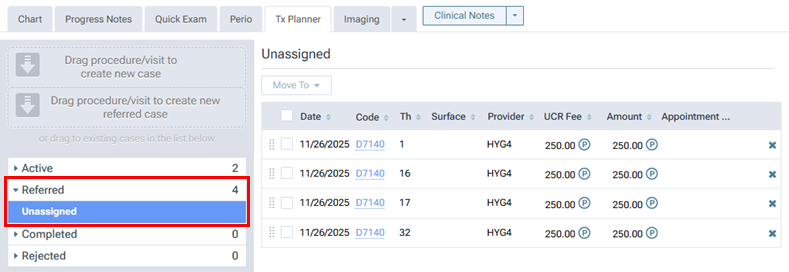
Procedures that have been charted with a “Referred” status appear in the Referred category on the Tx Planner tab of a patient’s clinical record. With Referred expanded on the left, select Unassigned to view the referred procedures on the right.
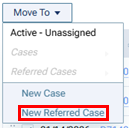
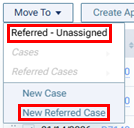
To add referred treatment to a new referred case, select the unassigned, referred procedures, expand the Move To menu, and then select New Referred Case.
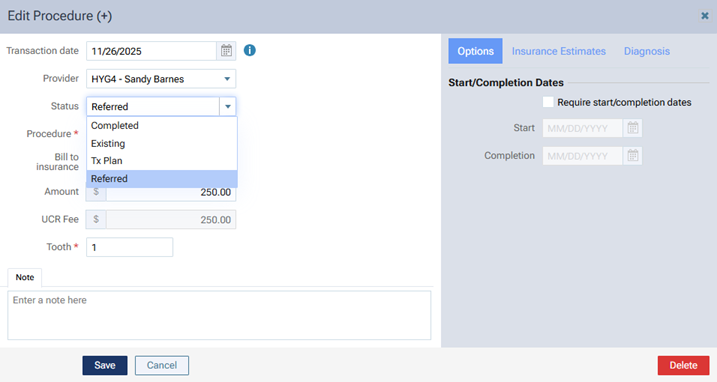
Also, you can edit a procedure to change its Status from/to Referred.
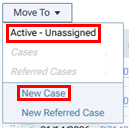
You can change the status of one or more “Referred” procedures to “Tx Plan” at once by moving them to the “Active” category’s unassigned procedures or creating an active case for them. Select the referred procedures, expand the Move To menu, and then select Active – Unassigned or New Case.
You can change the status of one or more “Tx Plan” procedures to “Referred” at once by moving them to the “Referred” category’s unassigned procedures or creating a referred case for them. Select the treatment-planned procedures, expand the Move To menu, and then select Referred – Unassigned or New Referred Case.
Adding Outbound Referral Sources
In a patient’s record, you can now attach a specialist to whom you have referred the patient.
To add an outbound referral source to a patient
1. On a patient’s Patient Information page (go to Patient > Patient Information), select the Referrals tab on the left.
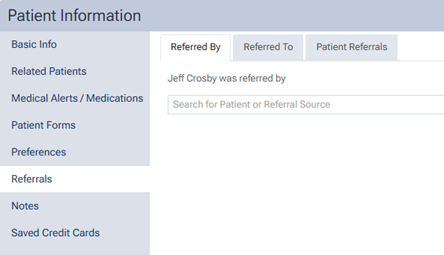
Note: Referrals are now categorized here by the Referred By, Referred To, and Patient Referrals tabs.
2. Select the Referred To tab, and then click Add Referral.

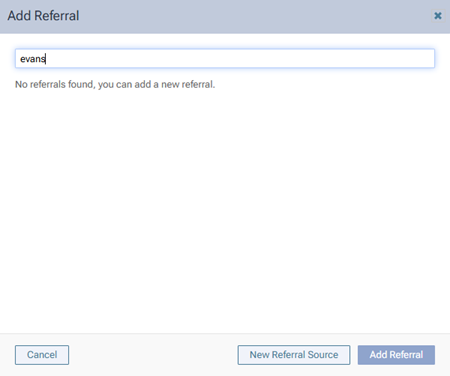
The Add Referral dialog box appears.
3. Do one of the following:
a) Select an existing referral source from your database (Settings > Referral Sources) and attach it to the patient’s record. Use the search box to search by name, select the correct referral source, and then click Add Referral.
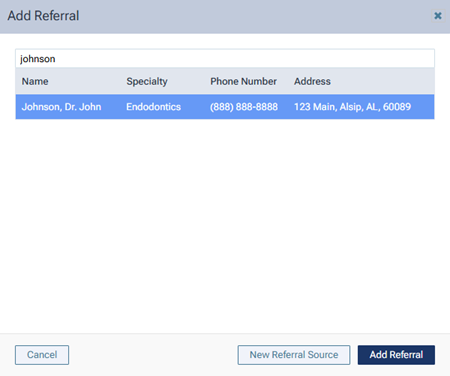
The referral source is now attached to the patient’s record.

b) Add a new referral source to your database (Settings > Referral Sources) and attach that to the patient’s record. Use the search box to search by name to make sure the referral source does not already exist, click New Referral Source, enter the referral’s information, and then click Save.
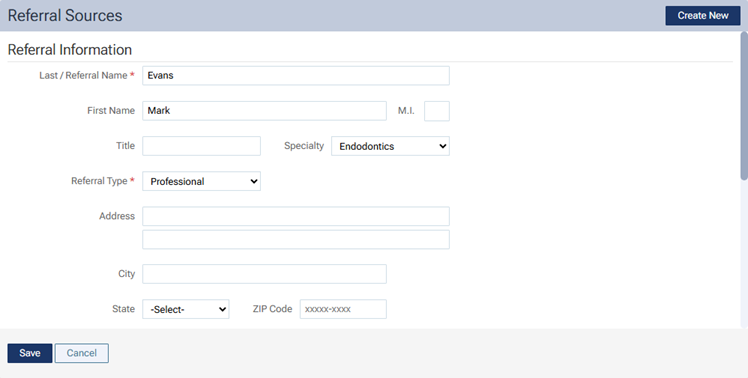
The referral source is now in your database and attached to the patient’s record.

Note: To remove a referral from the patient’s record, click the corresponding X, and then click Delete on the confirmation message that appears.