
Released 4/1/26
New Letter Template
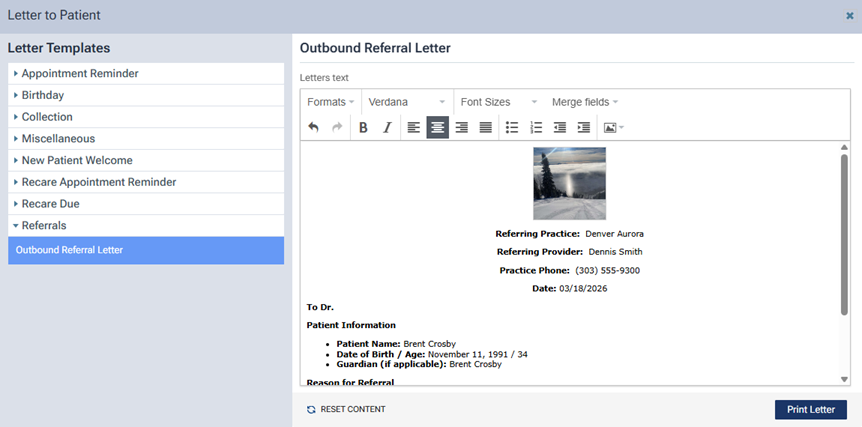
There is a new letter template for outbound referrals. To access this new template, go to Patient > Letter to Patient. In the Letter to Patient dialog expand the new Referral category on the left, and then select the new Outbound Referral Letter template. The corresponding letter appears on the right. The letter includes practice information at the top, some basic patient information, and a few sections under which you can add referral details and images.
Attaching Images
Also, for all letter templates, there is now an option for attaching images.
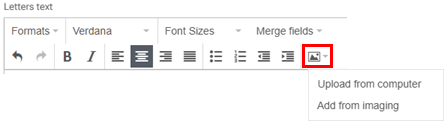
To attach images, do one of the following:
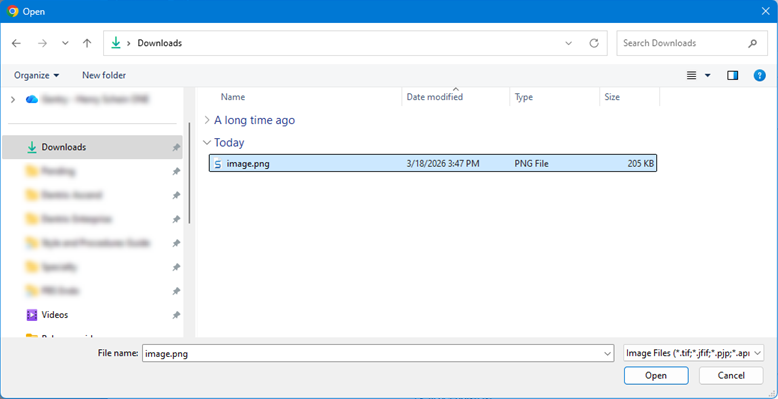
- In the letter text, position the text cursor where you want to insert images. On the menu, select the Upload from computer option. The Open dialog box appears. Navigate to and select the images that you want to include, and then click Open.
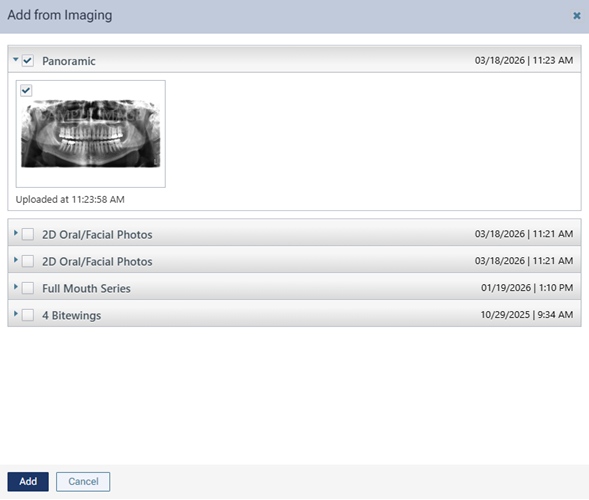
- In the letter text, position the text cursor where you want to insert an image. On the menu, select the Add from imaging option if the patient has images attached to his/her record. In the Add from Imaging dialog box that appears, click a procedure to view the corresponding images, select the checkboxes of images that you want to include, and then click Add.
Quickly Sending a Letter for Referred Treatment
1. While viewing a referred treatment plan for a patient, select procedures, and then click the new Send Referral Letter button (which is available only if at least one procedure is selected).
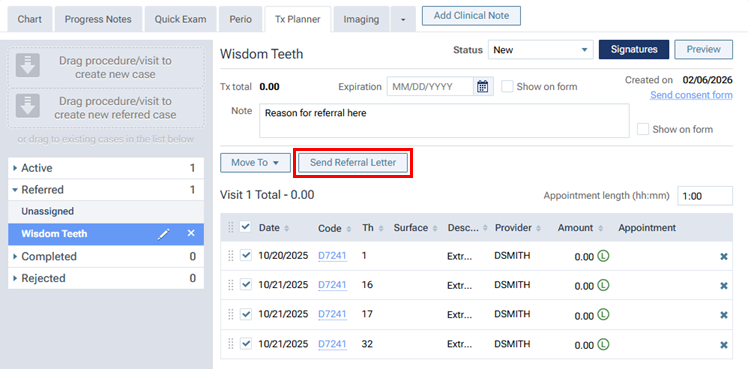
The Letter to Patient dialog box appears. The “Outbound Referral Letter” is loaded automatically.
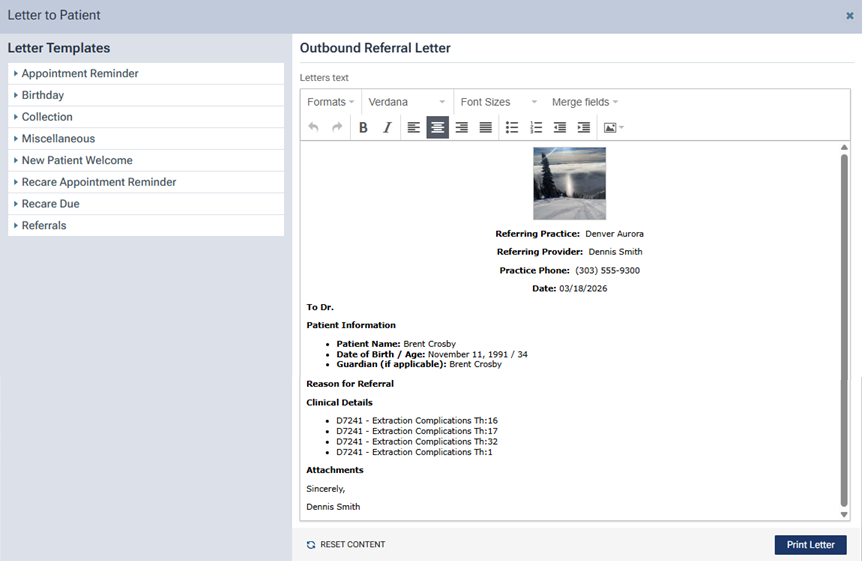
The practice information and basic patient information are inserted automatically, but you can change any of the information as needed.
2. Add the following as needed to the letter:
- To Dr. – Add the name of the doctor to whom you are referring the patient.
- Reason for Referral – Add the reason that you are referring this treatment.
- Clinical Details – The selected procedures are listed automatically, but you can add additional information.
- Attachments – Insert images from your computer or from the patient’s imaging record.
Note: Any edits that you make to the letter are not saved and do not change the template.
3. Click Print Letter.
The letter appears as a PDF document on a new browser tab.