
Released 7/14/26
Important Note: An updated acquisition agent may be required for features in this release. For instructions on checking for updates, refer to the “Updating the acquisition agent” Help topic.
Magnify On/Off Setting
There is now a setting for enabling/disabling the Magnify tool.
Note: This setting is computer specific.
To see the new setting, click the cog icon next to the Images and Tools tabs.
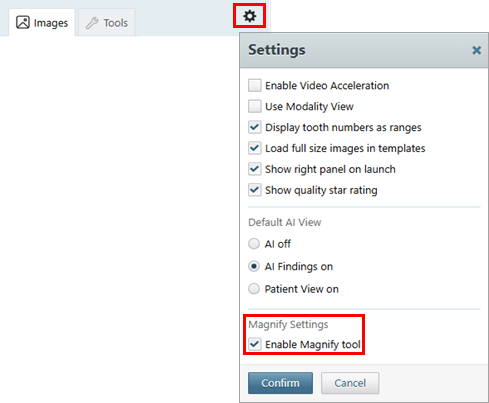
With the Enable Magnify tool checkbox selected, the Magnify tab is available on the AI panel (the panel on the right). This is the default state if the setting has not been changed since this setting was released.
With the Enable Magnify tool checkbox clear, the Magnify tab is not available on the AI panel (the panel on the right).
Fixes
This release resolves the following issues:
- The RealCloud Extractor stops due to a “500” error during patient retrieval. (IMG-596)
- If Image Verify is enabled, an UncaughtType Error is thrown if you attempt to retake images on an image slot that did not have any previous Image Verify results. (IMG-908)
- On the Overview page, if you resize the window, images do not maintain their sizes. (IMG-958)
- The Narrow Down Results dialog box in the Exam View is off the page when the language is set to Spanish. (IMG-966)
- With AI enabled, if you select an exam and then select another one too quickly, an UncaughtType Error is thrown. (IMG-969)
- The acquisition agent’s Preferences dialog box does not appear for certain display resolutions or configurations. (IMG-980)
- If you attempt to share 3D volumes from Dentrix Ascend Imaging to Blue Sky Bio, it does not work, and Blue Sky Bio displays an error message that the directory is empty. (IMG-994)
- During KDIS/Carestream 8 extractions, converted images can have incorrect orientation and exam grouping. (IMG-997)
- During KDIS extraction, some patient IDs are not extracted. As part as the fix, the KDIS image folder no longer needs to be renamed manually. (IMG-1003)
- The AI footer buttons disappear after you navigate away from the density tool. (IMG-1028)
- On the Image Verify tab of the AI panel, the list of possible issues goes beyond the side panel border when the window size is reduced. (IMG-1030)
- In the Modality View, in tile view, if you change pages (by navigating to the next page of images), the next page is not displayed on the left. Using the back/Next buttons above the display area to navigate from one page to the next does not update the current page. (IMG-1032)
- In the Exam View, the icons are off center on the “Show/hide AI findings,” “Show/hide AI tooth parts,” and “Show/hide Patient View” buttons. (IMG-1037)
- When a patient has only deleted exams, using the “Show Everything” button throws an uncaught type error and causes the “Show deleted” checkbox to stop working until the page is reloaded. (IMG-1052)