
Released 4/16/26
Important Note: An updated acquisition agent is required for a feature in this release. For instructions on checking for updates, refer to the “Updating the acquisition agent” Help topic.
Enhancements
This release provides the following enhancements.
Displaying Carestream Devices First
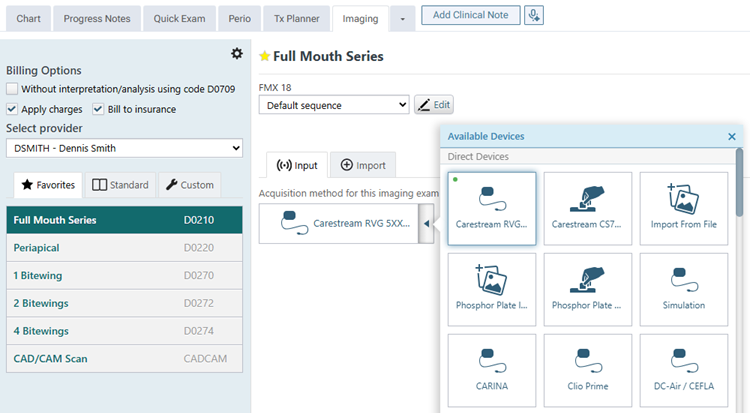
The acquisition device menu can now display Carestream devices first. All other available devices will appear on the menu after the Carestream devices.
To make Carestream devices appear first
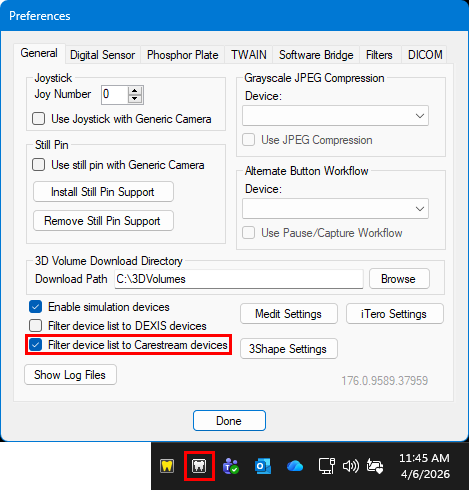
1. Right-click the Acquisition Agent icon, and then select Preferences.
The Preferences dialog box appears.
2. Select the Filter device list to Carestream devices checkbox.
3. Click Done.
The acquisition device menu now displays Carestream devices first.
Exporting Images as JPG Files
Exported images are now saved as.jpg files instead of .jpeg files.
Fixes
This release resolves the following issues:
- An error appears when you attempt to reassign an exam. (IMG-177)
- After exiting compare mode, you cannot change an annotation’s outline width or switch to another annotation type. (IMG-204)
- In compare mode the brightness/contrast button does not have a border but should have a border color that matches the color indicator of the selected slot. (IMG-243)
- While using an iPad, in compare mode, tapping an image does not change the selected image. (IMG-273)
- When you attempt to reassign an exam for a 3D volume with a snapshot to another patient, the following error appears: “Uncaught Type Error: Cannot read properties of undefined (reading ‘removeExam’).” (IMG-295)
- When you are using the AI pop-up menu to navigate AI results, the top items of the menu are cut off. (IMG-298)
- In the Modality View, on the 3D Volumes/CBCT tab, when you press the Back/Next buttons or arrow keys to change the selected image, the thumbnail preview of the selected image does not change. If you attempt to click the newly selected exam, only the newest exam loads. (IMG-303)
- In the Modality View, on the CAD/CAM/IOS tab, when you press the Back/Next buttons or arrow keys to change the selected image, the thumbnail preview does not change. If the user clicks the image with the gold border, the first Image from the latest exam attempts to load. (IMG-304)
- If you use the Rearrange Exam feature to swap images between slots and then flip/rotate the images more than one time, the images might not be displayed properly after you save the changes. (IMG-310)
- During acquisition, if you attempt to change the acquisition device, an Uncaught Type Error appears. (IMG-316)
- When you initially open compare mode, the zoom and brightness/contrast controls do not work. (IMG-318)
- In the Modality View, when you enter compare mode, there is a horizontal scroll bar at the bottom of the images tab, but there should not be. (IMG-319)
- On the Overview tab of the Modality View, if you collapse the side panel, view an image, and then expand the side panel, the image preview window becomes blank. (IMG-330)
- In the Modality View, if you view a CAD/CAM scan in the single image view and then click the “Display a single image” button to switch to the thumbnail view, an error appears in the console. (IMG-344)
- In the Exam View, as you navigate a stack of images, the image preview does not match the current image. (IMG-349)
- If you select a patient to synchronize his/her offline images, an uncaught syntax error appears in the console log. (IMG-350)
- In compare mode, after you double-click an image, the brightness/contrast button has a highlighted border, but it should not be highlighted. (IMG-351)
- If you navigate to either the first image in the most recent exam or the last image in the oldest exam, hide the left panel, and then click either the Previous or Next button, an Uncaught Type Error appears in the console. (IMG-390)
- In the Exam View, if you exit full screen mode, you cannot hide the AI panel (on the right), or you cannot reopen the panel if you had hidden it before you entered full screen mode. (IMG-391)
- In the AI Findings pop-up menu, the options and checkboxes are misaligned. (IMG-394)
- The first time you open the Modality View, an “Error loading Dexis X-ray series info” error appears in the console. (IMG-416)
- In compare mode, selecting another image for the comparison does not always move that image next to the original image on the film strip. (IMG-420)
- If you change the Enhancement for an image, either the changes are not reflected in the Image Navigator box and on the film strip if the exam was acquired in Simple Mode, or the changes are not reflected on the film strip even if the exam was acquired in Advanced Mode. (IMG-453)
- In the Exam View, if the sidebar is not collapsed and you enter full screen for a single-slot exam with images in a stack, the navigation arrows appear on the sides of the viewing area, but those arrows should not be there. (IMG-456)
- When you export an image with annotations, in the .png/.jpg file, the annotation placement is shifted. (IMG-481)
- Measurement and AI result placement is shifted in the JPG/PNG/PDF version of an image. (IMG-607)
- If you flip, rotate, or straighten an image, the annotations, measurements, and/or AI results do not line up with exported or printed image. (IMG-618)