
Released 3/18/26
Important Note: An updated acquisition agent may be required. For instructions on checking for updates, refer to the “Updating the acquisition agent” Help topic.
Enhancements
This release provides the following enhancements.
Comparing up to Six Images at Once
You can now compare up to six images (intraoral or extraoral; X-ray or photo) at once. This enables clinicians to flexibly compare multiple images side-by-side while maintaining visual context and efficiency.
To compare multiple images
1. While viewing an image, click Compare.
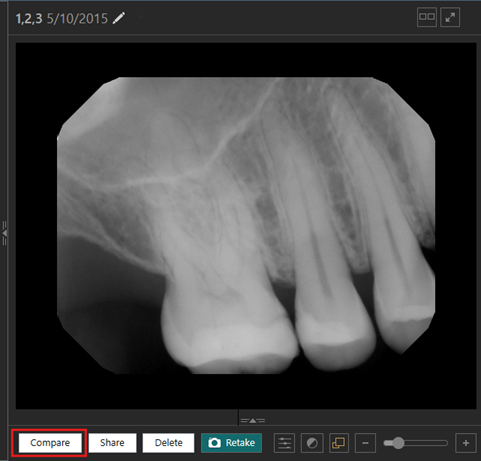
The image is loaded in the first comparison frame, the images for the same tooth range appear on the filmstrip, and there are options on the lower toolbar.
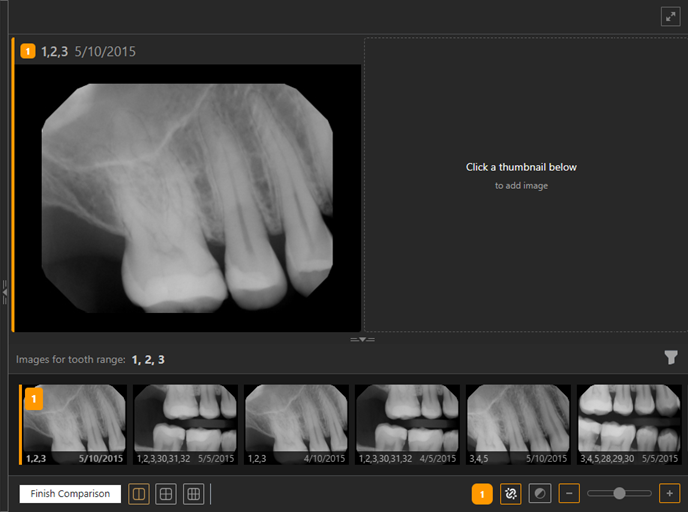
2. In the lower-left corner, select the icon that corresponds to the desired number of frames: two, four, or six.
3. Select each image on the filmstrip in turn to add that image to the comparison frame in the viewing area. Each frame with an image has color and number indicators, and the corresponding image on the filmstrip has the same color and number indicators.
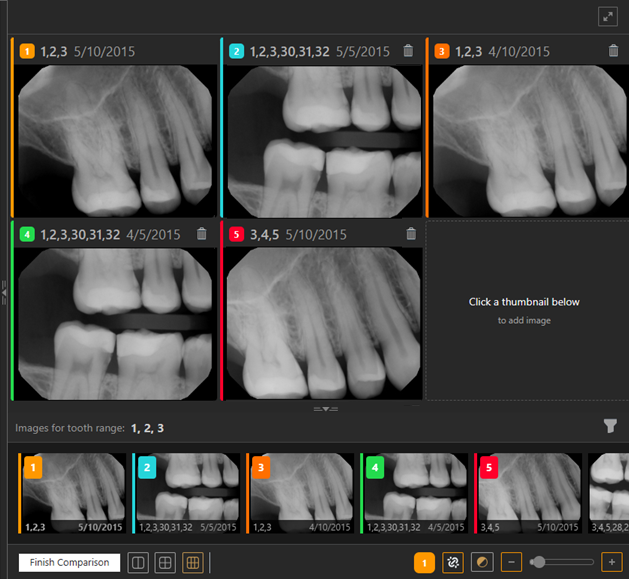
Notes:
- The filter icon (for filtering which images appear on the filmstrip) is now a funnel (previously, it was a pencil icon).
- To remove an image from a comparison frame in the viewing area, click the corresponding trash can icon.
- The tools in the lower-right corner have number and color indicators that match the selected frame.
4. When you are done comparing images, click Finish Comparison.
Workstation-level Settings
Workstation-level settings are now supported through the acquisition agent. Workstation settings apply to all users on a specific workstation. The settings revert to the local storage if the acquisition agent is unavailable.
Increased Font Size of Date
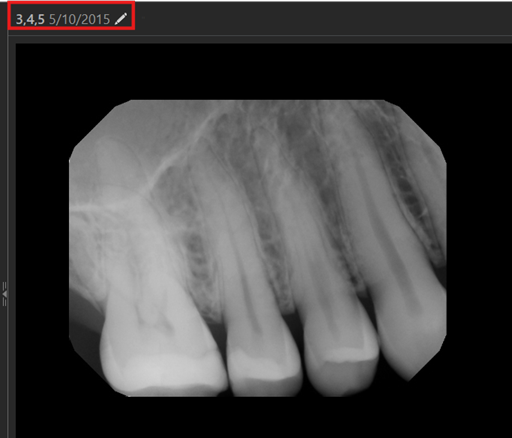
For visual consistency and improved readability, in the header that displays the teeth and date for an image, the font size of the date is now the same as that of teeth.
Increased Size of Procedure List
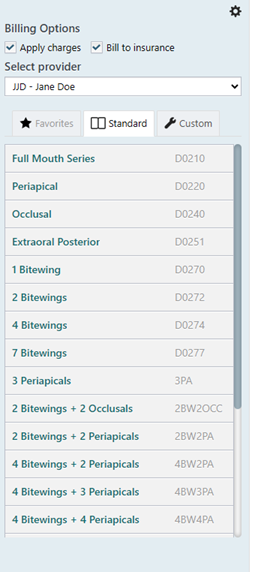
The procedure list now expands to utilize the available vertical space so more procedures can be visible at once. This may reduce scrolling.
Fixes
This release resolves the following issues:
- Unable to reassign 3D volume after taking a snapshot. (IMG-52)
- For an acquired exam using a phosphor plate, the first image is loaded twice. (IMG-76)
- When the AI side panel is collapsed, the image in the viewing area does not resize to fill the space appropriately. (IMG-125)
- Density, Calibration, and AI tools are not fully viewable at the minimum resolution. (IMG-128)
- Image does not get recentered after the AI side panel is collapsed. (IMG-162)
- In the Modality View, after an error with More Options, the error message still appears after the dialog box is closed and reopened. (IMG-173)
- When you are reassigning an exam, the list of patients to select from displays the incorrect exam count. (IMG-176)
- When you are resuming an exam, the provider is not properly selected. (IMG-178)
- In offline mode sync, the internal patient ID is posted when you sync patients to a server with external IDs enabled. (IMG-179)
- When you attempt to merge patients, “AJAX error in SetExamsPatient” appears. (IMG-182)
- Null reference exceptions appear. (IMG-205)