Released 9/24/25
Dentrix Ascend now leverages AI technology to allow you to chat with a virtual assistant to get a how-to question answered quickly. Also, if you are unable to get your question answered by the virtual assistant or need further assistance, you can chat live with a support technician.
The AI assistant icon appears in the lower-left corner of Dentrix Ascend.

1. Click the icon to display the Chat dialog box.

Note: Your name, email address, and customer ID are populated automatically.
2. Select a Product that best matches what you have questions about (such as Ascend or Imaging).
Note: The selection does not affect the search results of any queries. It is used solely to help direct you to the correct representative quickly should you later choose to request help from a person.
3. Click Start Conversation.
A welcome message appears.

4. In the Type your message… box, enter your question, and then press Enter (or click the Send message button).

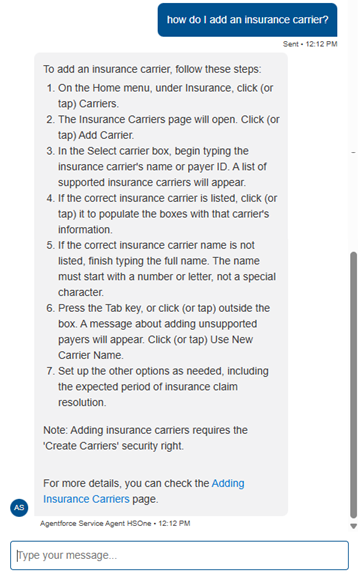
Wait while the AI engine searches resources and attempts to determine a suitable response. Then, a summary of the matching topic appears. Also, there is a link to the resource if you would like to see more details.
Notes:
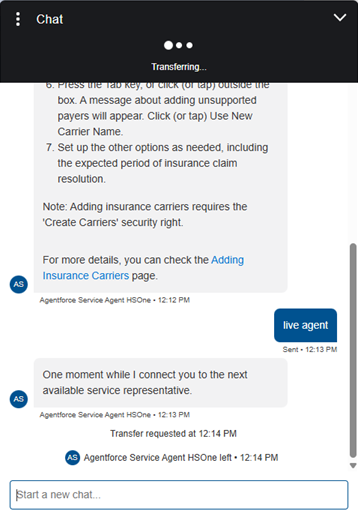
- If you want to chat with a person, type live agent, and then press Enter (or click the Send message button). You will be transferred to the next available service representative.
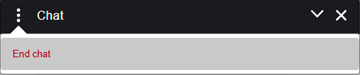
- If you want to end the chat session, on the menu (in the upper-left corner of the Chat dialog box), select End Chat. Then, click the X to close the dialog box.