
Released 9/2/26
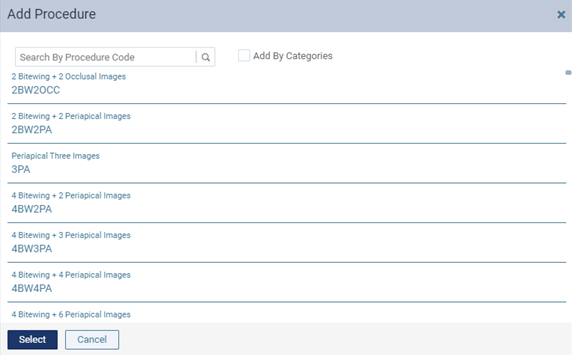
The dialog box for adding procedures to custom treatment consent messages has been enhanced.
To add procedures to a custom treatment consent message
1. If you are not already viewing the correct location, select it on the Location menu.
2. On the Settings menu, under Patient Care, select Treatment Plan Settings.
The Treatment Consent Messages page opens.
3. To create a new custom treatment consent message, click Add New. (To edit an existing custom treatment consent message, select it on the left panel.)
The options for customizing the treatment consent message become available.
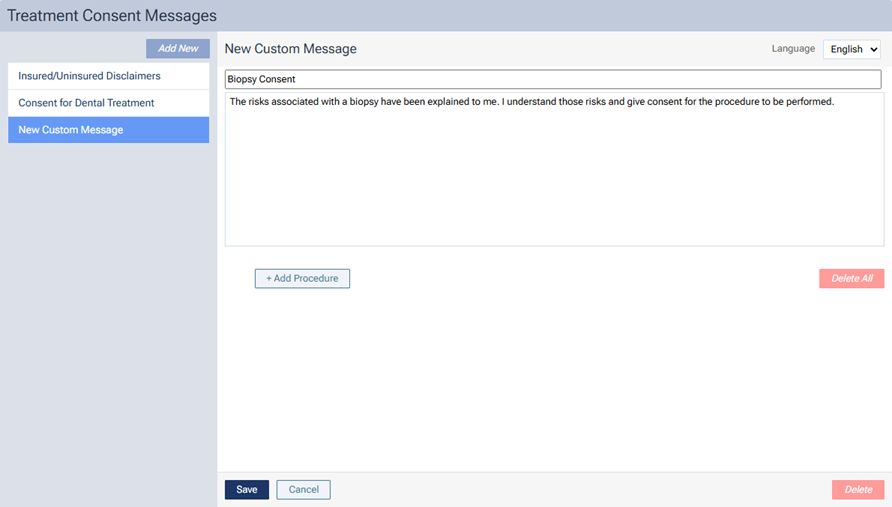
4. Click + Add Procedure.
The Add Procedure dialog box appears.
Old
New
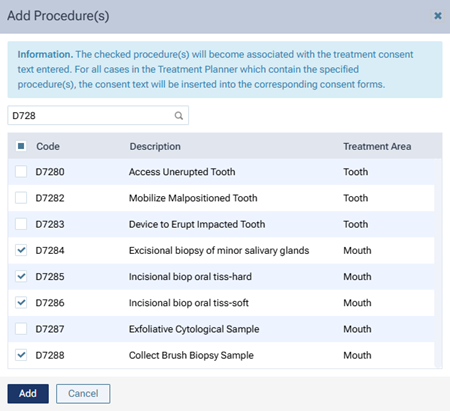
Note: Multi-codes and inactive procedure codes do not appear in the list.
5. Use the Search for specific procedure search box at the top of the list to quickly search for procedures by code or description.
6. Select the checkbox of each procedure that you want to associate with this treatment consent message.
7. Click Add.
The selected procedures are now associated with the treatment consent message.

8. Click Save.