
EARLY ACCESS ONLY
Important Note: An updated acquisition agent may be required for features in this release. For instructions on checking for updates, refer to the “Updating the acquisition agent” Help topic.
Preferred Device Settings
You can now manage the preferred devices for all users in your entire organization from one location.
Key capabilities:
- Configure which devices are allowed per image type.
- Designate a favorite device per image type.
- Apply the settings consistently across your entire organization.
To manage preferred devices
1. While you are viewing the Chart, Progress Notes, Perio, Tx Planner, or Imaging tab of a patient’s clinical record, on the Imaging tab’s menu, select Acquire images.
2. On the navigation panel, click the Settings button
 .
.

The Settings dialog box appears.
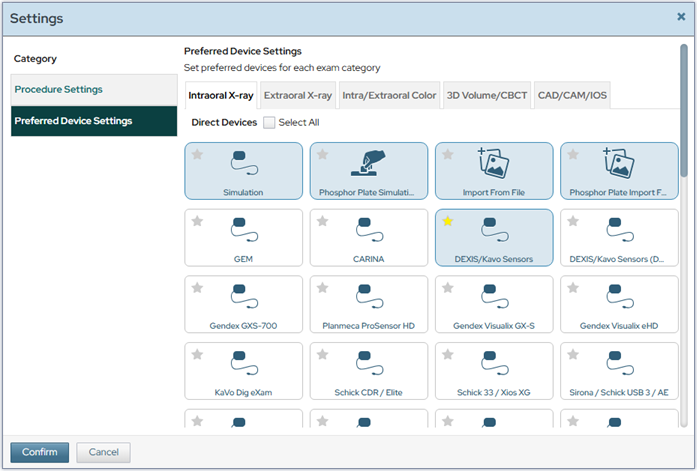
This dialog box now presents the settings by category (which you can navigate between by selecting an option on the navigation panel on the left):
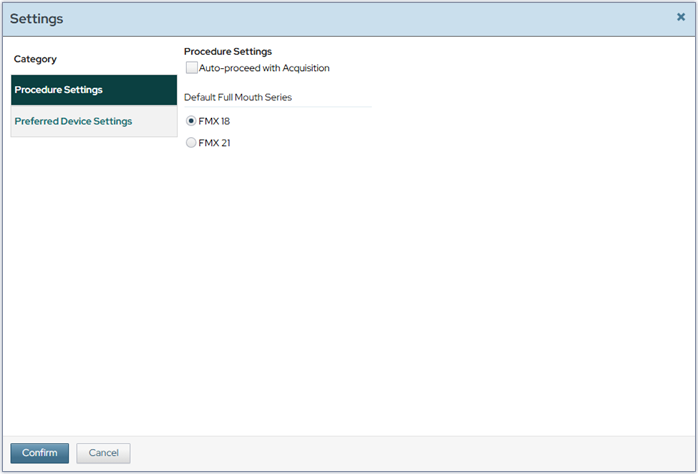
- Procedure Settings – These are the acquisition settings from previous versions of Dentrix Ascend Imaging. There is no change in their functionality.
- Preferred Device Settings – These are the new settings.
3. On the left, select Preferred Device Settings.
On the right, the acquisition devices appear and are grouped by image type. Use the following tabs to navigate between the types: Intraoral X-ray, Extraoral X-ray, Intraoral/Extraoral Color, 3D Volume/CBCT, and CAD/CAM/IOS.
Notes:
- On each tab, under Direct Devices, the devices that appear correspond to the installed hardware that is registered in the acquisition agent. When you add or remove devices, the Settings dialog box displays or removes those devices automatically.
- On each tab, under Software Devices (Bridges), the available third-party integrations that are available through a bridge appear.
- On each tab, under Twain Devices, the devices that appear correspond to the installed TWAIN drivers that are registered in the acquisition agent.
- Whenever a new direct, software, or TWAIN device is added, you should return to the Settings dialog box to manage your preferred devices.
4. On each tab, select each device that you want to have appear on the Available Devices menu when you are acquiring images of that type.
Note: You can select or clear a Select All checkbox to quickly select or deselect all the corresponding devices.
5. On each tab, to designate a favorite device for acquiring images of that type, select that device’s star icon (which then turns from gray to yellow). The specified favorite device appears at the top of, and is selected by default on, the Available Devices menu when you are acquiring images of that type.
Notes:
- Only one favorite per image type is allowed.
- Designating a favorite is optional. If a favorite is not specified for an image type, the Available Devices menu displays the devices in the standard order without pre-selecting a certain device.
6. Click Save.
Note: The specified preferred device settings affect all users on all computers across all locations of your organization.
Procedure Settings
The acquisition (procedure) settings now share the Settings dialog box with the preferred device settings.
Before
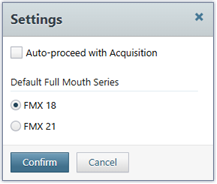
Now
ScanX IS ScanFlow Support
A ScanX IS ScanFlow software bridge is now provided for CAD/CAM scan acquisitions. Through the ScanFlow software bridge, DEXIS-compatible intraoral scanners, including the IS 3800 and Imprevo, are supported.
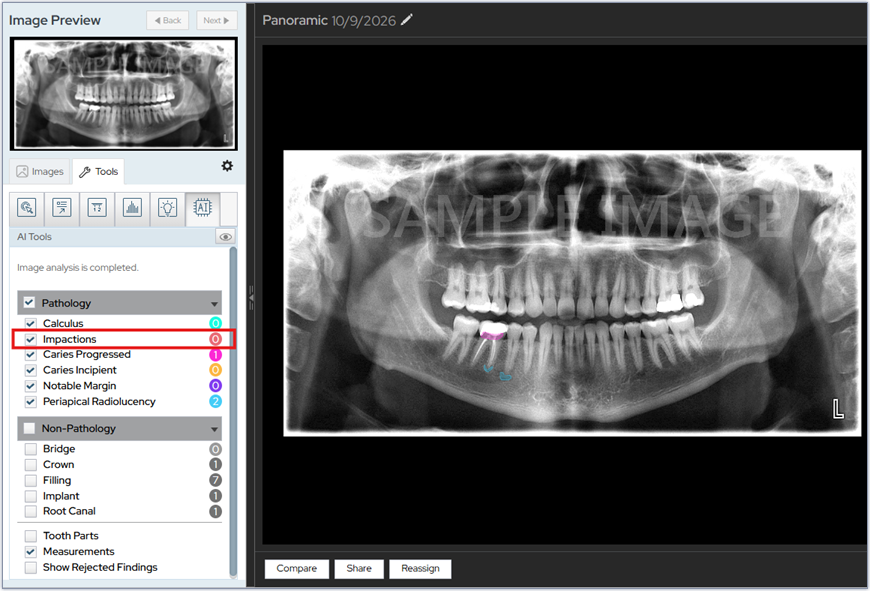
Pearl AI – Impactions
If you are using Pearl AI, for panoramic images, an Impaction option has been added to the Pathology category of the AI tools.
Bug Fixes
- Restored delete availability for the first captured image in Modality View. (IMG-60)
- Improved Vatech EzSensor support for multiple sensors. (IMG-716)
- Prevented Acquisition Agent crashes when skipping while EzSensor acquisition is still pausing. (IMG-717)
- Rotated VistaPano images 180 degrees for the affected Dentally workflow. (IMG-1150)
- Fixed the Acquire Setup settings cog error when Preferred Devices is disabled. (IMG-1565)
- Improved Dexis/Kavo driver lock handling and timeout behavior. (IMG-1679)
- Improved recovery-folder scanning speed during drag-and-drop acquisition. (IMG-1702)
- Prevented advanced-mode acquisition from starting before devices are loaded. (IMG-1711)
- Corrected the resumed Import From File device option so the original workflow is preserved. (IMG-1719)
- Repositioned the selected-device indicator so it no longer overlaps the favorite star. (IMG-1737)
- Addressed overlapping Videa Tooth Anatomy hitboxes. (IMG-1755)
- Fixed device-list loading errors when quickly changing procedures. (IMG-1758)
- Applied iRay Pluto correction files to sensor images. (IMG-1767)
- Supported single-file DEXIS 3D volume acquisition through the software bridge. (IMG-1768)
- Reduced false Dexis lock-file detections when Dexis is already closed. (IMG-1879)
- Corrected Retake UI behavior after retaking images in resumed template mode. (IMG-1889, IMG-1922)
- Preserved iRay Pluto files during Acquisition Agent uninstall or update. (IMG-1899)
- Restored hover effects for buttons in Acquire Template mode. (IMG-1900)
- Restored spacing between acquisition sequence radio buttons and the sequence dropdown. (IMG-1904)
- Reduced flickering while panning linked Compare images. (IMG-1026)
- Corrected Compare view resizing when the left panel is hidden or shown. (IMG-1570)
- Displayed the pan window when zooming in Modality View anatomical mode. (IMG-1655)
- Prevented brightness/contrast drag from starting in the Tools tab area. (IMG-1686)
- Kept Big Template zoom buttons disabled when already at min/max zoom. (IMG-1688)
- Updated the 3D annotations/measurements visibility button behavior. (IMG-1692)
- Corrected X-ray image sizing in Modality View image slots. (IMG-1694)
- Ensured the Modality View reassign window shows the full exam. (IMG-1695)
- Prevented Add Placeholders from becoming active while editing existing custom procedures at small frame sizes. (IMG-1697)
- Prevented brightness/contrast reset after double-click adjustments in single-image view. (IMG-1698)
- Improved anatomical image positioning consistency in Modality View. (IMG-1701)
- Addressed a 3D annotation workflow that could make the page unresponsive. (IMG-1705)
- Enabled slice-plane indicator visibility controls in 3D full-panel view. (IMG-1706)
- Restored left/right arrow-key navigation in Modality View tiled view with the menu collapsed. (IMG-1720)
- Prevented Image Navigator access while in Compare. (IMG-1722)
- Moved Compare AI controls to the correct side of the interface. (IMG-1727)
- Removed white-rectangle artifacts when navigating Modality View tiled view with keyboard and mouse. (IMG-1734)
- Corrected Tiled View so all expected exams and images are visible. (IMG-1736)
- Updated the image navigator correctly when moving between pages in tiled view and single-image view. (IMG-1749)
- Improved 3D volume loading for valid RescaleIntercept values such as -32768. (IMG-1750)
- Kept dialog boxes within screen bounds at minimum resolution in full-screen mode. (IMG-1751)
- Fixed 3D quad slider touch behavior on iPad Pro. (IMG-1752)
- Prevented annotations and spotlight interactions on iPad from changing brightness/contrast. (IMG-1753)
- Reduced empty space in right-side AI tabs when Magnify and Image Verify are enabled. (IMG-1817)
- Improved consistency for Annotations, Measurements, Density, and Spotlight tools. (IMG-1818)
- Ensured the selected image appears in the image navigator when entering single-image view from Modality View tiled view. (IMG-1876)
- Made the Images tab exit single-image view in Modality View. (IMG-1877)
- Prevented zoomed images from covering dates and tooth numbers in Big Template and Modality modes. (IMG-1878)
- Fixed console errors when changing tools. (IMG-1882)
- Updated Modality View image navigator thumbnails when tools modify an image. (IMG-1884)
- Prevented rapid image switching in the Annotations tab from triggering brightness/contrast changes. (IMG-1886)
- Restricted the AI Tools tab to eligible exam types. (IMG-1893)
- Fixed TypeErrors when rapidly selecting images or previews with full-size template images enabled. (IMG-1895)
- Prevented Spotlight and CBCT volume tools from breaking each other. (IMG-1897)
- Prevented TypeErrors when selecting empty CAD/CAM slots. (IMG-1901)
- Corrected CAD/CAM/IOS Big Template mode tooltips. (IMG-1902)
- Cleaned up Big Template mode button graphics on hover. (IMG-1903)
- Kept Colorize working after black/white level adjustments. (IMG-1909)
- Fixed the stuck mainLoader indicator after switching modality tabs. (IMG-1912)
- Restored display-tool brightness/contrast/level values when switching exams. (IMG-1914)
- Fixed cut-off thumbnails in the image navigator. (IMG-1918)
- Removed console errors when reassigning IOX exams in Modality View tiled view. (IMG-1924)
- Displayed AI results in Big Template Mode when full-size template images are enabled. (IMG-1927)
- Labeled the Pearl side panel correctly and prevented translation of the Pearl brand name. (IMG-1656)
- Resubmitted the correct Videa-eligible images after Rearrange transformations. (IMG-1666)
- Fixed TypeErrors when switching Videa AI display modes. (IMG-1667, IMG-1668)
- Corrected Pearl bounding boxes after One Click rotate. (IMG-1669)
- Restored AI results after exiting Big Template mode with full-size templates disabled. (IMG-1670)
- Prevented Pearl dropdowns from queueing rapid expand/collapse clicks. (IMG-1689)
- Prevented Freehand Draw interactions from hiding AI results. (IMG-1691)
- Ensured transformed images are resubmitted to Videa even when users quickly change images. (IMG-1696)
- Prevented AI result resubmission from hiding freehand annotations. (IMG-1707)
- Closed the AI menu when switching tabs. (IMG-1713)
- Restored recovery for CAD/CAM and 3D 2D image-link images. (IMG-1709)
- Prevented TypeErrors when beginning 3D recovery with no volume selected. (IMG-1733)
- Removed recovery files after successful 3D uploads even when the cache path is invalid. (IMG-1748)
- Preserved rotated, flipped, and straightened footer image edits when dragging images into Ortho Report. (IMG-1890)
- Allowed the DEXIS Extractor to continue when LoadImage hits an out-of-memory condition. (IMG-998)
- Improved Sidexis image rotation handling during extraction. (IMG-1035)
- Continued VixWin extraction when invalid patient file names are encountered. (IMG-1121)
- Continued Mediadent exam grouping when a single image fails to load. (IMG-1540)
- Grouped Mediadent exams using OleGetImageInfo metadata and exported JPEGs only during conversion. (IMG-1566)
- Skipped DICOM tooth decoding when region or modifier CodeValue is empty. (IMG-1654)
- Corrected the AIDE full-screen top banner color in Peek. (IMG-1690)
- Corrected the AIDE full-screen toggle icon. (IMG-1693)
- Prevented enhancement from being applied to custom color images. (IMG-1801)
- Removed extra lines and spacing beside custom procedure checkboxes. (IMG-1809)
- Allowed the patient dropdown ID section to accommodate external IDs. (IMG-1810)
- Restored the white background for available devices during acquisition. (IMG-1819)
- Fixed the Playwright custom template edit page test error. (IMG-1821)
- Extended offline-sync background color through long exam lists. (IMG-1823)
- Removed unexpected hover shadows and white lines on left-side footer buttons. (IMG-1826)
- Centered and normalized Custom Procedure placeholder transform buttons. (IMG-1875)
- Improved autofocus for login password and patient search, plus keyboard support for patient selection. (IMG-1926)