
EARLY ACCESS ONLY
You can now add a practice logo to an email campaign, and each email message that gets delivered will include the logo that corresponds to the recipient’s preferred location. Instead of creating separate campaigns for each location or manually managing image URLs, you can now build a single email template and have the applicable practice logo displayed for every recipient.
Note: The Campaigns feature is available only with a Dentrix Ascend Pro or Accelerate subscription. It is not available with an Essentials subscription.
To add a location-specific logo to an email campaign
1. When you are creating an email campaign, during the Compose Email Campaign step, click ADD LOCATION LOGO to add a placeholder logo to the message.
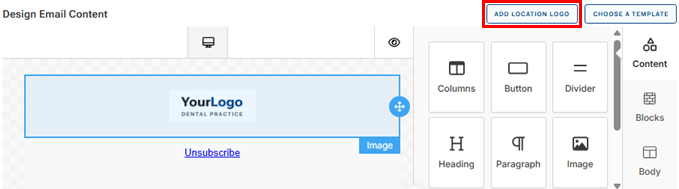
2. Revise the image’s padding or other attributes as needed.
3. Finish the campaign as normal.
4. When the campaign is sent, Dentrix Ascend automatically inserts the correct logo (based on the recipient’s preferred location in his/her patient record).
Note: For information about customizing the logo for each location, see the Help topic about customizing your practice profile.